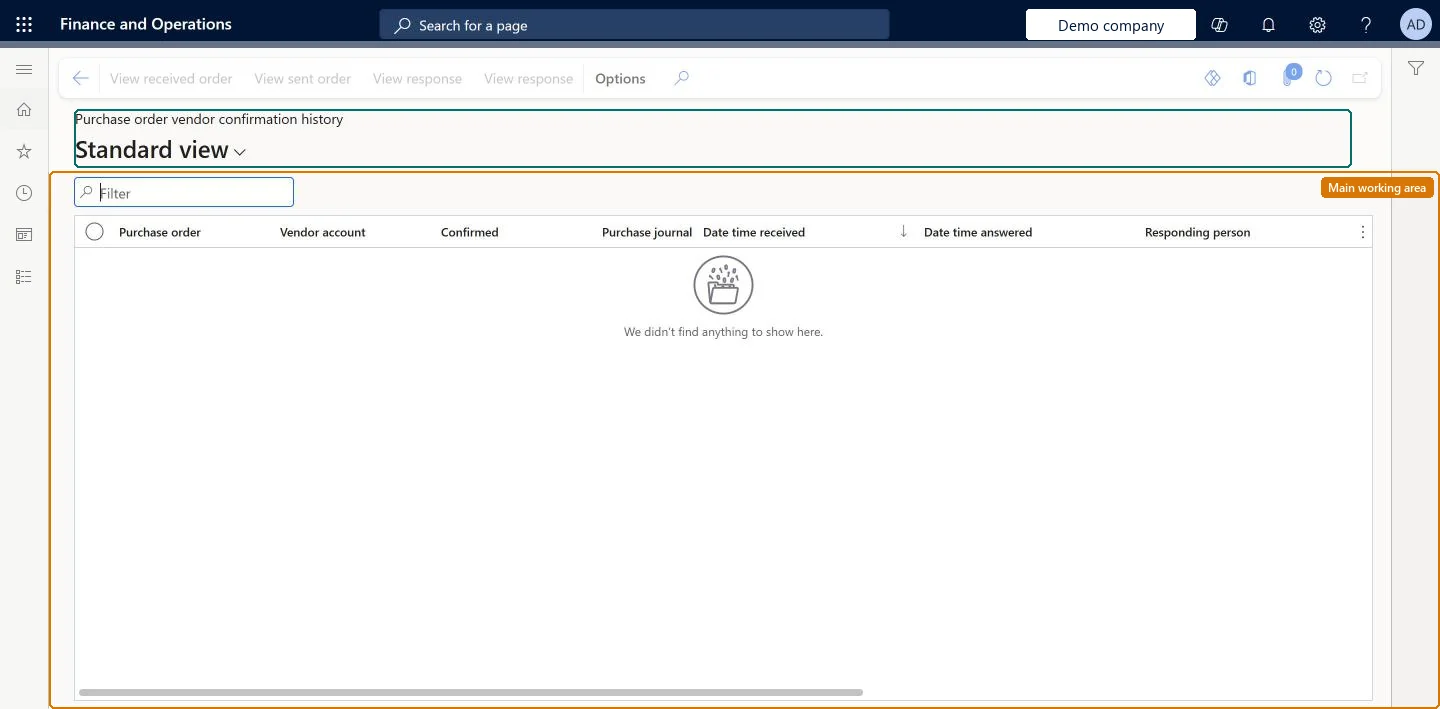
Check the confirmation history of a purchase order
Vendor collaborationPurchase orders
PurchVendorPortalVersionHistory
Used by
Vendor contact (external)
Business process
Manage open purchases
Menu item
PurchVendorPortalVersionHistory
Main table
PurchaseOrderResponseHea
Data entity
None for this page's own settings
Setup steps
1 on this page
Show what matters for
SETUP GUIDEHow to set it up8 sections. Choose a role to highlight what matters to you.
Everyone
1What it is and why
What it is
A list page of every purchase order and purchase order version sent to the vendor, together with the vendor's responses.
What you do here
Use this page to track the history of each purchase order, including all versions sent and all responses returned.
Example
For example, BEAT sends BEAT-000061 version 1, the vendor accepts it with a later receipt date, and BEAT sends version 2. The vendor opens the history, selects version 1 and View response to see what it suggested, then View sent order to compare it with version 2.
The page in Dynamics 365. page title tab to open what to set or check
About the examples: Examples and screenshots in this guide use BEAT, a demo company in a Dynamics 365 test environment. Use your own company's codes and values instead of copying them.
Setup steps on this page
Check the confirmation history of a purchase order
Compare the versions of a purchase order and the vendor's answers to each.
Steps from Microsoft
Go to Vendor collaboration > Purchase orders > Purchase order vendor confirmation history.
Filter on the purchase order number to list every version sent.
Select a version and View sent order to see what the customer sent.
Select View response to see what was answered, by whom and when.
Filter on one purchase order, then compare View sent order and View response per versionEach version and each response is a separate line, so without a filter the history of several orders is mixed.
Microsoft provides two external roles for vendor collaboration: Vendor admin (external), for contacts and user requests, and Vendor (external), for purchase orders, invoices, consignment inventory, RFQs and vendor information. External users created through a user request also get the SystemExternalUser role. On the live system, Vendor contact (external) can open this page.
The history covers every version of each purchase order sent to the vendor account, from every customer legal entity where the contact has access. Microsoft Learn
Can it be undone
Reversible: The page changes no data.
If you change it later
If the customer confirms an order without a vendor response, the order shows in the history as confirmed with no responses and the vendor can no longer confirm or reject it. Microsoft Learn
Technical architect
6Technical
Menu item
PurchVendorPortalVersionHistoryChecked in Dynamics 365
Form
PurchVendorPortalResponsesHistoryListChecked in Dynamics 365
Table
PurchaseOrderResponseHeaShown as “PURCHASE ORDER RESPONSE HEADER SUMMARY” in Record infoChecked in Dynamics 365
Data entities
PurchaseOrderResponseHeaderEntityPurchase order response headers (the vendor's responses; the versions sent come from the customer's purchase order journals) Microsoft data model
Who can open it
PrivilegesView vendor purchase orders VendVendorPurchOrderJournalViewDutiesMaintain process purchase orders VendVendorPurchOrderMaintain1 security roleVendor contact (external) VendVendorContactChecked in Dynamics 365
Roles to set it up and use it
To use itVendor contact (external) VendVendorContactGive people one of these roles. On this system, 1 role can open this page.Checked in Dynamics 365
Actions on the page
(Action Pane without tabs): View received order, View sent order, View response, View responseChecked in Dynamics 365
PurchaseOrderResponseHeaderEntity (Purchase order response headers): loaded for each company.Load order: The history builds up as orders are sent and answered; it is not usually migrated. Keep the old system's history for reference.Load first: purchase ordersChecked in Dynamics 365
Checked in a working Dynamics 365 system, version 10.0.49: the menu item, form, table and security, the page.
To cite this step: VC-PO-020, Check the confirmation history of a purchase order. Beyond ERP Atlas Hub, 2026-11-11. https://www.beyonderp.cloud/atlas/step/VC-PO-020