PAGE GUIDEWhat the page does and how to use it8 sections. Choose a role to highlight what matters to you.
Everyone
1What it is and why
What it is
A list page of the vendor's confirmed purchase orders that have not yet been fully received.
What you do here
Use this page to follow confirmed purchase orders until the products or services are fully received.
Example
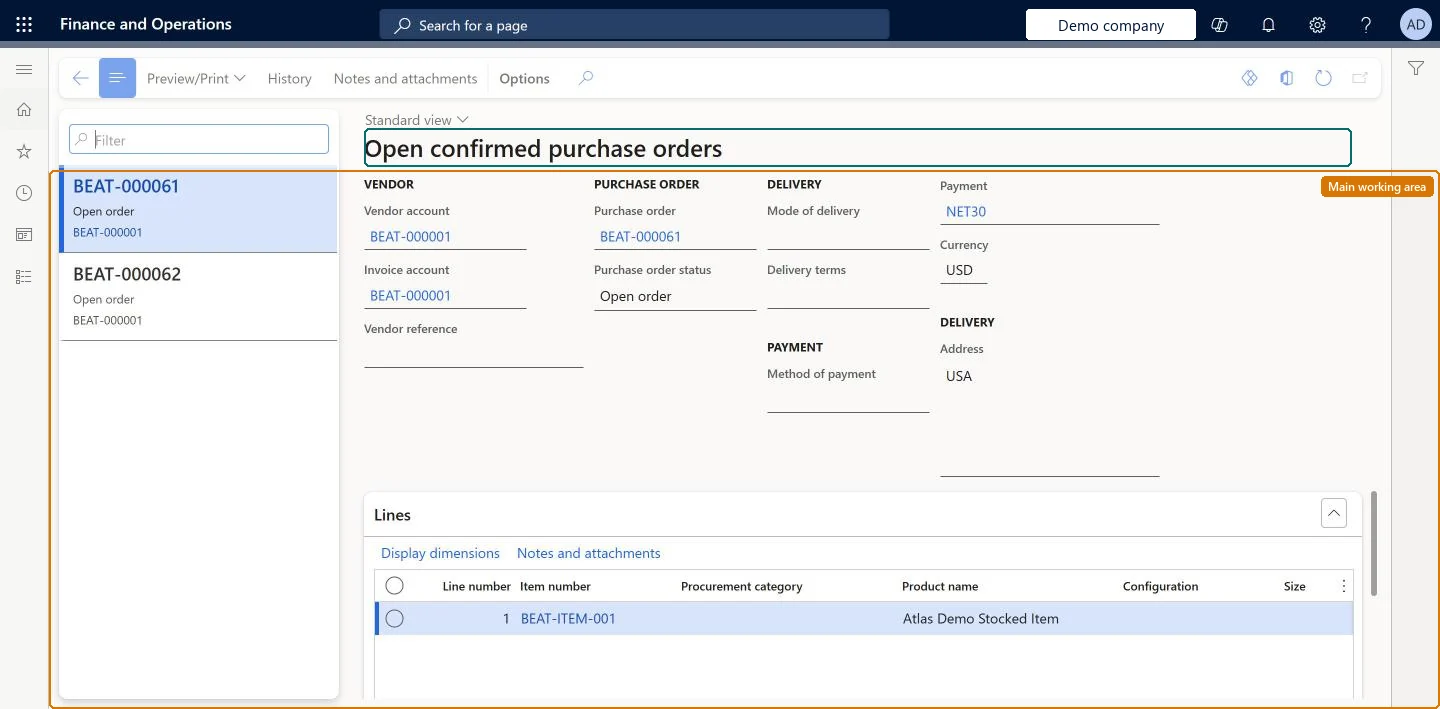
For example, vendor BEAT-000001 opens the page and sees BEAT-000061 and BEAT-000062, both Open order, payment terms NET30 in USD, with BEAT-ITEM-001 on line 1. It plans this week's deliveries from that list; an order leaves the list when BEAT has received it in full.
The page in Dynamics 365. page title tab to open what to set or check
About the examples: Examples and screenshots in this guide use BEAT, a demo company in a Dynamics 365 test environment. Use your own company's codes and values instead of copying them.
Setup steps on this page
Follow open confirmed purchase orders
Plan deliveries for confirmed orders that are not yet fully received.
Steps from Microsoft
Go to Vendor collaboration > Purchase orders > Open confirmed purchase orders.
Select an order in the list on the left to see its header and lines.
Use Display dimensions on the lines to show site and warehouse for delivery planning.
Select History to see how the order was confirmed.
The customer's vendor account and invoice account on the order.Checked in Dynamics 365
BEAT-000001
Purchase order / Purchase order status
The order number and its status in the customer company.Checked in Dynamics 365
BEAT-000061, Open order
Vendor reference
The vendor's own reference for the order.Checked in Dynamics 365
Payment / Currency
The payment terms and currency of the order.Checked in Dynamics 365
NET30, USD
Lines
Line number, item number, procurement category, product name and dimensions of each order line.Checked in Dynamics 365
Line 1, BEAT-ITEM-001
History
Action that opens the order's versions and responses.Checked in Dynamics 365
Common errors and fixes
Message
What to do
A changed order shows the old dates
The earlier confirmed version stays in the confirmed list until the new version is confirmed; answer the new version on Purchase orders for review. Microsoft Learn
Test checklist
Confirm a purchase order for the vendor.
As the vendor user, check that it is listed here with the status Open order.
Post a product receipt for the full quantity in the customer company.
Check that the order is no longer listed here but is still on All confirmed purchase orders.
Use this list, not All confirmed purchase orders, for delivery planningThis list drops an order once it is fully received, so it shows only what is still to deliver.
Microsoft provides two external roles for vendor collaboration: Vendor admin (external), for contacts and user requests, and Vendor (external), for purchase orders, invoices, consignment inventory, RFQs and vendor information. External users created through a user request also get the SystemExternalUser role. On the live system, Vendor contact (external) can open this page.
Orders of the vendor account from every customer legal entity where the contact has vendor collaboration access. Microsoft Learn
Can it be undone
Reversible: Reversible: the page changes no data. Microsoft Learn
If you change it later
When the customer changes a confirmed order, the earlier confirmed version stays in the confirmed list until the new version is confirmed. Microsoft Learn
Technical architect
6Technical
Menu item
PurchVendorPortalConfirmedOpenOrdersChecked in Dynamics 365
Form
PurchVendorPortalConfirmedOrdersChecked in Dynamics 365
Table
PurchTableAllVersionsShown as “PURCHASE ORDER HEADER VERSIONS” in Record infoChecked in Dynamics 365
Who can open it
PrivilegesView confirmed vendor purchase orders VendVendorPurchOrderConfirmedViewDutiesMaintain process purchase orders VendVendorPurchOrderMaintain1 security roleVendor contact (external) VendVendorContactChecked in Dynamics 365
Roles to set it up and use it
To use itVendor contact (external) VendVendorContactGive people one of these roles. On this system, 1 role can open this page.Checked in Dynamics 365
Actions on the page
(Action Pane without tabs): Preview/Print, History, Notes and attachmentsChecked in Dynamics 365
Load order: Open confirmed purchase orders has no data entity in Data management. The list shows the customer's confirmed purchase orders; migrate open purchase orders in the customer company instead.Checked in Dynamics 365