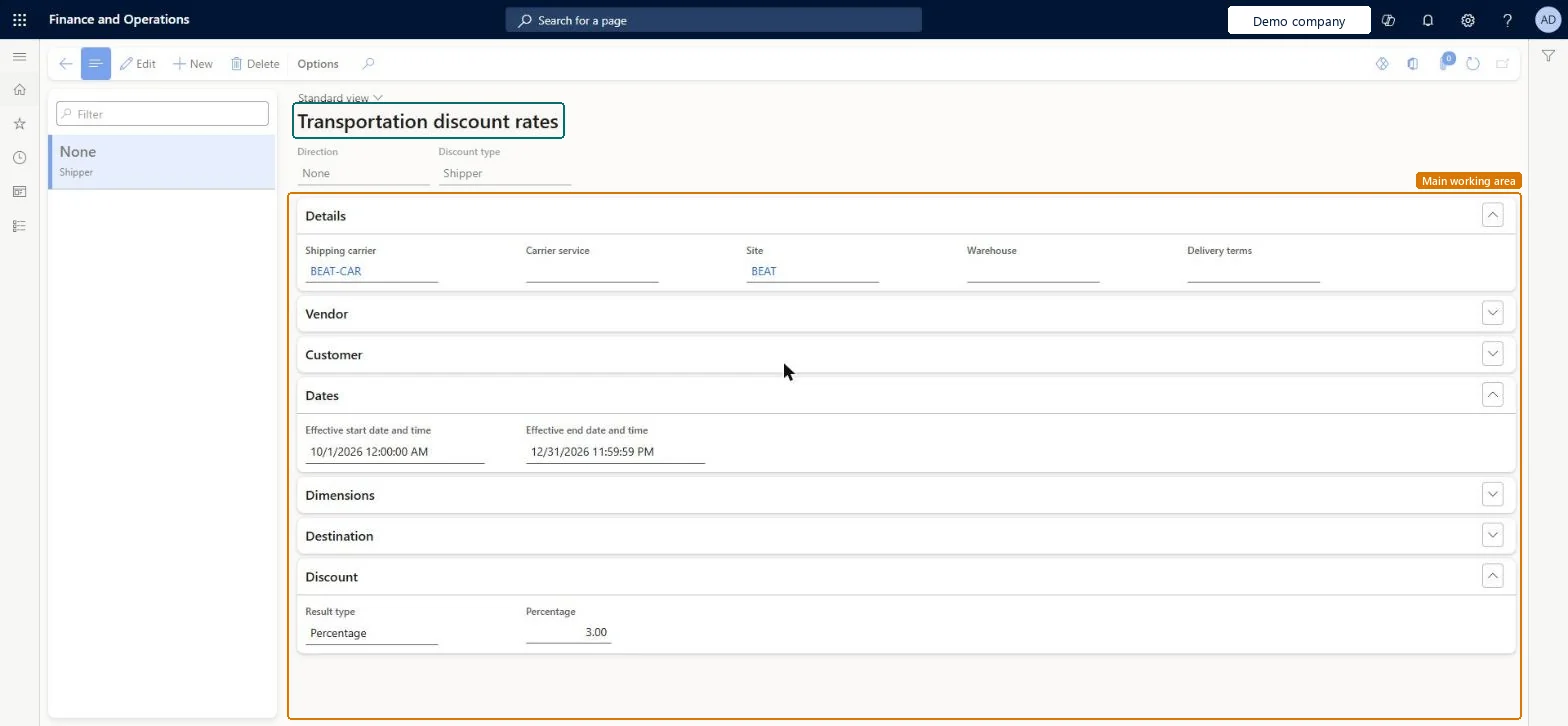
Setup step on the Discounts page · Transportation management
Set up Discounts
Use this page to set up discounts as a percentage of charges or as a fixed amount, and to decide whether each discount is passed on to the customer or kept in the company.
SETUP GUIDEHow to set it up8 sections. Choose a role to highlight what matters to you.
Everyone
1What it is and why
What it is
A setup page where you define transportation discounts that are applied on top of the transportation price calculated by the rating engine.
What you do here
Use this page to set up discounts as a percentage of charges or as a fixed amount, and to decide whether each discount is passed on to the customer or kept in the company.
Example
For example, you can set the discount type to shipper to keep a discount in the company and earn a margin on the calculated freight charges.
The page in Dynamics 365. page title tab to open what to set or check
About the examples: Examples and screenshots in this guide use BEAT, a demo company in a Dynamics 365 test environment. Use your own company's codes and values instead of copying them.
Setup steps on this page
Set up Discounts
Use this page to set up discounts as a percentage of charges or as a fixed amount, and to decide whether each discount is passed on to the customer or kept in the company.
How to use it
Go to Transportation management > Setup > Rating > Discounts.
Select New.
In the header, set the Direction and the Discount type.
On the Details FastTab, select the Shipping carrier, Carrier service, Site, Warehouse and Delivery terms that the discount applies to.
Use the Vendor, Customer, Dates, Dimensions and Destination FastTabs to add further qualifiers.
Expand the Discount FastTab to enter the discount.
Source: Checked in Dynamics 365
Fields on the page
Field
What it means
Table column
Discount type
Decides whether the discount is passed on to the customer (Customer) or retained in the company (Shipper).Microsoft Learn
DiscountType
Test checklist
Create a discount as a percentage of charges with a qualifier for one carrier and set Discount type to Customer.
Rate a load for that carrier and check that the discount is applied on top of the calculated rate.
Change the Discount type to Shipper, rate a new load and check that the discount is no longer passed to the customer.
Rate a load for a different carrier and check that no discount is applied.
Set the Discount type on each discount deliberately: Customer when the discount must reach the customer, Shipper when the company keeps it as a margin on freightThe Discount type decides whether the discount is passed on to the customer or retained in the company, which is how you earn a margin on calculated freight charges.
PrivilegesMaintain discounts TMSDiscountTableMaintainView dimension table information TMSDiscountTableViewDutiesInquire into carrier master and network planning information TMSCarrierMasterInquireMaintain carrier and network planning master TMSCarrierMasterMaintain2 security rolesLogistics manager TMSLogisticsManagerTransportation coordinator TMSTransportationCoordinatorChecked in Dynamics 365
Roles to set it up and use it
To set it up or change itLogistics manager TMSLogisticsManagerTo use itTransportation coordinator TMSTransportationCoordinatorGive people one of these roles. On this system, 2 roles can open this page.Checked in Dynamics 365
TMSTransportationDiscountEntity (Transportation discounts): loaded for each company, in Microsoft's default template 405 - Transportation management.Load order: Microsoft's default template 405 - Transportation management loads Transportation discounts at execution unit 1, level 405, sequence 30. Lower levels load first, and entities at the same level load in sequence order.Load first: the default templates at lower levels (System setup to Warehouse management)Microsoft Learn