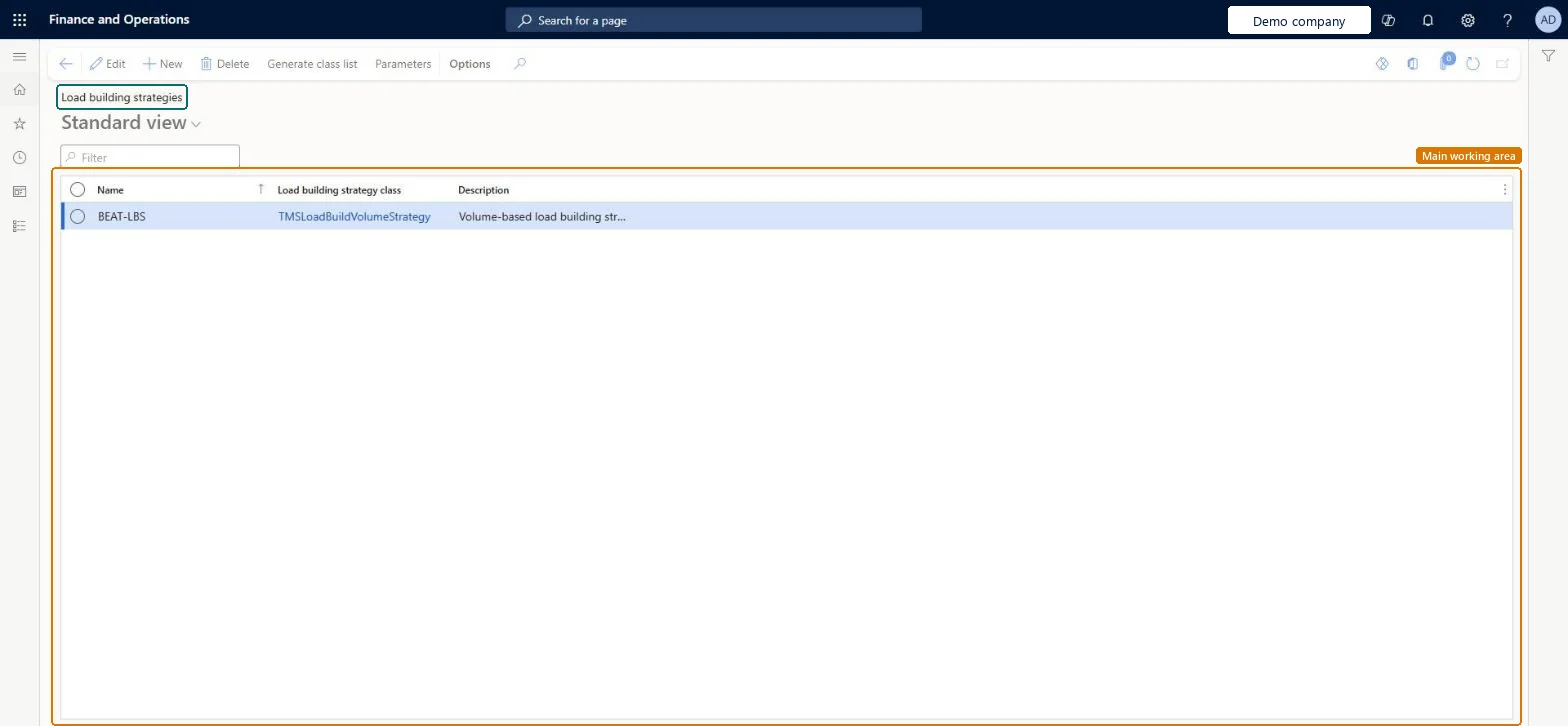
Setup step on the Load building strategies page · Transportation management
Set up Load building strategies
Use this page to create a load building strategy, select the load building strategy class that it uses and set the percentages of volume and weight capacity that it applies.
SETUP GUIDEHow to set it up8 sections. Choose a role to highlight what matters to you.
Everyone
1What it is and why
What it is
A setup page where you define the load building strategies that are used to build loads automatically.
What you do here
Use this page to create a load building strategy, select the load building strategy class that it uses and set the percentages of volume and weight capacity that it applies.
Example
For example, if you regularly ship a specific set of products, a load building strategy saves time because you don't have to build the same load every time.
The page in Dynamics 365. page title tab to open what to set or check
About the examples: Examples and screenshots in this guide use BEAT, a demo company in a Dynamics 365 test environment. Use your own company's codes and values instead of copying them.
Setup steps on this page
Set up Load building strategies
Use this page to create a load building strategy, select the load building strategy class that it uses and set the percentages of volume and weight capacity that it applies.
Steps from Microsoft
Go to Transportation management > Setup > Load building > Load building strategies.
On the Action Pane, select Generate class list.
On the Action Pane, select New.
Enter a unique name for the strategy, select the load building strategy class for it and enter a description.
On the Action Pane, select Save.
On the Action Pane, select Parameters.
On the Load building strategy parameters page, enter the percentage values for Volume capacity and Weight capacity.
The class that provides the strategy logic. The standard class TMSLoadBuildingVolumeStrategy provides the Volume-based load building strategy, which uses the maximum values from the load template or values that you enter.Microsoft Learn
StrategyClassName
Test checklist
Select Generate class list, then create a strategy with the volume-based class.
In Parameters, set Volume capacity and Weight capacity percentages.
Use the strategy on the Load building workbench and select Propose loads.
Check the proposed load stays within the set percentage of the template's volume and weight.
Volume-based load building strategy (class TMSLoadBuildingVolumeStrategy), with Volume capacity and Weight capacity percentages set in ParametersIt is the only strategy delivered as standard; it uses the load template's maximums or the percentages you set.
Creating the strategy without first selecting Generate class list, so the latest strategy classes are not available to pick.
Reversible: Strategy parameters only affect loads proposed after the change.
Technical architect
6Technical
Menu item
TMSLoadBuildStrategyChecked in Dynamics 365
Form
TMSLoadBuildStrategyChecked in Dynamics 365
Table
TMSLoadBuildStrategyShown as “LOAD BUILDING STRATEGY” in Record infoKey field: NameChecked in Dynamics 365
Data entities
TMSTransportationLoadBuildingStrategyEntityTransportation load building strategies Microsoft data model
Who can open it
PrivilegesEnable load building strategies TMSLoadBuildStrategyProcessEnableInquire into load building strategies TMSLoadBuildStrategyProcessInquireDutiesInquire into the load building master data TMSLoadBuildMasterInquireMaintain load building master data TMSLoadBuildMasterMaintain2 security rolesLogistics manager TMSLogisticsManagerTransportation coordinator TMSTransportationCoordinatorChecked in Dynamics 365
Roles to set it up and use it
To set it up or change itLogistics manager TMSLogisticsManagerTransportation coordinator TMSTransportationCoordinatorGive people one of these roles. On this system, 2 roles can open this page.Checked in Dynamics 365
Actions on the page
(Action Pane without tabs): Generate class list, ParametersChecked in Dynamics 365
TMSTransportationLoadBuildingStrategyEntity (Transportation load building strategies): loaded for each company, in Microsoft's default template 405 - Transportation management.Load order: Microsoft's default template 405 - Transportation management loads Transportation load building strategies at execution unit 1, level 30, sequence 10. Lower levels load first, and entities at the same level load in sequence order.Load first: the default templates at lower levels (System setup to General ledger)Microsoft Learn