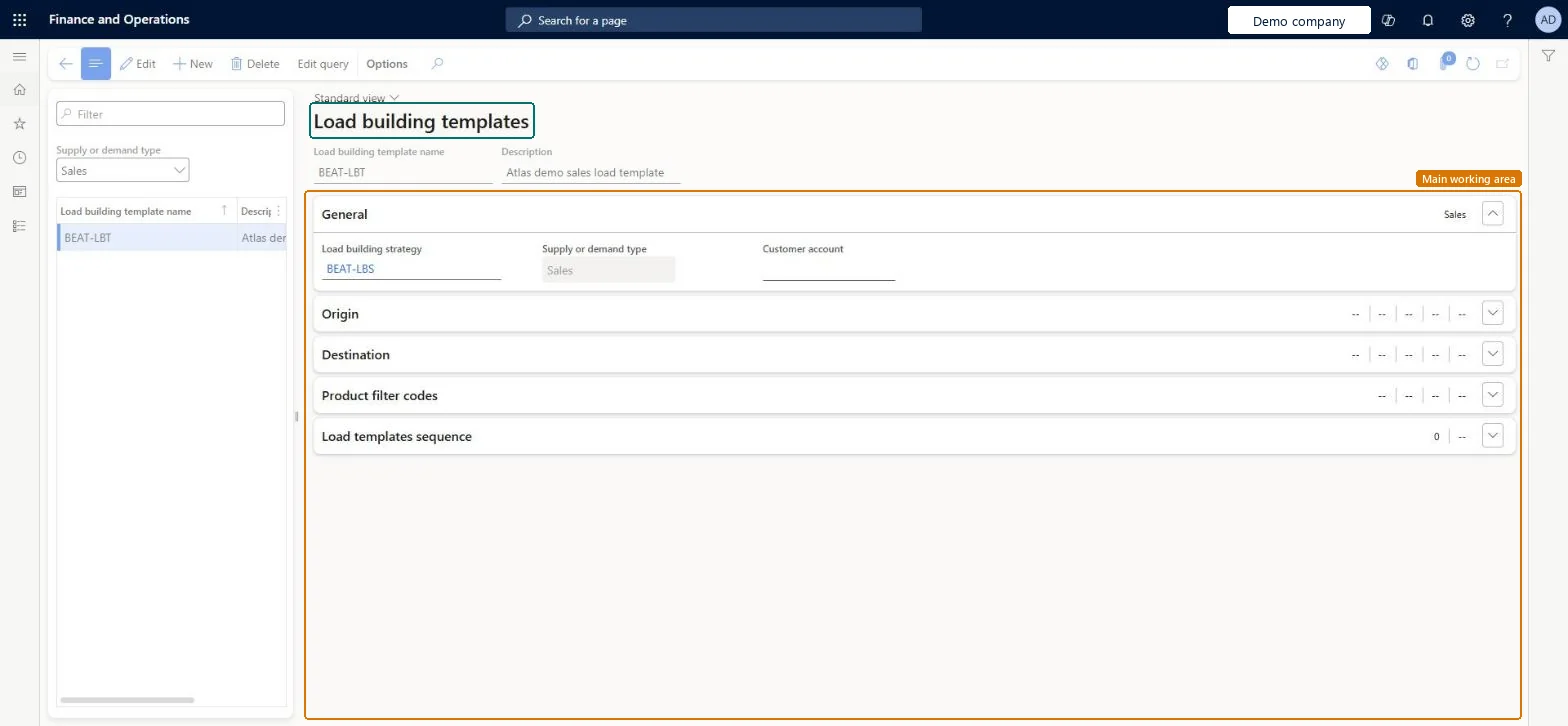
A setup page where you define load building templates, each with a load building strategy, origin and destination criteria, product filter codes and a sequence of load templates.
PAGE GUIDEWhat the page does and how to use it8 sections. Choose a role to highlight what matters to you.
Everyone
1What it is and why
What it is
A setup page where you define load building templates, each with a load building strategy, origin and destination criteria, product filter codes and a sequence of load templates.
What you do here
Use this page to save load building settings as templates that you can apply in the load building workbench.
The page in Dynamics 365. page title tab to open what to set or check
About the examples: Examples and screenshots in this guide use BEAT, a demo company in a Dynamics 365 test environment. Use your own company's codes and values instead of copying them.
Setup steps on this page
Set up Load building templates
Use this page to save load building settings as templates that you can apply in the load building workbench.
How to use it
Go to Transportation management > Setup > Load building > Load building templates.
In the Supply or demand type field above the list, select the type of template, for example Sales.
On the Action Pane, select New, and then enter the Load building template name and a Description.
On the General FastTab, select the Load building strategy and, when needed, the Customer account.
On the Origin, Destination and Product filter codes FastTabs, enter the criteria for the template.
On the Load templates sequence FastTab, add the load templates for the template.
Source: Checked in Dynamics 365
Test checklist
Create a template with a strategy and two load templates, smallest first.
On the Load building workbench, select Manage templates > Apply template and pick it.
Select Propose loads and check the smallest suitable container is used.
Select Create loads and check the load template on the created load.
One template per regular shipping pattern, with the load building strategy and a load template sequence that lists the smallest container firstTemplates save repeated loads, and the workbench tries the load templates in the order listed, so smallest first picks the smallest container that fits.
Listing the largest container first, so every load is built on the biggest truck and half-full loads follow.
Reversible: Applying a template only fills the workbench; changes don't touch loads already created. Microsoft Learn
Technical architect
6Technical
Menu item
TMSLoadBuildTemplatesChecked in Dynamics 365
Form
TMSLoadBuildTemplatesChecked in Dynamics 365
Table
TMSLoadBuildTemplateShown as “LOAD BUILDING TEMPLATES” in Record infoKey field: LoadBuildTemplateNameChecked in Dynamics 365
Data entities
TMSTransportationPurchaseLoadBuildingTemplateEntityTransportation purchase load building templates Microsoft data model TMSTransportationSalesLoadBuildingTemplateEntityTransportation sales load building templates Microsoft data model TMSTransportationShipmentLoadBuildingTemplateEntityTransportation shipment load building templates Microsoft data model TMSTransportationTransferLoadBuildingTemplateEntityTransportation transfer load building templates Microsoft data model
Who can open it
PrivilegesMaintain load building templates TMSLoadBuildTemplatesMaintainDutiesMaintain load building operations TMSLoadBuildOperationMaintain1 security roleTransportation coordinator TMSTransportationCoordinatorChecked in Dynamics 365
Roles to set it up and use it
To set it up or change itTransportation coordinator TMSTransportationCoordinatorGive people one of these roles. On this system, 1 role can open this page.Checked in Dynamics 365
Actions on the page
(Action Pane without tabs): Edit queryChecked in Dynamics 365
TMSTransportationPurchaseLoadBuildingTemplateEntity data entity Microsoft data model
Data migration
TMSTransportationPurchaseLoadBuildingTemplateEntity (Transportation purchase load building templates): loaded for each company, in Microsoft's default template 405 - Transportation management.TMSTransportationSalesLoadBuildingTemplateEntity (Transportation sales load building templates): loaded for each company, in Microsoft's default template 405 - Transportation management.TMSTransportationShipmentLoadBuildingTemplateEntity (Transportation shipment load building templates): loaded for each company, in Microsoft's default template 405 - Transportation management.Load order: Microsoft's default template 405 - Transportation management loads Transportation purchase load building templates at execution unit 1, level 405, sequence 10. Lower levels load first, and entities at the same level load in sequence order.Load first: Country/regions, First product filter codes, Fourth product filter codes, Second product filter codes, Third product filter codes, the default templates at lower levels (System setup to Warehouse management)Microsoft Learn