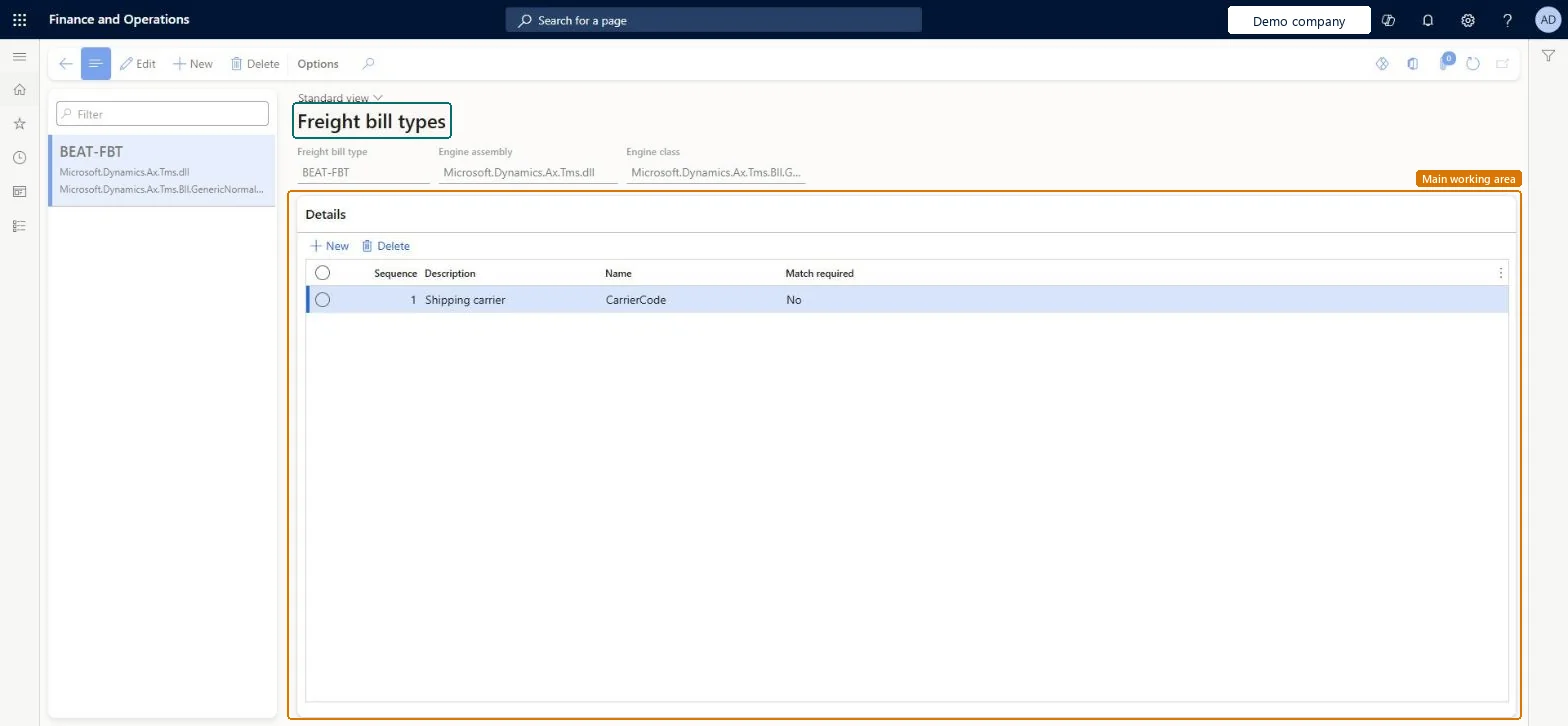
About the examples: Examples and screenshots in this guide use BEAT, a demo company in a Dynamics 365 test environment. Use your own company's codes and values instead of copying them.
Setup steps on this page
Set up Freight bill type
Use this page to define the mandatory and optional criteria that the auto matching process uses to compare a freight bill with a carrier invoice.
Steps from Microsoft
Go to Transportation management > Setup > Freight reconciliation > Freight bill type.
Select New, and then enter a value in the Freight bill type field.
In the Engine assembly field, enter Microsoft.Dynamics.Ax.Tms.dll.
In the Engine class field, enter Microsoft.Dynamics.Ax.Tms.Bll.GenericNormalizer.
In the Details section, select New.
In the Description field, select the value that should match on the freight bill and the carrier invoice.
The code library of the matching engine. The standard value is Microsoft.Dynamics.Ax.Tms.dll.Microsoft Learn
EngineAssembly
Engine class
The class of the matching engine. The standard value is Microsoft.Dynamics.Ax.Tms.Bll.GenericNormalizer.Microsoft Learn
EngineType
Description
The value that should match on the freight bill and the carrier invoice.Microsoft Learn
Description
Match required
When set to Yes, the selected value must match on both the freight bill and the carrier invoice. When set to No, the value can be blank on either document.Microsoft Learn
RequiredForMatch
Test checklist
Create a freight bill type with the standard engine assembly and class and one criterion with Match required Yes.
Assign it to a carrier on Freight bill type assignments and link it on the carrier's audit master.
Run auto matching for a carrier invoice whose mandatory value matches the freight bill and check it is matched.
Run it for an invoice where the mandatory value is blank and check it is left for manual matching.
Engine assembly Microsoft.Dynamics.Ax.Tms.dll and Engine class Microsoft.Dynamics.Ax.Tms.Bll.GenericNormalizer, with Match required set to Yes only for values the carrier always sendsThese are the standard TMS matching engine library and class. Auto matching only considers a freight bill and invoice when every mandatory criterion is filled in and matches on both; optional criteria can be blank.
Setting Match required to Yes for a value that the carrier invoice often leaves blank. Those invoices are never auto matched and must be reconciled manually.
PrivilegesMaintain freight bill types TMSFreightBillTypeMaintainView freight bill types TMSFreightBillTypeViewDutiesInquire into freight reconciliation master TMSFreightReconcileMasterInquireMaintain freight reconciliation master TMSFreightReconcileMasterMaintain2 security rolesLogistics manager TMSLogisticsManagerTransportation coordinator TMSTransportationCoordinatorChecked in Dynamics 365
Roles to set it up and use it
To set it up or change itLogistics manager TMSLogisticsManagerTo use itTransportation coordinator TMSTransportationCoordinatorGive people one of these roles. On this system, 2 roles can open this page.Checked in Dynamics 365