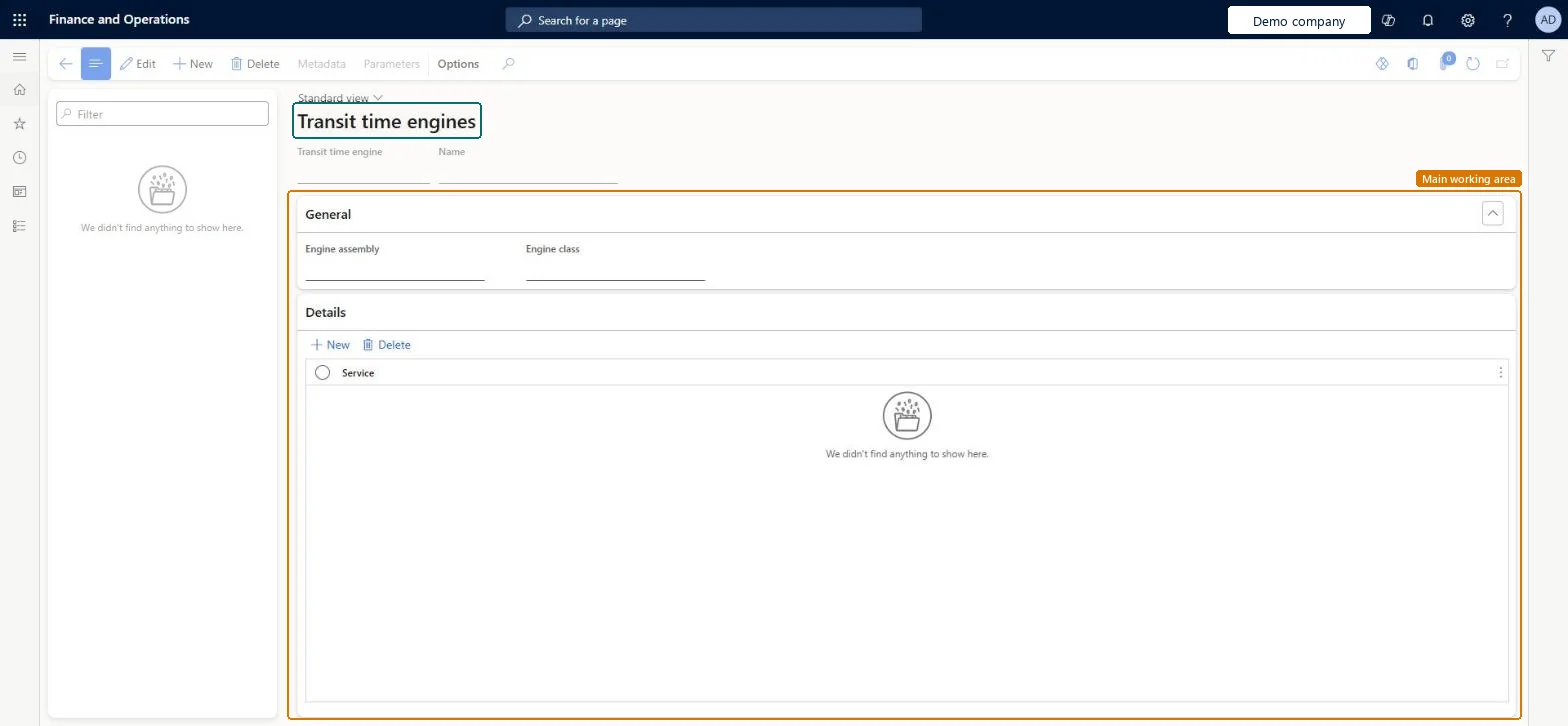
About the examples: Examples and screenshots in this guide use BEAT, a demo company in a Dynamics 365 test environment. Use your own company's codes and values instead of copying them.
Setup steps on this page
Set up Transit time engine
Use this page to set up the transit time engines that calculate how long a shipment takes to travel from its start to its end destination.
How to use it
Go to Transportation management > Setup > Engines > Transit time engine.
On the Action Pane, select New, and then enter the Transit time engine code and Name.
On the General FastTab, enter the Engine assembly and Engine class.
On the Details FastTab, select New to add lines by Service.
On the Action Pane, use Metadata and Parameters to complete the engine setup.
Source: Checked in Dynamics 365
Test checklist
Create the transit time engine and its data.
Select it on the carrier's rating profile.
Run Rate shop for a load and check total transit time is shown for the carrier.
One transit time engine per carrier rating profile that needs transit days on the rate route resultsThe transit time engine calculates the time from start to end destination and is selected on the rating profile.
Leaving the transit time engine off the rating profile, so Rate shop shows rates without a reliable transit time.
Reversible: Applies to rating done after the change.
Technical architect
6Technical
Menu item
TMSTransitTimeEngineChecked in Dynamics 365
Form
TMSTransitTimeEngineChecked in Dynamics 365
Table
TMSTransitTimeEngineShown as “TRANSIT TIME ENGINE” in Record infoKey field: TransitTimeEngineCodeChecked in Dynamics 365
Data entities
TMSTransportationTransitTimeEngineEntityTransportation transit time engines Microsoft data model
Who can open it
PrivilegesMaintain transit time engine details TMSTransitTimeEngineDetailMaintainMaintain transit time engines TMSTransitTimeEngineMaintainView transit time engines TMSTransitTimeEngineViewDutiesMaintain transportation management engine details configuration TMSEngineConfigurationDetailMaintainInquire into transportation management engine configuration TMSEngineConfigurationInquireMaintain transportation management engine configuration TMSEngineConfigurationMaintainInquire into transportation management policies TMSTransportationMgmtPoliciesInquire2 security rolesLogistics manager TMSLogisticsManagerTransportation coordinator TMSTransportationCoordinatorChecked in Dynamics 365
Roles to set it up and use it
To set it up or change itLogistics manager TMSLogisticsManagerTo use itTransportation coordinator TMSTransportationCoordinatorGive people one of these roles. On this system, 2 roles can open this page.Checked in Dynamics 365
Actions on the page
(Action Pane without tabs): Metadata, ParametersChecked in Dynamics 365
TMSTransportationTransitTimeEngineEntity (Transportation transit time engines): loaded for each company, in Microsoft's default template 405 - Transportation management.Load order: Microsoft's default template 405 - Transportation management loads Transportation transit time engines at execution unit 1, level 30, sequence 10. Lower levels load first, and entities at the same level load in sequence order.Load first: the default templates at lower levels (System setup to General ledger)Microsoft Learn