BeyondERP.Newsletter
Menu

Setup page · Transportation management

Mileage engine

A setup page where you define mileage engines, which calculate the transportation distance.

Used by
Logistics manager, Transportation coordinator
Business process
Manage freight and transportation
Menu item
TMSMileageEngine
Main table
TMSMileageEngine
Data entity
TMSTransportationMileageEngineEntity
Setup steps
1 on this page
Show what matters for
PAGE GUIDEWhat the page does and how to use it8 sections. Choose a role to highlight what matters to you.
Everyone

1What it is and why

What it isA setup page where you define mileage engines, which calculate the transportation distance.
What you do hereUse this page to set up the mileage engines that rate engines can use to calculate rates based on the mileage between the source and the destination.
ExampleFor example, a rate engine can retrieve data from a mileage engine to calculate the rate based on the mileage between the source and the destination.
Mileage engine page in Dynamics 365
The page in Dynamics 365. page title tab to open what to set or check
Functional consultant · Solution architect

2Where it fits

Business processManage freight and transportation
Menu pathTransportation management › Setup › Engines › Mileage engine
Used next byRate engine Microsoft Learn
Related pagesTransit time engine Microsoft Learn
End user · Functional consultant

3How to do it

About the examples: Examples and screenshots in this guide use BEAT, a demo company in a Dynamics 365 test environment. Use your own company's codes and values instead of copying them.

Setup steps on this page

Set up Mileage engine

Use this page to set up the mileage engines that rate engines can use to calculate rates based on the mileage between the source and the destination.

How to use it

  1. Go to Transportation management > Setup > Engines > Mileage engine.
  2. On the Action Pane, select New, and then enter the Mileage engine code and Name.
  3. On the General FastTab, enter the Engine assembly and Engine class, and set the Default option.
  4. On the Details FastTab, select New to add the mileage lines.
  5. On the Action Pane, use Metadata and Parameters to complete the engine setup.

Source: Checked in Dynamics 365

Test checklist

  1. Create the mileage engine and its postal-code based mileage data.
  2. Set MileageEngineCode on a mileage rate engine.
  3. Rate a load between two postal codes in the data and check the distance and rate.

Source: Microsoft Learn

Functional consultant

4Setup decisions

Setup stepRecommended value and whyDecision, common mistake and test
Set up Mileage engineSet up a mileage engine only when carrier rates are priced by distance, and reference it from the rate engine with MileageEngineCodeThe rate engine can use the mileage engine to rate by distance between source and destination; mileage engines take their metadata from their own configuration.Expecting latitude and longitude: standard engines work on postal codes, so a coordinate-based distance needs a custom engine.
Solution architect

5Design impact

Shared or per companyPer company: each legal entity has its own records. Microsoft data model
Can it be undoneReversible: Engine settings are used at run time; rates on already confirmed loads stay as they were. Microsoft Learn
Technical architect

6Technical

Menu itemTMSMileageEngine Checked in Dynamics 365
FormTMSMileageEngine Checked in Dynamics 365
TableTMSMileageEngineShown as “MILEAGE ENGINE” in Record infoKey field: MileageEngineCodeChecked in Dynamics 365
Data entitiesTMSTransportationMileageEngineEntityTransportation mileage engines Microsoft data model
Who can open itPrivilegesMaintain mileage engine details TMSMileageEngineDetailMaintainMaintain mileage engines TMSMileageEngineMaintainView mileage engines TMSMileageEngineViewDutiesMaintain transportation management engine details configuration TMSEngineConfigurationDetailMaintainInquire into transportation management engine configuration TMSEngineConfigurationInquireMaintain transportation management engine configuration TMSEngineConfigurationMaintainInquire into transportation management policies TMSTransportationMgmtPoliciesInquire
2 security rolesLogistics manager TMSLogisticsManagerTransportation coordinator TMSTransportationCoordinator
Checked in Dynamics 365
Roles to set it up and use itTo set it up or change itLogistics manager TMSLogisticsManagerTo use itTransportation coordinator TMSTransportationCoordinatorGive people one of these roles. On this system, 2 roles can open this page.Checked in Dynamics 365
Actions on the page(Action Pane without tabs): Metadata, ParametersChecked in Dynamics 365
Developer

7Developer

Open it by URLhttps://<your-environment>/?mi=TMSMileageEngine
Integrate withTMSTransportationMileageEngineEntity data entity Microsoft data model
Data migrationTMSTransportationMileageEngineEntity (Transportation mileage engines): loaded for each company, in Microsoft's default template 405 - Transportation management.Load order: Microsoft's default template 405 - Transportation management loads Transportation mileage engines at execution unit 1, level 30, sequence 10. Lower levels load first, and entities at the same level load in sequence order.Load first: the default templates at lower levels (System setup to General ledger)Microsoft Learn
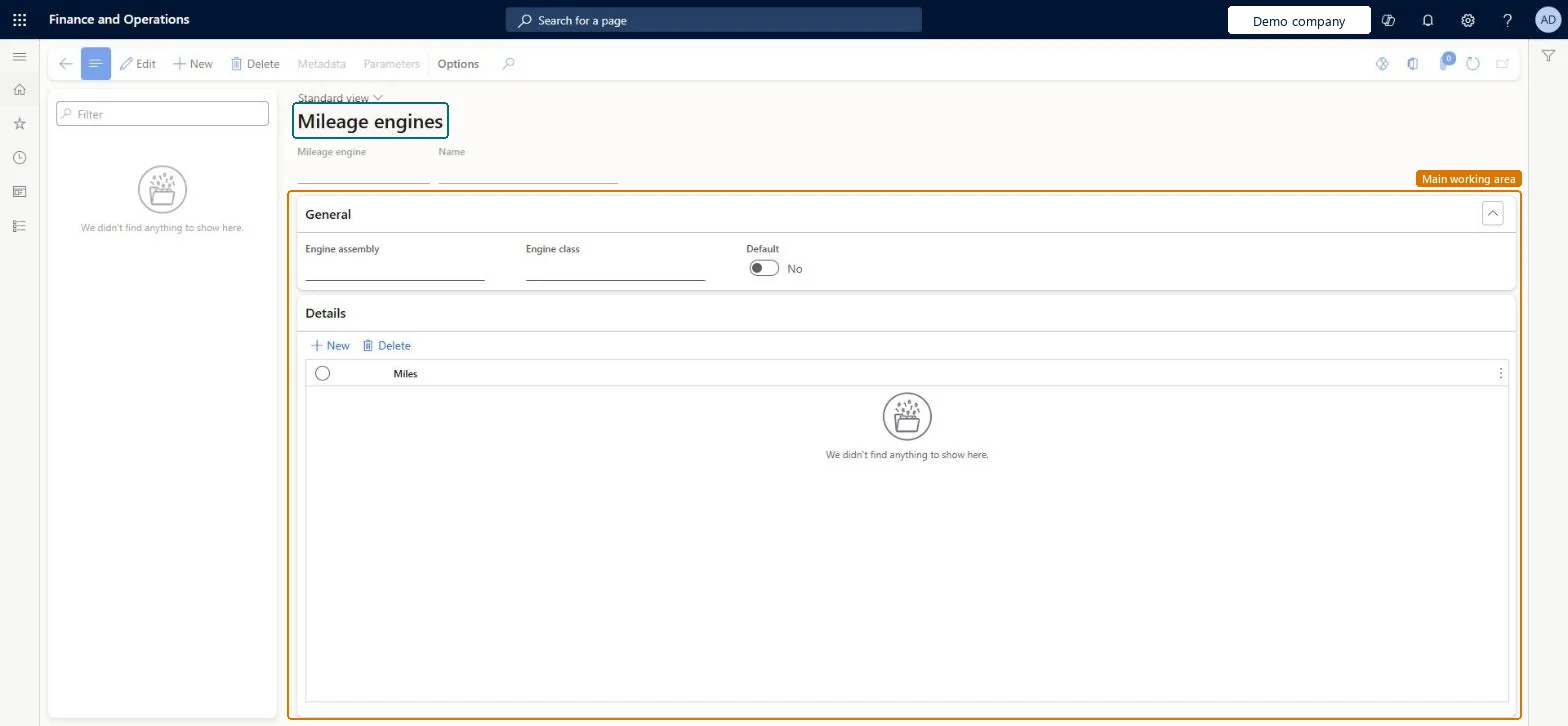
Table definitionTMSMileageEngine columns and relations Microsoft data model
Everyone

8Sources