Business Performance Planning app role, Data management administrator, Data management migration user and 5 more roles
Business process
Record employee time
Menu item
ProjPeriodTable
Main table
ProjPeriodTable
Data entity
ProjPeriodEntity
Setup steps
2 on this page
Show what matters for
SETUP GUIDEHow to set it up8 sections. Choose a role to highlight what matters to you.
Everyone
1What it is and why
What it is
A setup page where you define period types, which set how long pay or statistics periods are, and generate the periods for each type.
What you do here
In Time and attendance, use it for the pay period each worker is paid in (Period code on Time registration workers), the period Transfer to pay exports, and payroll statistics periods such as a vacation year.
Example
For example, you create period type VacYear with the unit Years and generate five periods from September 1, so the VAC payroll statistics group counts vacation days from September to August.
The page in Dynamics 365. page title tab to open what to set or check
About the examples: Examples and screenshots in this guide use BEAT, a demo company in a Dynamics 365 test environment. Use your own company's codes and values instead of copying them.
Step by step, with screenshots
Generate pay and statistics periods
Create the period types and periods that pay transfer and payroll statistics use.
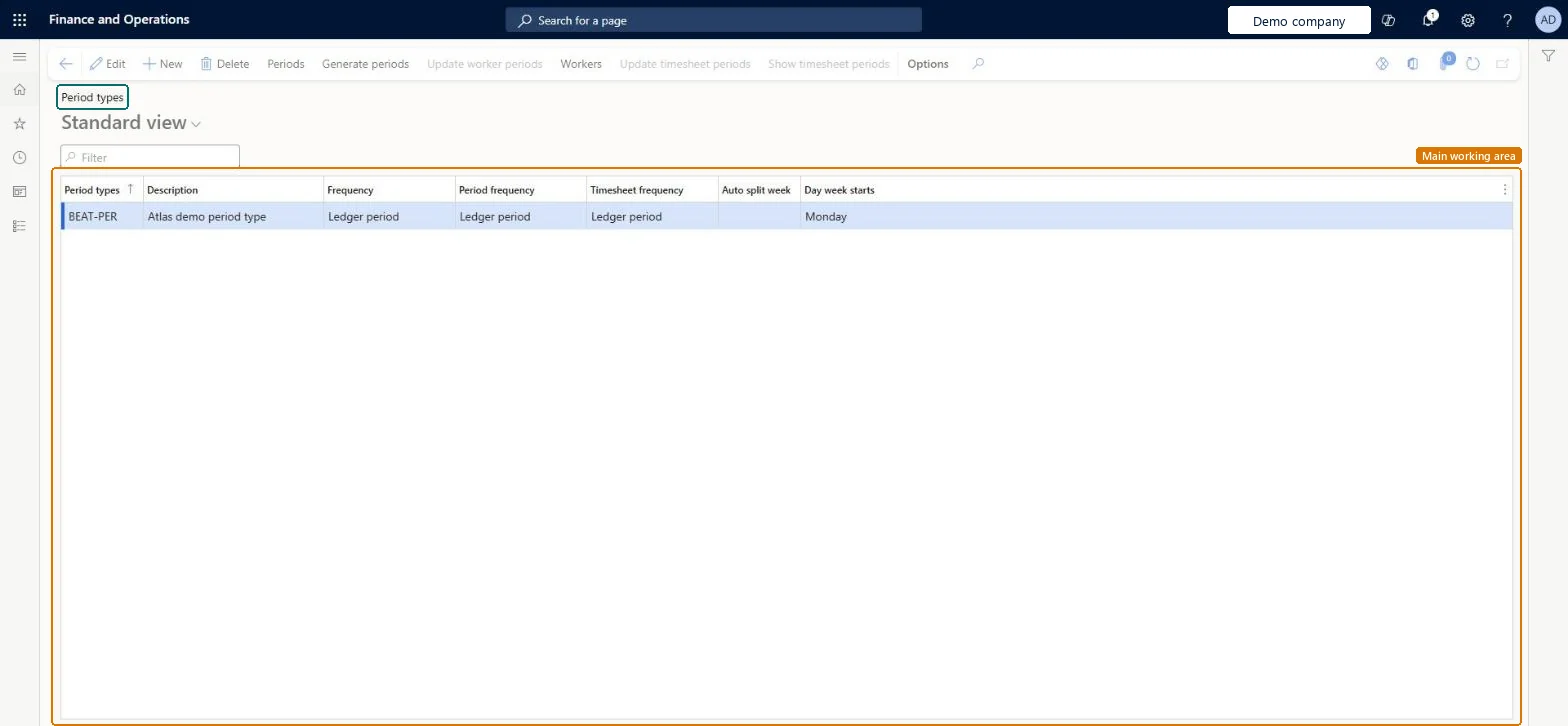
Set up Period types1 screen
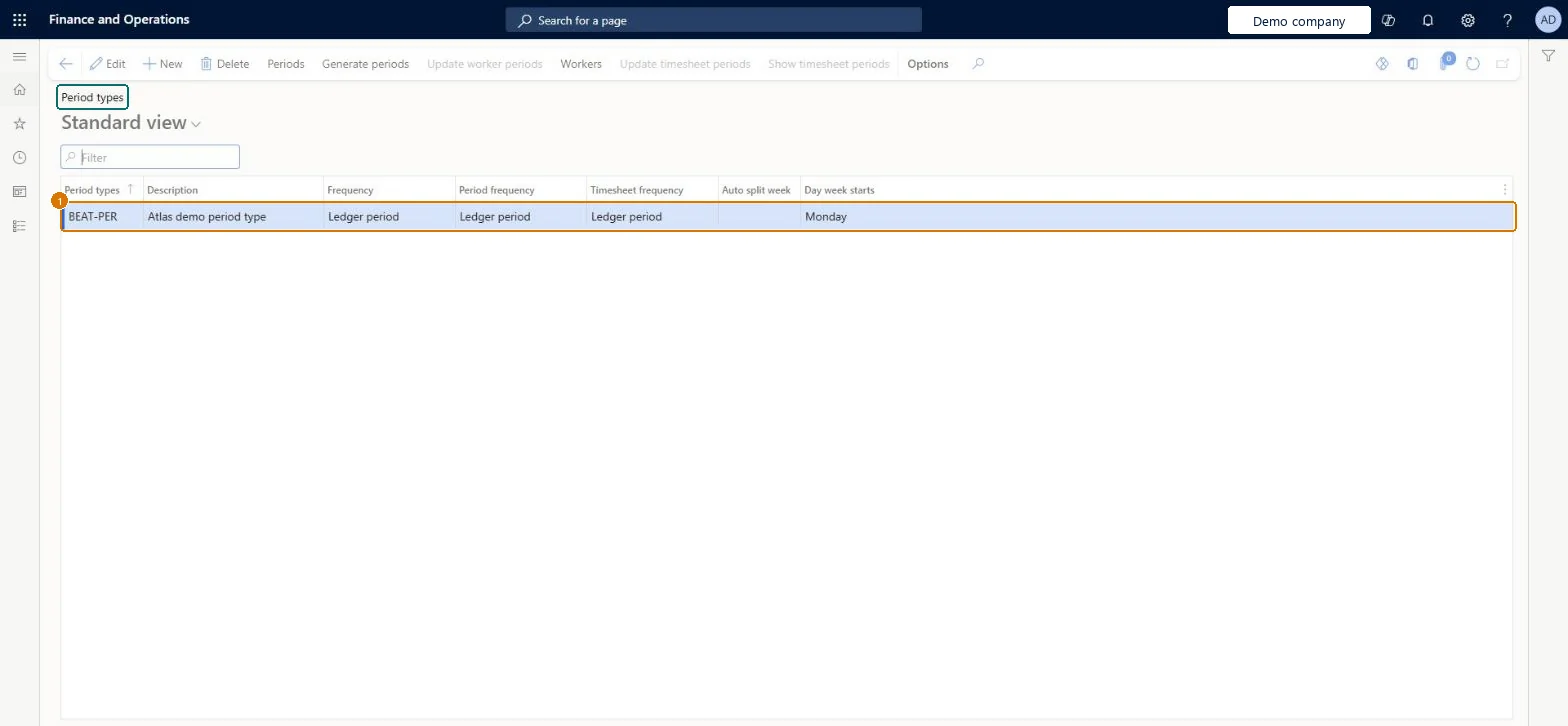
Use this page to create period types, such as weekly or monthly ones, and generate their periods for uses like project revenue estimates.
Screen 1
Create a period type
Go to Organization administration > Setup > Calendars > Period types
Select New
Enter the period type and its description
Select the frequency; Ledger period follows the fiscal calendar
Select the day the week starts
Select Save; use Generate periods to create the periods
1Period types
BEAT-PER
Description
Period type
Frequency
Ledger period
Day week starts
Monday
Show the full screen page title tab to open what to set or check
Steps from Microsoft
Go to Time and attendance > Setup > Payroll > Period types.
Select New and enter the period type and its unit, such as VacYear and Years.
Select Generate periods, enter the start date and the number of periods.
Use the period type in Period code on time registration workers, or on a payroll statistics group.
How often periods occur, such as Week, Month or Quarter. Ledger period uses the general ledger periods, and Unlimited lets you enter custom periods.Microsoft Learn
One period type per pay frequency and one per statistics year, such as VacYear, with periods generated well ahead.Transfer to pay and payroll statistics work per period.
Time and attendance roles come from the security read in the Technical section. On this system the page is opened with roles such as Business Performance Planning app role, Data management administrator, Data management migration user and 5 more. The Microsoft Learn article for this page names no Feature management feature to turn on.
PrivilegesMaintain project periods ProjPeriodTableMaintainView project periods ProjPeriodTableViewResource manager ProjResourceManagerDutiesMaintain Master entity data for data management DataManagementApplicationMasterEntitiesMaintainView Master entity data for data management DataManagementApplicationMasterEntitiesViewEnable project accounting process ProjProjectAccountingProcessEnableInquire into project accounting reference data ProjProjectAccountingReferenceDataInquiResource manager ProjResourceManager8 security rolesBusiness Performance Planning app role BPPBudgetPlanningAppRoleData management administrator DataManagementAdministratorData management migration user DataManagementMigrationUserProject manager ProjProjectManagerProject supervisor ProjProjectSupervisorResource manager ProjResourceManagerDemand planning app role ScpDemandPlanningAppRoleInformation technology manager SysServerITManagerChecked in Dynamics 365
Roles to set it up and use it
To set it up or change itInformation technology manager SysServerITManagerResource manager ProjResourceManagerBusiness Performance Planning app role BPPBudgetPlanningAppRoleData management migration user DataManagementMigrationUserDemand planning app role ScpDemandPlanningAppRoleTo use itProject manager ProjProjectManagerGive people one of these roles. On this system, 8 roles can open this page.Checked in Dynamics 365
Actions on the page
(Action Pane without tabs): Periods, Generate periods, Update worker periods, Workers, Update timesheet periods, Show timesheet periodsChecked in Dynamics 365
ProjPeriodEntity (Project periods): loaded for each company, in Microsoft's default template 650 - Project accounting.Load order: Microsoft's default template 650 - Project accounting loads Project periods at execution unit 1, level 30, sequence 20. Lower levels load first, and entities at the same level load in sequence order.Load first: the default templates at lower levels (System setup to General ledger)Microsoft Learn
Checked in a working Dynamics 365 system, version 10.0.49: the menu item, form, table and security, the page, the demo records and the values in the screenshots.
To cite this step: TA-SETUP-240, Generate pay and statistics periods. Beyond ERP Atlas Hub, 2026-11-11. https://www.beyonderp.cloud/atlas/step/TA-SETUP-240