Payroll administrator, Production manager, Information technology manager
Business process
Record employee time
Menu item
WorkflowConfigurationTimeAndAttendance
Main table
WorkflowTable
Setup steps
1 on this page
Show what matters for
SETUP GUIDEHow to set it up8 sections. Choose a role to highlight what matters to you.
Everyone
1What it is and why
What it is
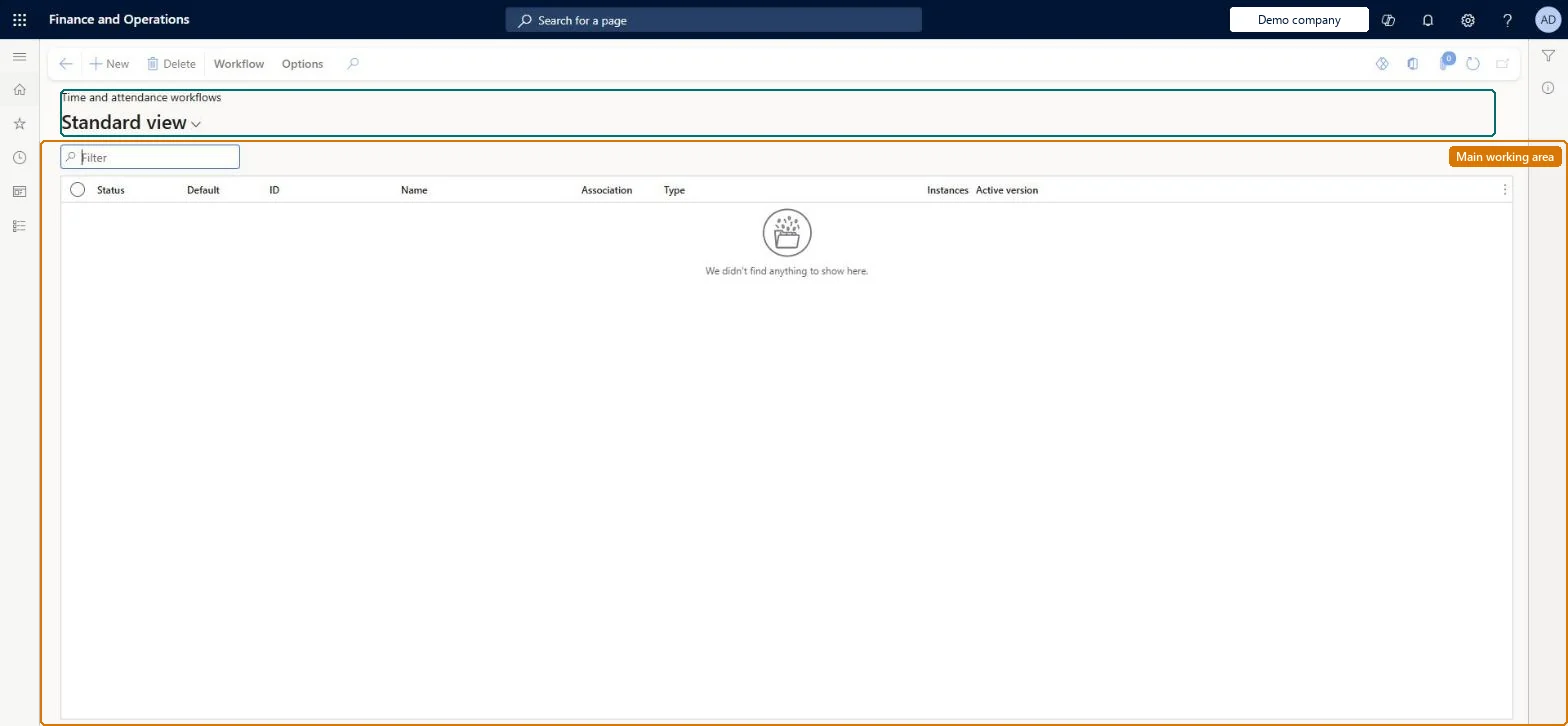
A setup list page for the approval workflows of Time and attendance: the days total workflow and the journal registration workflow.
What you do here
Use this page to create and manage the workflows that automatically approve calculated registrations that meet the rules, so only deviations are handled manually.
Example
For example, a days total workflow checks each worker's registrations against the expected work hours for the day.
The page in Dynamics 365. page title tab to open what to set or check
About the examples: Examples and screenshots in this guide use BEAT, a demo company in a Dynamics 365 test environment. Use your own company's codes and values instead of copying them.
Setup steps on this page
Decide on approval workflow
Choose whether calculated registrations are approved by workflow.
How to use it
Go to Time and attendance > Setup > Time and attendance workflows.
Use the Filter box to find a workflow.
Select New to create a workflow.
Review the Status, Default, ID, Name, Association, Type, Instances and Active version columns.
Select Workflow to manage a selected workflow, or Delete to remove it.
Source: Checked in Dynamics 365
Fields on the page
Field
What it means
Table column
Default
Marks the default workflow for its workflow type.Microsoft Learn
A Time and attendance days total workflow that approves days matching the expected hours, with deviations routed to the approval group's approver.Workflow approval auto-approves compliant registrations so only deviations need manual approval.
Time and attendance roles come from the security read in the Technical section. On this system the page is opened with roles such as Payroll administrator, Production manager and 1 more. The Microsoft Learn article for this page names no Feature management feature to turn on.
Per company: each legal entity has its own Time and attendance workflows. Checked in Dynamics 365
Can it be undone
Reversible: Deactivate the workflow and approve on Approve instead.
If you change it later
An active days total workflow approves registrations that meet its rules without review, so only deviations reach the approver; that changes what reaches pay unseen. Microsoft Learn
Technical architect
6Technical
Menu item
WorkflowConfigurationTimeAndAttendanceChecked in Dynamics 365
Form
WorkflowTableListPageRnrChecked in Dynamics 365
Table
WorkflowTableShown as “WORKFLOW CONFIGURATIONS” in Record infoKey field: SequenceNumberChecked in Dynamics 365
Who can open it
PrivilegesAuthor Time and attendance workflows WorkflowAuthorJmgWorkflowsDutiesEnable time and attendance process JmgTimeAttendanceProcessEnableMaintain workflow and alerts settings WorkflowAlertsSettingsMaintain3 security rolesPayroll administrator HcmPayrollAdministratorProduction manager ProdProductionManagerInformation technology manager SysServerITManagerChecked in Dynamics 365
Roles to set it up and use it
To set it up or change itPayroll administrator HcmPayrollAdministratorProduction manager ProdProductionManagerInformation technology manager SysServerITManagerGive people one of these roles. On this system, 3 roles can open this page.Checked in Dynamics 365
Actions on the page
Workflow: Manage, HierarchyChecked in Dynamics 365
Load order: A Time and attendance workflow has no data entity in Data management, so it can't be loaded from a file or a configuration template. Re-create the workflow in each environment and activate it.Checked in Dynamics 365