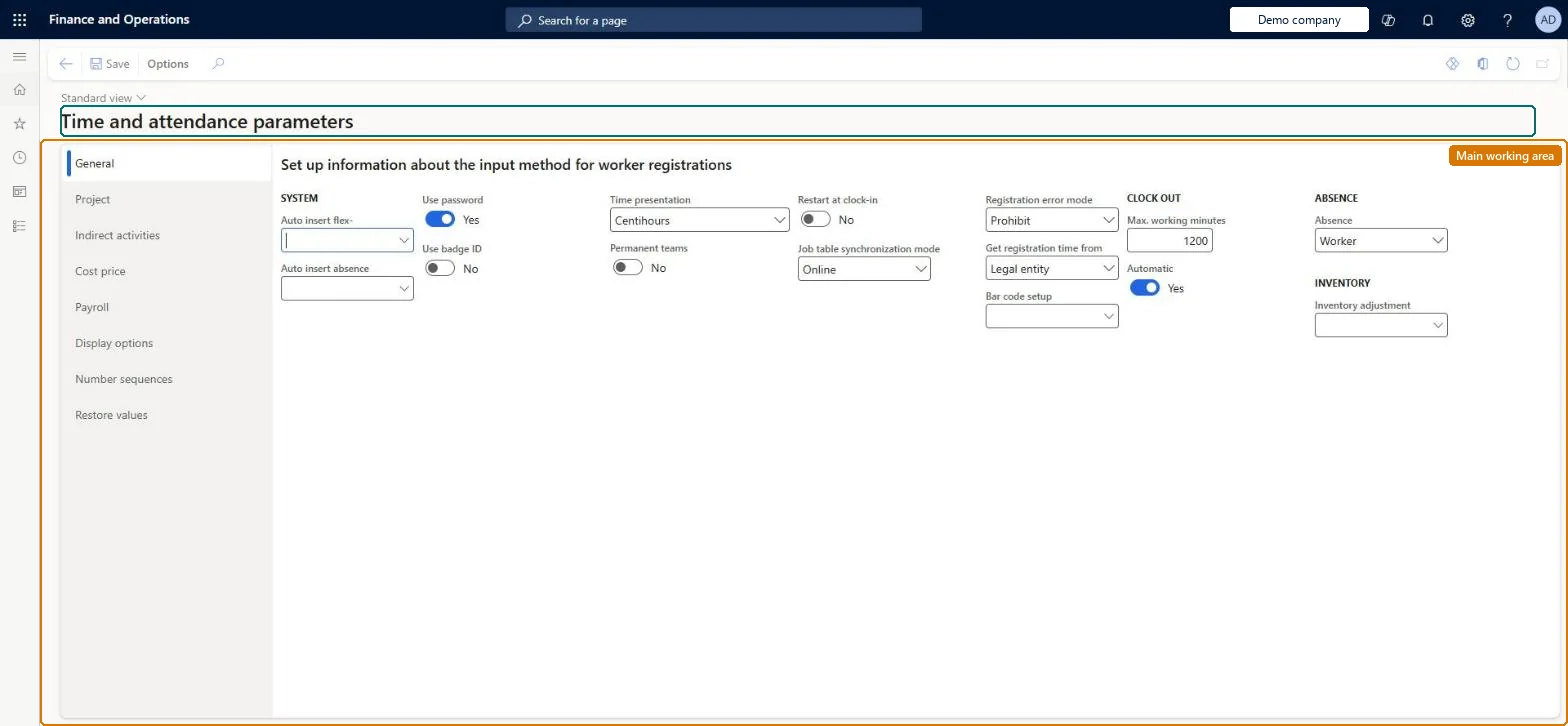
A setup page that holds the company-wide parameters for Time and attendance, such as default absence codes, cost price rules, journals, identification and the payroll file.
Human resource manager, Payroll administrator, Production manager
Business process
Manage time and attendance
Menu item
JmgParameters
Main table
JmgParameters
Data entity
JmgTimeAndAttendanceParametersEntity
Setup steps
1 on this page
Show what matters for
PAGE GUIDEWhat the page does and how to use it8 sections. Choose a role to highlight what matters to you.
Everyone
1What it is and why
What it is
A setup page that holds the company-wide parameters for Time and attendance, such as default absence codes, cost price rules, journals, identification and the payroll file.
What you do here
Use this page to set how registrations are identified, timed and costed, which absence codes are inserted automatically during calculation, and how payroll data is exported.
Example
For example, you select an absence code in Auto insert absence so that a worker who doesn't show up and has no planned absence still gets an absence line when registrations are calculated.
The page in Dynamics 365. page title tab to open what to set or check
About the examples: Examples and screenshots in this guide use BEAT, a demo company in a Dynamics 365 test environment. Use your own company's codes and values instead of copying them.
Setup steps on this page
Set up Time and attendance parameters
Use this page to set how registrations are identified, timed and costed, which absence codes are inserted automatically during calculation, and how payroll data is exported.
How to use it
Go to Time and attendance > Setup > Time and attendance parameters.
On the General tab, set Auto insert flex-, Auto insert absence, Use password, Use badge ID, Time presentation and Permanent teams.
Set Restart at clock-in, Job table synchronization mode, Registration error mode, Get registration time from and Bar code setup.
Under Clock out, set Max. working minutes and Automatic, and set Absence and Inventory adjustment.
Use the Project, Indirect activities, Cost price, Payroll, Display options and Number sequences tabs for the remaining settings, then select Save.
Source: Checked in Dynamics 365
Fields on the page
Field
What it means
Table column
Auto insert flex-
Default absence code used in calculation for workers enabled for flexible hours.Microsoft Learn
OverTimeAndFlexLimitJobID
Auto insert absence
Default absence code used in calculation for workers not enabled for flexible hours.Microsoft Learn
AbsenceJobID
Standard time (Cost price tab)
Sets whether paid break cost goes to the parallel job (Yes), is spread over the day's jobs (Allocation), or isn't added (No).Microsoft Learn
Use password
Requires workers to identify themselves with a password.Microsoft Learn
Sets whether the registration time comes from the client or the server computer.Microsoft Learn
GetRegistrationTimeFrom
Max. working minutes
The longest a worker can work before a clock-out must be registered.Microsoft Learn
MaxMinutes
Pay file
Path and name of the pay file created when payroll transactions are exported.Microsoft Learn
Common errors and fixes
Message
What to do
Calculation leaves a no-show worker without an absence line
Set both Auto insert absence and Auto insert flex- in Time and attendance parameters when the company has workers with and without flex. Microsoft Learn
Missing specification of ledger journal in parameter dialog box
Go to Time and attendance > Setup > Time and attendance parameters and set the ledger journal name for indirect activities, then run the job again. Checked in Dynamics 365
Run basic setup guide for Production control
Do what the message asks: run the basic setup guide for Production control, and create the indirect activities for clock-in and clock-out records that the same message reports as missing; then run the job again. Checked in Dynamics 365
Test checklist
Set Auto insert flex- and Auto insert absence to two different absence codes.
Leave a flex worker and a non-flex worker without registrations or planned absence for a workday.
Calculate the day on Time and attendance > Review and approve > Approve and check each worker gets the matching default absence code.
Register two production jobs and a paid break for a worker, transfer, and check the cost price per hour under Inquiry > Transferred registrations matches the Standard time setting.
Fill both Auto insert flex- and Auto insert absence when the company has workers with and without flexible hours; set Standard time under Direct payroll costs (Cost price tab) to Yes, Allocation or No to match how paid break cost should reach jobsThe Auto insert flex- code is used for flex workers and Auto insert absence for others when a worker has no registrations and no planned absence, so Microsoft says both must be set in a mixed workforce. The Standard time setting decides how the cost of paid breaks is added to the hourly cost of production and project jobs.
BEAT uses number sequence Time_3. Checked in Dynamics 365
Count unit
Per company
BEAT uses number sequence Time_7. Checked in Dynamics 365
Job identification
Per company
BEAT uses number sequence Time_11. Checked in Dynamics 365
Message ID
Per company
BEAT uses number sequence Time_15. Checked in Dynamics 365
Journal ID
Per company
BEAT uses number sequence Time_19. Checked in Dynamics 365
Feature management and licence
Licence or add-in
Time and attendance roles come from the security read in the Technical section. On this system the page is opened with roles such as Human resource manager, Payroll administrator, Production manager. The Microsoft Learn article for this page names no Feature management feature to turn on.
Reversible: Parameters can be changed at any time and apply to registrations calculated and transferred afterwards. Transferred registrations change only if you undo the transfer and transfer again. Microsoft Learn
If you change it later
Both default absence fields must be set if the company has workers with and without flexible hours; the cost price settings change the hourly cost posted to production and project jobs. Microsoft Learn
Technical architect
6Technical
Menu item
JmgParametersChecked in Dynamics 365
Form
JmgParametersChecked in Dynamics 365
Table
JmgParametersShown as “TIME AND ATTENDANCE - PARAMETERS” in Record infoChecked in Dynamics 365
Data entities
JmgTimeAndAttendanceParametersEntityTime and attendance and manufacturing execution parameters Microsoft data model
Who can open it
PrivilegesMaintain parameters in Time and attendance JmgParametersMaintainView parameters in Time and attendance JmgParametersViewDutiesInquire into time and attendance policies JmgTimeAttendancePoliciesInquireEnable time and attendance process JmgTimeAttendanceProcessEnable3 security rolesHuman resource manager HcmHumanResourceManagerPayroll administrator HcmPayrollAdministratorProduction manager ProdProductionManagerChecked in Dynamics 365
Roles to set it up and use it
To set it up or change itPayroll administrator HcmPayrollAdministratorProduction manager ProdProductionManagerTo use itHuman resource manager HcmHumanResourceManagerGive people one of these roles. On this system, 3 roles can open this page.Checked in Dynamics 365
JmgTimeAndAttendanceParametersEntity (Time and attendance and manufacturing execution parameters): loaded for each company, in Microsoft's default template 410 - Production control.Load order: Microsoft's default template 410 - Production control loads Time and attendance and manufacturing execution parameters at execution unit 1, level 410, sequence 70. Lower levels load first, and entities at the same level load in sequence order.Load first: the default templates at lower levels (System setup to Transportation management)Microsoft Learn