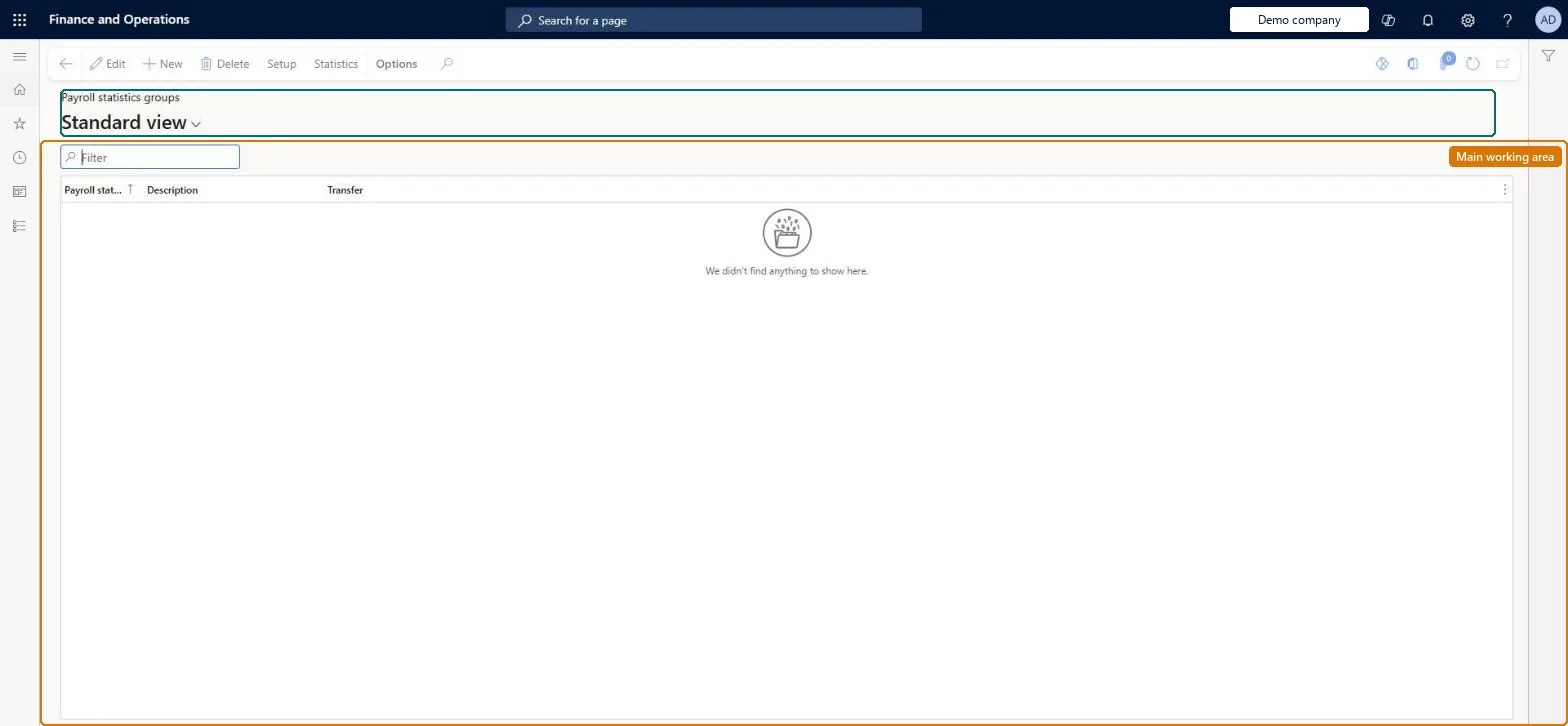
About the examples: Examples and screenshots in this guide use BEAT, a demo company in a Dynamics 365 test environment. Use your own company's codes and values instead of copying them.
Setup steps on this page
Set up Payroll statistics groups
Use this page to set up running totals, such as hours by wage type or a vacation balance, from the pay types in each group over a period type.
Steps from Microsoft
Go to Time and attendance > Setup > Payroll > Payroll statistics groups.
Select New.
Enter the payroll statistics group, a description and the Transfer setting.
Select Setup.
Select New and select the pay type.
Set the Period code field to the period type to use.
One group per balance you track, with Transfer = No when the group only feeds a balance (such as vacation days) and a period code whose periods match the balance yearLearn's vacation balance example uses a payroll statistics group with Transfer = No and a yearly period code so it counts days earned and used in the vacation year.
Are statistics exported?Creating the group but not linking it in Statistical balance setup: the balance then doesn't show in the My day dialog box of the production floor execution interface.Test: Vacation balance group
Feature management and licence
Licence or add-in
Time and attendance roles come from the security read in the Technical section. On this system the page is opened with roles such as Payroll administrator. The Microsoft Learn article for this page names no Feature management feature to turn on.
Per company: each legal entity has its own payroll statistics groups. Checked in Dynamics 365
Can it be undone
Reversible: Change the group and recalculate.
If you change it later
Changing a group's pay types changes the balances only after Recalculate payroll statistics runs. Microsoft Learn
Technical architect
6Technical
Menu item
JmgPayStatGroupChecked in Dynamics 365
Form
JmgPayStatGroupChecked in Dynamics 365
Table
JmgPayStatGroupShown as “PAYROLL STATISTIC GROUPS” in Record infoChecked in Dynamics 365
Data entities
JmgTimeAndAttendanceTimeRegistrationWorkerEntityTime and attendance registration workers (only the time registration workers; payroll statistics groups have no data entity) Checked in Dynamics 365
Who can open it
PrivilegesMaintain payroll statistics JmgPayStatGroupMaintainView payroll statistics JmgPayStatGroupViewDutiesInquire into time and attendance payroll policies JmgTimeAttandancePayrollPoliciesInquireEnable time and attendance payroll process JmgTimeAttendancePayrollProcessEnableInquire into time and attendance payroll reference data JmgTimeAttendancePayrollRefDataInquire1 security rolePayroll administrator HcmPayrollAdministratorChecked in Dynamics 365
Roles to set it up and use it
To set it up or change itPayroll administrator HcmPayrollAdministratorGive people one of these roles. On this system, 1 role can open this page.Checked in Dynamics 365
Actions on the page
(Action Pane without tabs): Setup, StatisticsChecked in Dynamics 365
Developer
7Developer
Open it by URL
https://<your-environment>/?mi=JmgPayStatGroup
Data migration
Load order: A payroll statistics group has no data entity in Data management, so it can't be loaded from a file or a configuration template. Re-create the groups by hand in each environment, then load opening balances with Adjust payroll statistics.Checked in Dynamics 365
Checked in a working Dynamics 365 system, version 10.0.49: the menu item, form, table and security, the page.
To cite this step: TA-SETUP-170, Set up Payroll statistics groups. Beyond ERP Atlas Hub, 2026-11-11. https://www.beyonderp.cloud/atlas/step/TA-SETUP-170