SETUP GUIDEHow to set it up8 sections. Choose a role to highlight what matters to you.
Everyone
1What it is and why
What it is
A workbench page where trade allowance bill-back claims are reviewed, recalculated, approved and processed.
What you do here
Use this page to turn approved claims into deductions or regular payments for the customer.
Example
For example, at month end the promotion owner at BEAT finds 18 bill-back claims of TA-000045 in To be recalculated, runs Cumulate for each chain, approves the adjusted claims and processes them, so 2,400.00 becomes a deduction on the chains' balances.
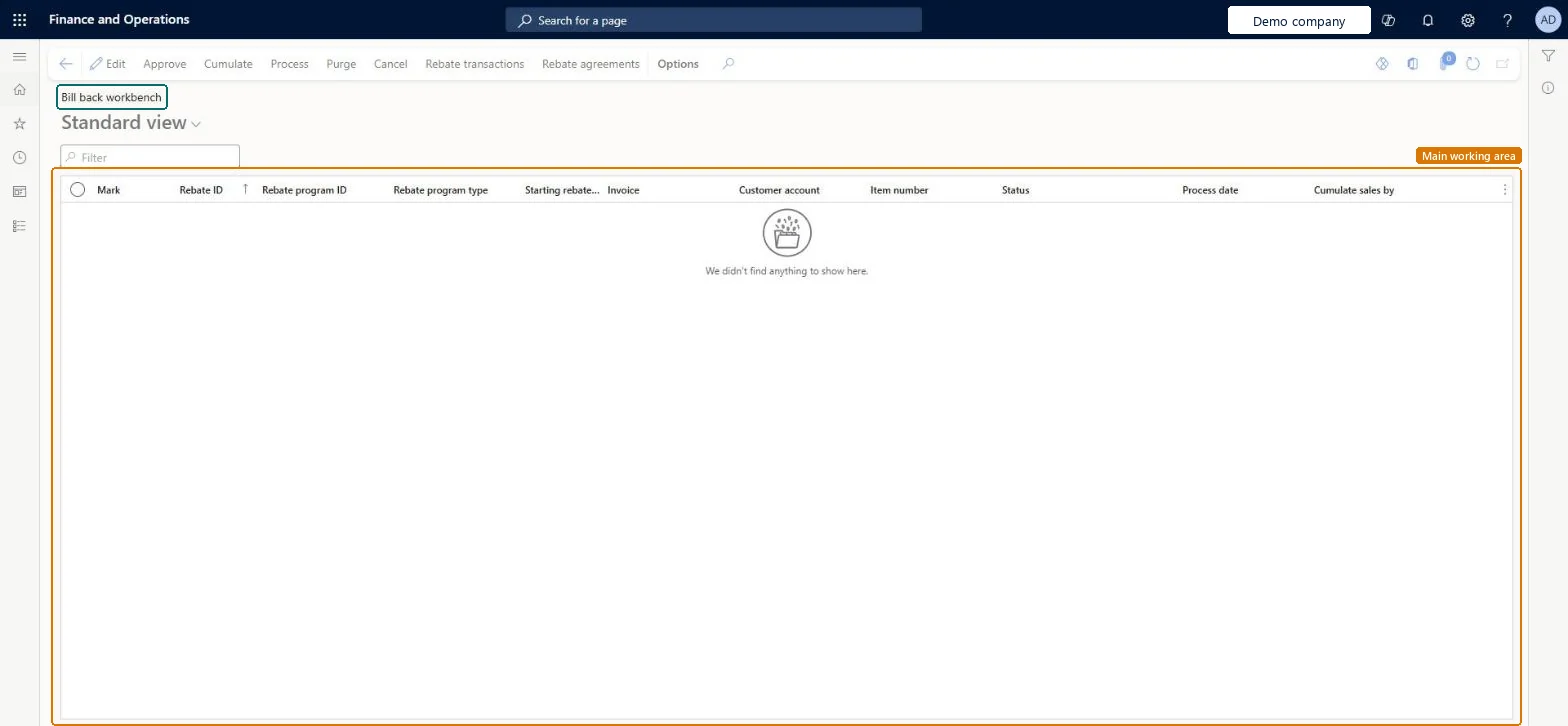
The page in Dynamics 365. page title tab to open what to set or check
About the examples: Examples and screenshots in this guide use BEAT, a demo company in a Dynamics 365 test environment. Use your own company's codes and values instead of copying them.
Setup steps on this page
Cumulate, approve and process bill-back claims
Use this page to turn trade allowance bill-back claims into deductions or regular payments for the customer.
Steps from Microsoft
Go to Sales and marketing > Trade allowances > Bill back workbench.
Review the claim lines generated from posted sales invoices.
For claims in To be recalculated, select Cumulate and select the customer; adjustment claims are added and the status changes to Calculated.
Select Approve for the calculated claims.
Select Process; the claims change to Mark and the Rebate accrual journal is posted.
On the customer, select Collect > Settle transactions > Functions > Bill back program, mark the lines and create the credit note.
Where the claim is in the process: To be recalculated (needs Cumulate), Calculated, Mark (processed: the Rebate accrual journal is posted) and Completed once the deduction is matched.Microsoft Learn
To be recalculated
Common errors and fixes
Message
What to do
Claims in To be recalculated can't be approved.
Select Cumulate for the customer first; after recalculation the claims are Calculated and can be approved. Microsoft Learn
Test checklist
Post invoices under a confirmed trade allowance agreement and open the Bill back workbench.
For claims in To be recalculated, select Cumulate for the customer and check adjustment claims are created and the status is Calculated.
Select Approve, then Process, and check the status changes to Mark and the rebate accrual journal is posted.
On the customer, select Collect > Settle transactions > Functions > Bill back program, mark the lines and create the credit note; check the customer balance is credited.
Review the claims each period, Cumulate claims in To be recalculated per customer, then Approve and Process them, and let accounts receivable create the credit note from Settle transactions.Processing posts the Rebate accrual journal set in Accounts receivable parameters; creating the credit note posts the AR consumption journal, which credits the customer and debits the rebate accrual account.
PrivilegesMaintain bill back rebate lists TAMBillBackListPageMaintainDutiesMaintain trade allowances TAMMaintain3 security rolesMarketing manager CRMMarketingManagerAccounts receivable clerk CustInvoiceAccountsReceivableClerkSales manager TradeSalesManagerChecked in Dynamics 365
Roles to set it up and use it
To set it up or change itSales manager TradeSalesManagerMarketing manager CRMMarketingManagerAccounts receivable clerk CustInvoiceAccountsReceivableClerkGive people one of these roles. On this system, 3 roles can open this page.Checked in Dynamics 365
Actions on the page
Options: Personalize, Page options, ShareChecked in Dynamics 365
SalesRebateEntity (Customer rebates): loaded for each company; the bill-back claims share the table of the Rebates page.Load order: No default configuration template places this entity. Claims are created by invoicing under confirmed agreements; load open claims only after those agreements.Load first: Trade allowance agreements, CustomersMicrosoft Learn
Checked in a working Dynamics 365 system, version 10.0.49: the menu item, form, table and security, the page.
To cite this step: SM-TRD-110, Cumulate, approve and process bill-back claims. Beyond ERP Atlas Hub, 2026-11-11. https://www.beyonderp.cloud/atlas/step/SM-TRD-110