SETUP GUIDEHow to set it up8 sections. Choose a role to highlight what matters to you.
Everyone
1What it is and why
What it is
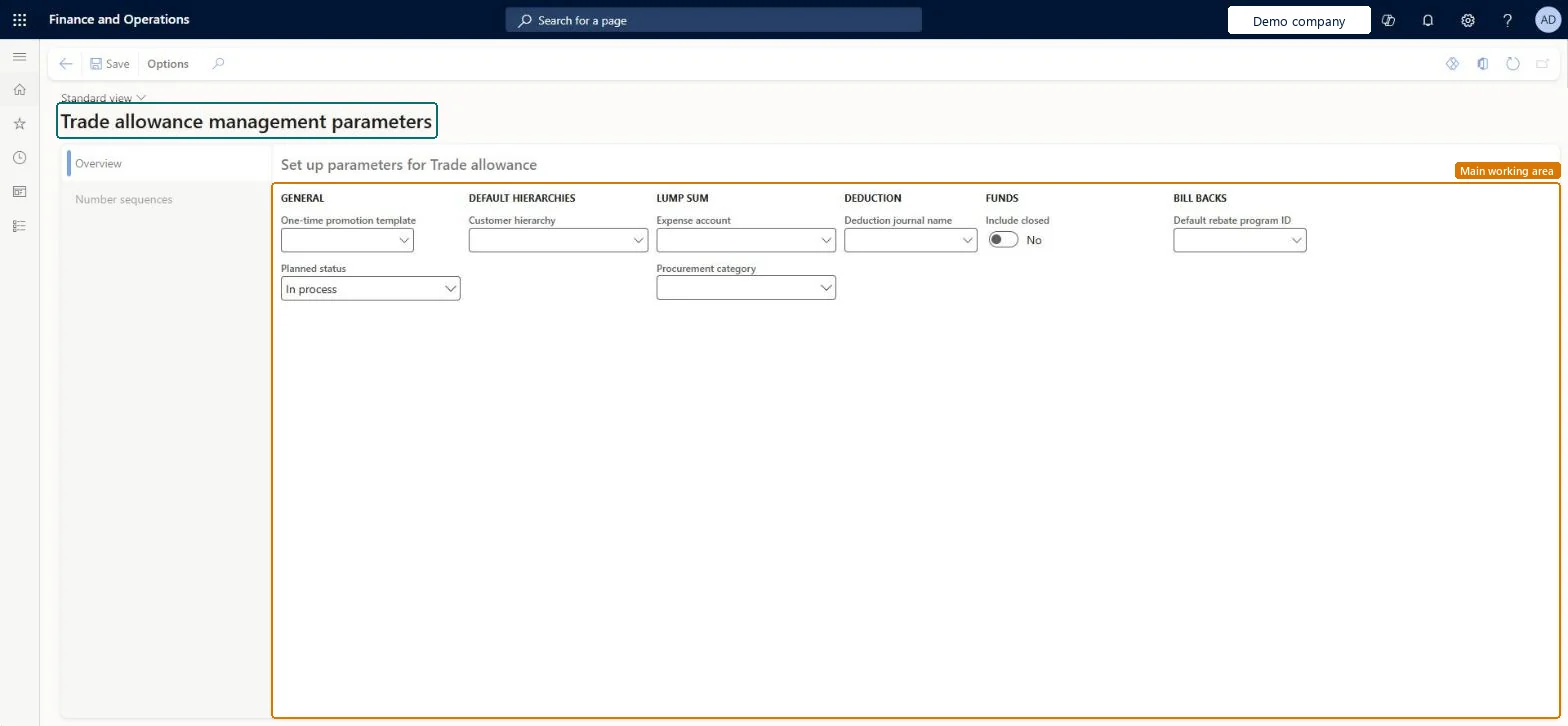
The parameters page of trade allowance management. It holds the one-time promotion template, the default customer hierarchy, the planned status, the lump sum accounts and procurement category, the deduction journal, fund analysis options, the default rebate program and the number sequences for deductions, trade allowances, merchandising events, funds and lump sum invoices.
What you do here
Use this page to turn trade allowance features and rules on or off and set default values, for example for bill-backs and deductions.
Example
BEAT's customer CUS-000214 short-pays invoice INV-004512 by 750.00 and no approved rebate matches. The A/R clerk creates deduction DED-000031, which takes its ID from the Deduction ID sequence on this page, and settles it as a one-time promotion, which uses the template PROMO-ONETIME selected here to create a new trade allowance agreement and lump sum.
The page in Dynamics 365. page title tab to open what to set or check
About the examples: Examples and screenshots in this guide use BEAT, a demo company in a Dynamics 365 test environment. Use your own company's codes and values instead of copying them.
Step by step, with screenshots
Set up Trade allowance management parameters1 screen
Use this page to turn trade allowance features and rules on or off and set default values, for example for bill-backs and deductions.
Screen 1
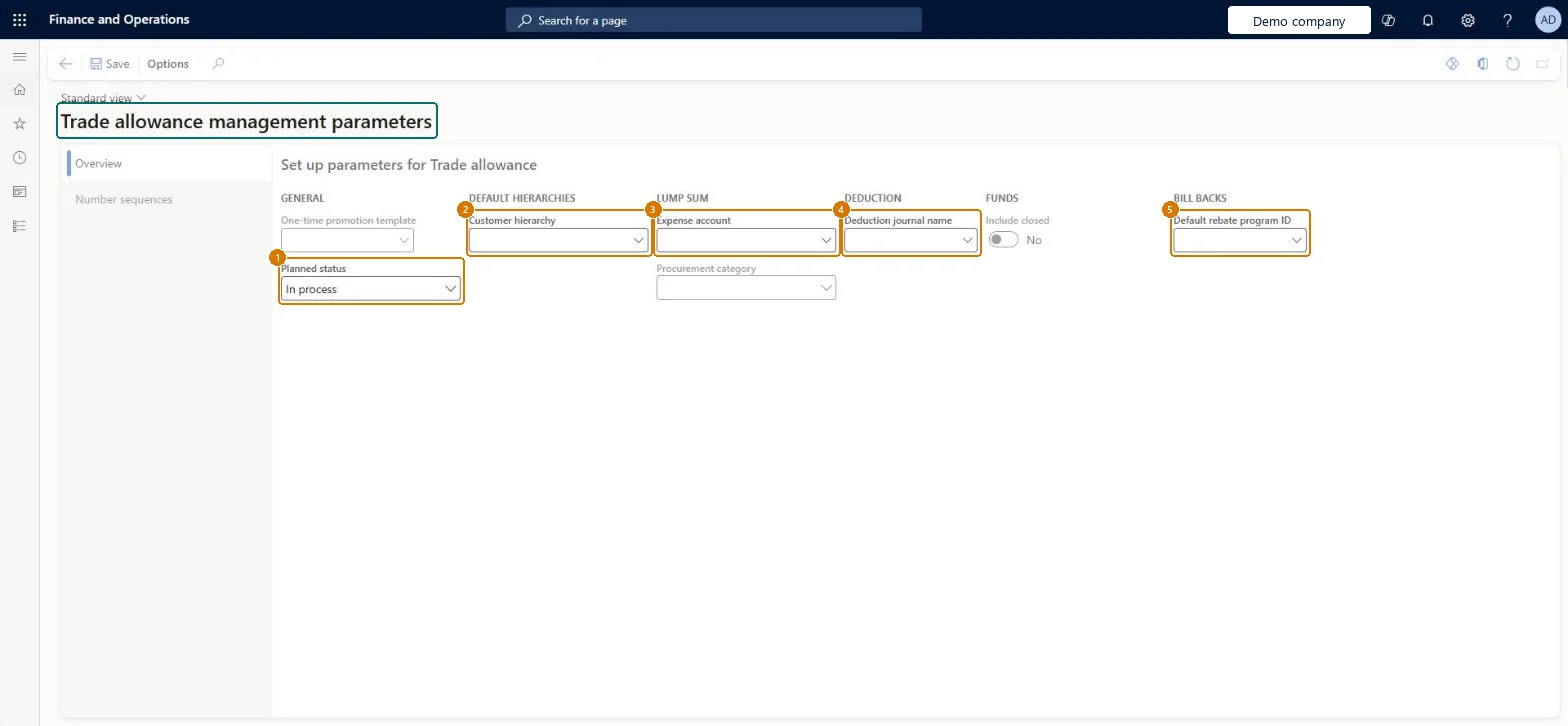
Review the trade allowance parameters
Go to Sales and marketing > Setup > Trade allowance > Trade allowance management parameters
On the Overview tab, select the planned status for new trade allowance agreements
Select the customer hierarchy, the lump sum expense account and procurement category, and the deduction journal name
Select the default rebate program for bill backs
Select Save
On the Number sequences tab, check the number sequences for trade allowance documents
1Planned status
In process
Include closed
No
Show the full screen page title tab to open what to set or check
Steps from Microsoft
Go to Sales and marketing > Setup > Trade allowance > Trade allowance management parameters.
On the Overview tab, in One-time promotion template, select the template to use when deductions are settled as one-time promotions.
Set the default customer hierarchy, the lump sum accounts and procurement category, and the deduction journal name.
On the Number sequences tab, give Deduction ID and the other references a number sequence.
Create a deduction on the Deduction workbench and check that its ID comes from the Deduction ID sequence.
Shown on the page as One-time promotion template: the trade allowance agreement template used when a deduction is settled as a one-time promotion from the Deduction workbench.Microsoft Learn
PROMO-ONETIME
EndOfPeriodTemplate
Planned status
The trade allowance agreement status stored as Planned status on the parameters.Microsoft data model
In process
PromotionStatus
Customer hierarchy
The default customer hierarchy for trade allowances; agreements select customers from predefined hierarchies.Microsoft data model
BEAT-RETAIL
DefaultCustHierarchy
Expense account
The ledger account shown as Expense account; its column (LSClaimOffsetLedgerDimension) belongs to the lump sum settings of the parameters.Microsoft data model
605100
LSClaimOffsetLedgerDimension
Procurement category
The procurement category whose column (LSProcurementCategory) belongs to the lump sum settings of the parameters.Microsoft data model
Whether closed trade allowance agreements are included in fund analytics.Microsoft data model
No
IncludeClosedInFundAnalytics
Default rebate program ID
The default rebate program ID for trade allowances; the rebate program ID is shown on the Rebates FastTab of Price details for a bill back.Microsoft Learn
TA-BILLBACK
RebateType
Common errors and fixes
Message
What to do
Settle deduction as one-time promotion can't create the agreement
Create a trade allowance template and select it in One-time promotion template on the Overview tab of this page. Microsoft Learn
Sales clerks can't see the bill back on a promotion order
Select Enable price details on the Prices tab of Accounts receivable parameters, then open Price details from the sales order line. Microsoft Learn
Test checklist
Create a trade allowance agreement template and select it as One-time promotion template.
Create a deduction on the Deduction workbench and check its ID uses the Deduction ID sequence.
Settle the deduction as a one-time promotion and check a new trade allowance agreement and lump sum are created.
Invoice a promotion order and check the bill-back claim appears on the Bill back workbench.
Set the Deduction ID number sequence and Deduction journal name, and select a One-time promotion template if unmatched deductions will be settled as one-time promotionsNew deductions take their ID from the number sequence on this page, and the Settle deduction as one-time promotion action uses the template selected here.
Reversible: Parameters can be changed at any time; they apply to deductions and promotions created afterwards.
If you change it later
New deductions take their ID from the Deduction ID sequence, and one-time promotions are created from the template selected here, from the moment the parameter changes; deductions and agreements already created keep their IDs and postings. Microsoft Learn
Technical architect
6Technical
Menu item
TAMPromotionParametersChecked in Dynamics 365
Form
TAMPromotionParametersChecked in Dynamics 365
Table
TAMPromotionParametersShown as “Trade allowance management parameters” in Record infoChecked in Dynamics 365
Data entities
TAMTradeAllowanceManagementParametersEntityTrade allowance management parameters Microsoft data model
To set it up or change itSales manager TradeSalesManagerMarketing manager CRMMarketingManagerAccounts receivable clerk CustInvoiceAccountsReceivableClerkGive people one of these roles. On this system, 3 roles can open this page.Checked in Dynamics 365
Actions on the page
Options: Personalize, Page options, Edit, ShareChecked in Dynamics 365
TAMTradeAllowanceManagementParametersEntity (Trade allowance management parameters): one record per company.Load order: Load the parameters after the journal names, number sequences, customer hierarchy and the one-time promotion template they refer to.Load first: Journal names, Number sequences, Customer category hierarchy, Trade allowance templatesMicrosoft data model
Checked in a working Dynamics 365 system, version 10.0.49: the menu item, form, table and security, the page, the demo records and the values in the screenshots.
To cite this step: SM-SETUP-680, Set up Trade allowance management parameters. Beyond ERP Atlas Hub, 2026-11-11. https://www.beyonderp.cloud/atlas/step/SM-SETUP-680