SETUP GUIDEHow to set it up8 sections. Choose a role to highlight what matters to you.
Everyone
1What it is and why
What it is
A setup page that holds standard closing sentences or paragraphs, each with a name, for quotation documents.
What you do here
Use this page to reuse the same approved closing text across your sales quotations.
Example
BEAT stores the conclusion VALID30 with the text that the offer is valid for 30 days and that prices exclude sales tax; the sales team uses it on its 60 or so quotations a month.
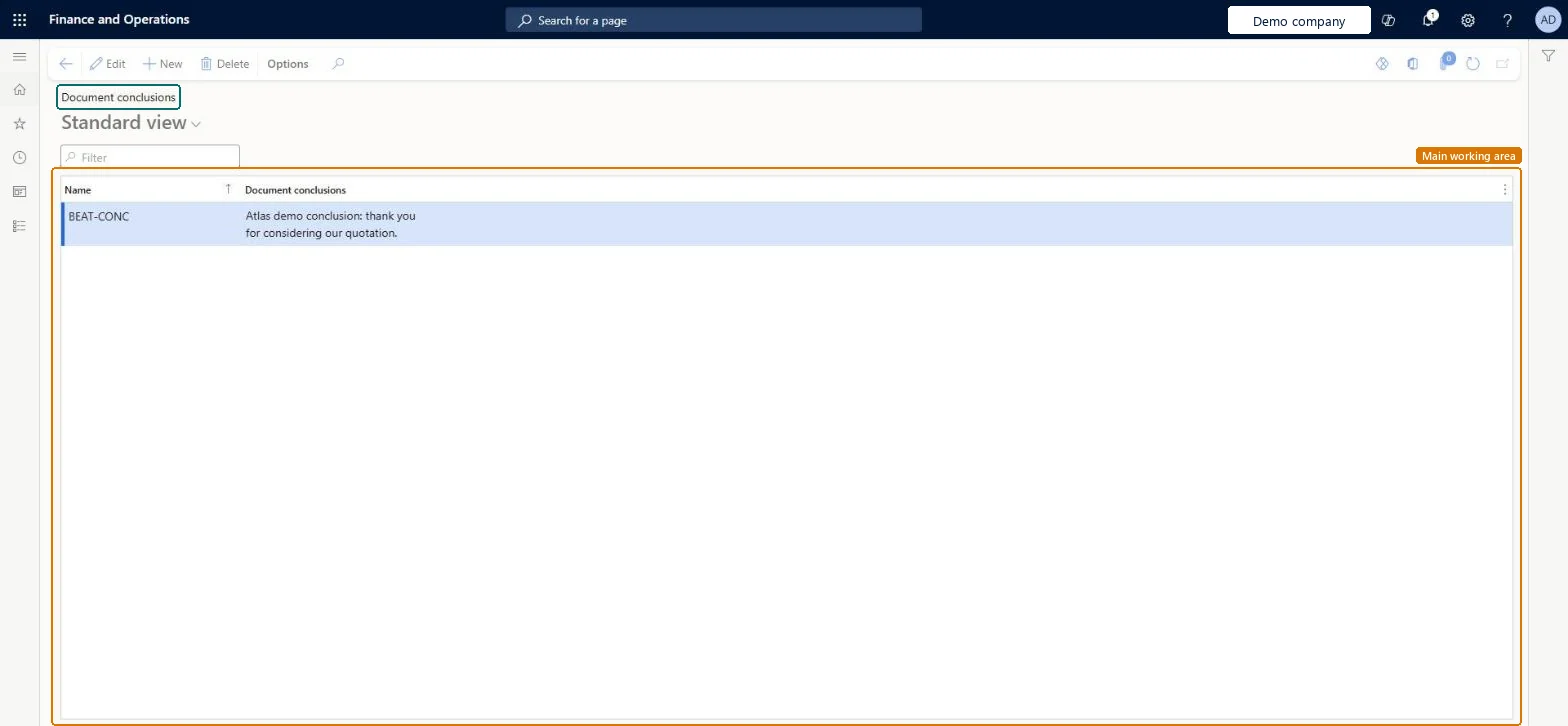
The page in Dynamics 365. page title tab to open what to set or check
About the examples: Examples and screenshots in this guide use BEAT, a demo company in a Dynamics 365 test environment. Use your own company's codes and values instead of copying them.
Step by step, with screenshots
Set up Document conclusions1 screen
Use this page to reuse the same closing text across your sales quotations.
Screen 1
Create a quotation document conclusion
Go to Sales and marketing > Setup > Quotations > Document conclusions
Select New
Enter a name for the conclusion
Type the closing text
Select Save
Select the conclusion on sales quotations so the text prints at the end of the quotation
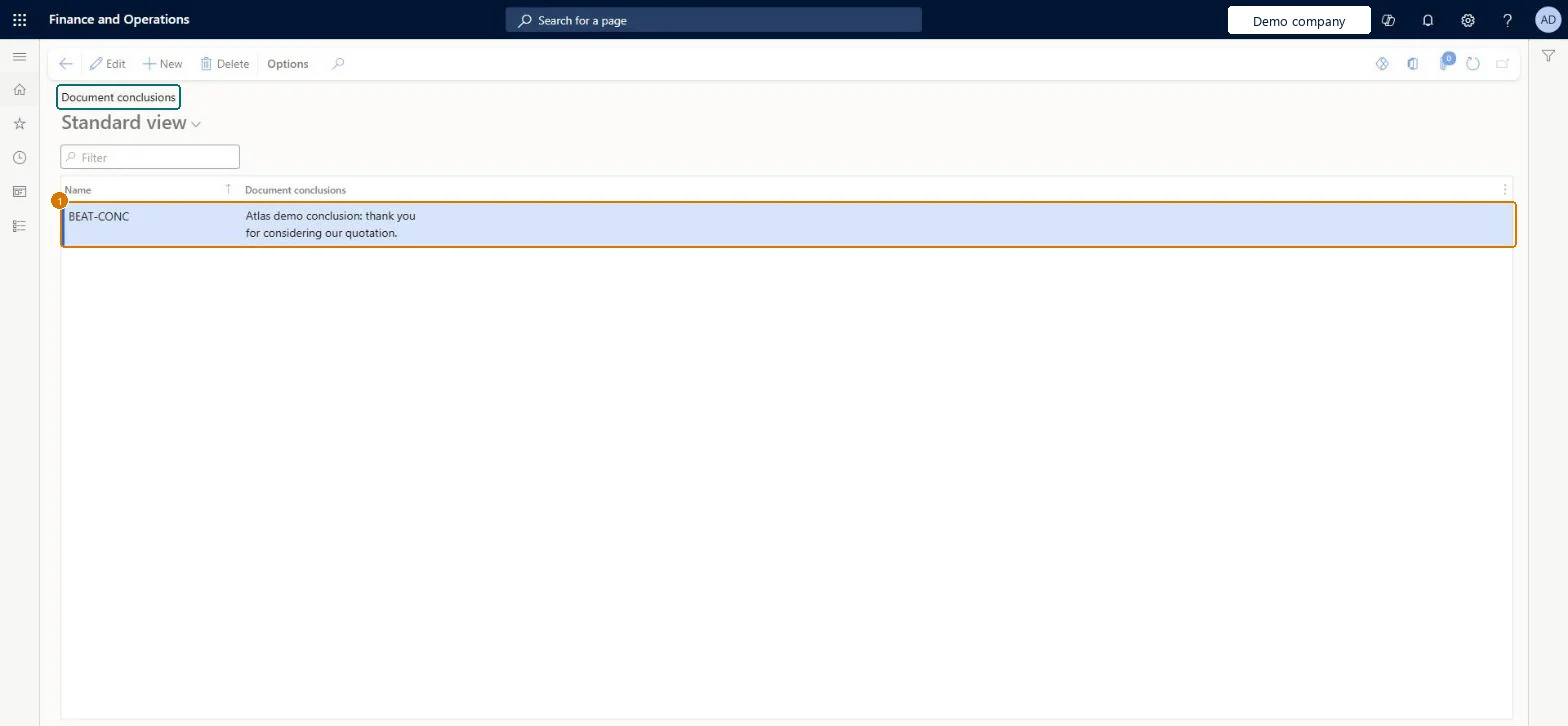
1Name
BEAT-CONC
Document conclusions
Conclusion: thank you for considering our quotation.
Show the full screen page title tab to open what to set or check
Steps from Microsoft
Go to Sales and marketing > Setup > Quotations > Document conclusions.
Select New to add a row to the list.
Enter a Name, such as VALID30.
Enter the Document conclusions text that sales management approved for quotations.
A few approved conclusions (for example validity period and terms), each with a clear name.Standard conclusions keep closing terms the same on every quotation document.
Reversible: Texts can be edited; documents already created keep their text.
If you change it later
The page stores standard text for quotation documents; changing it changes the text offered for documents created afterwards, not documents already created. Microsoft Learn
Technical architect
6Technical
Menu item
smmQuotationDocuConclusionGroupChecked in Dynamics 365
Form
smmQuotationDocuConclusionGroupChecked in Dynamics 365
Table
smmQuotationDocuConclusionGroupShown as “Document conclusions” in Record infoChecked in Dynamics 365
Data entities
smmQuotationDocumentConclusionEntityQuotation document conclusions Microsoft data model
Roles to set it up and use it
To set it up or change itSales manager TradeSalesManagerRental manager RentalManagerRental coordinator agent RentalCoordinatorAgentRental sales manager RentalSalesManagerSales representative TradeSalesRepresentativeTo use itAccounts receivable clerk CustInvoiceAccountsReceivableClerkAccounts receivable centralized payments clerk PaymAccountsReceivableCentralPaymClerkAccounts receivable payments clerk PaymAccountsReceivablePaymentsClerkRental purchasing manager RentalPurchasingManagerRetail store manager RetailStoreManagerGive people one of these roles. On this system, 15 roles can open this page.Checked in Dynamics 365
Actions on the page
Options: Personalize, Page options, ShareChecked in Dynamics 365
smmQuotationDocumentConclusionEntity (Quotation document conclusions): loaded for each company, in Microsoft's default template 330 - Sales and marketing.Load order: Microsoft's default template 330 - Sales and marketing loads Quotation document conclusions at execution unit 1, level 30, sequence 10. Lower levels load first, and entities at the same level load in sequence order.Load first: the default templates at lower levels (System setup to General ledger)Microsoft Learn
Checked in a working Dynamics 365 system, version 10.0.49: the menu item, form, table and security, the page, the demo records and the values in the screenshots.
To cite this step: SM-SETUP-560, Set up Document conclusions. Beyond ERP Atlas Hub, 2026-11-11. https://www.beyonderp.cloud/atlas/step/SM-SETUP-560