Accounts receivable clerk, Accounts receivable manager, Accounts receivable centralized payments clerk and 6 more roles
Business process
Estimate and quote sales
Menu item
SalesQuotationTemplateGroup
Main table
SalesQuotationTemplateGroup
Data entity
SalesQuotationTemplateGroupEntity
Setup steps
1 on this page
Show what matters for
PAGE GUIDEWhat the page does and how to use it8 sections. Choose a role to highlight what matters to you.
Everyone
1What it is and why
What it is
A setup page where you create the groups that sales quotation templates are organized into.
What you do here
Use this page to organize quotation templates, which must belong to a template group.
Example
BEAT creates the template group MAINT and a template quotation with 4 service lines worth 1,980.00 USD. Mass create quotations with this template for customers CUST-000101..CUST-000140 creates 40 quotations in one run.
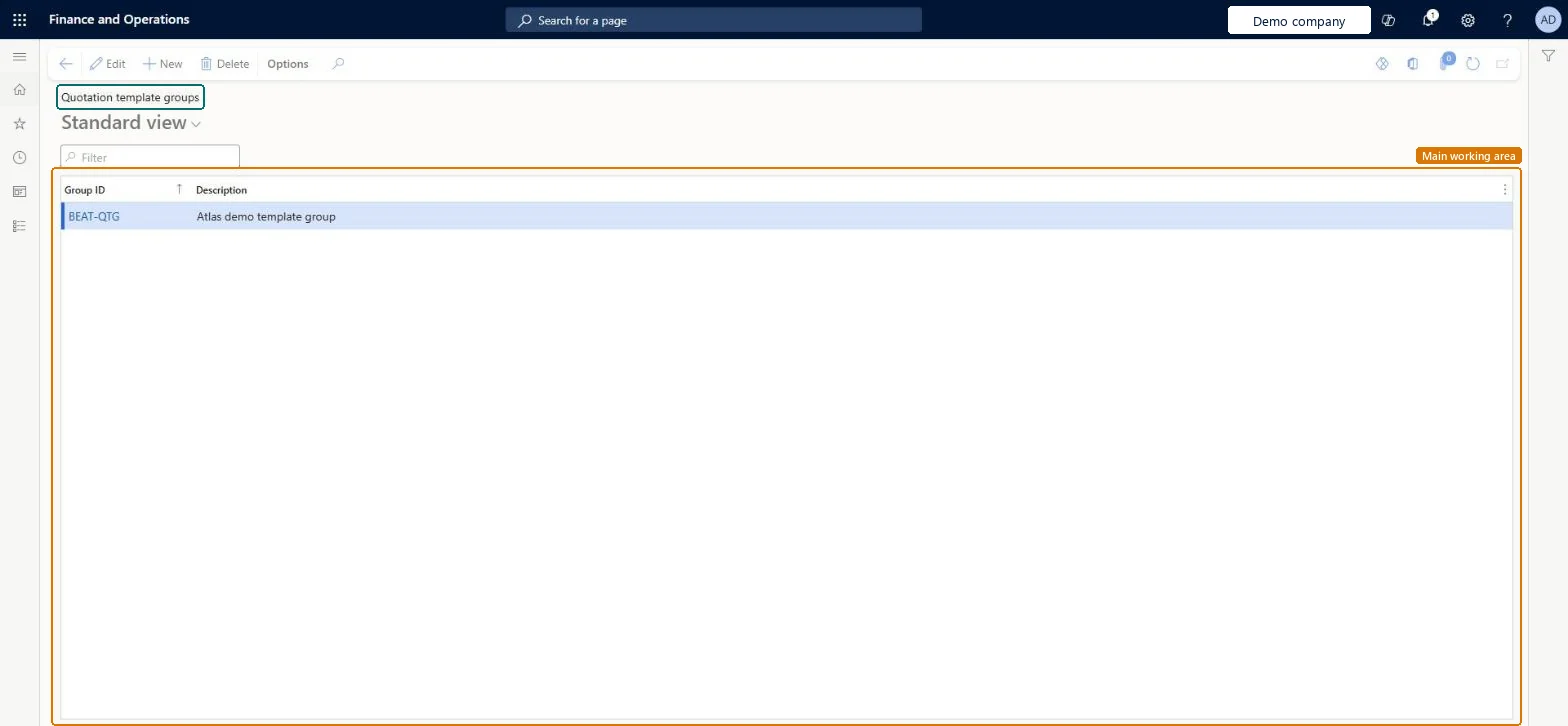
The page in Dynamics 365. page title tab to open what to set or check
About the examples: Examples and screenshots in this guide use BEAT, a demo company in a Dynamics 365 test environment. Use your own company's codes and values instead of copying them.
Step by step, with screenshots
Set up Template groups1 screen
Use this page to organize quotation templates, which must belong to a template group.
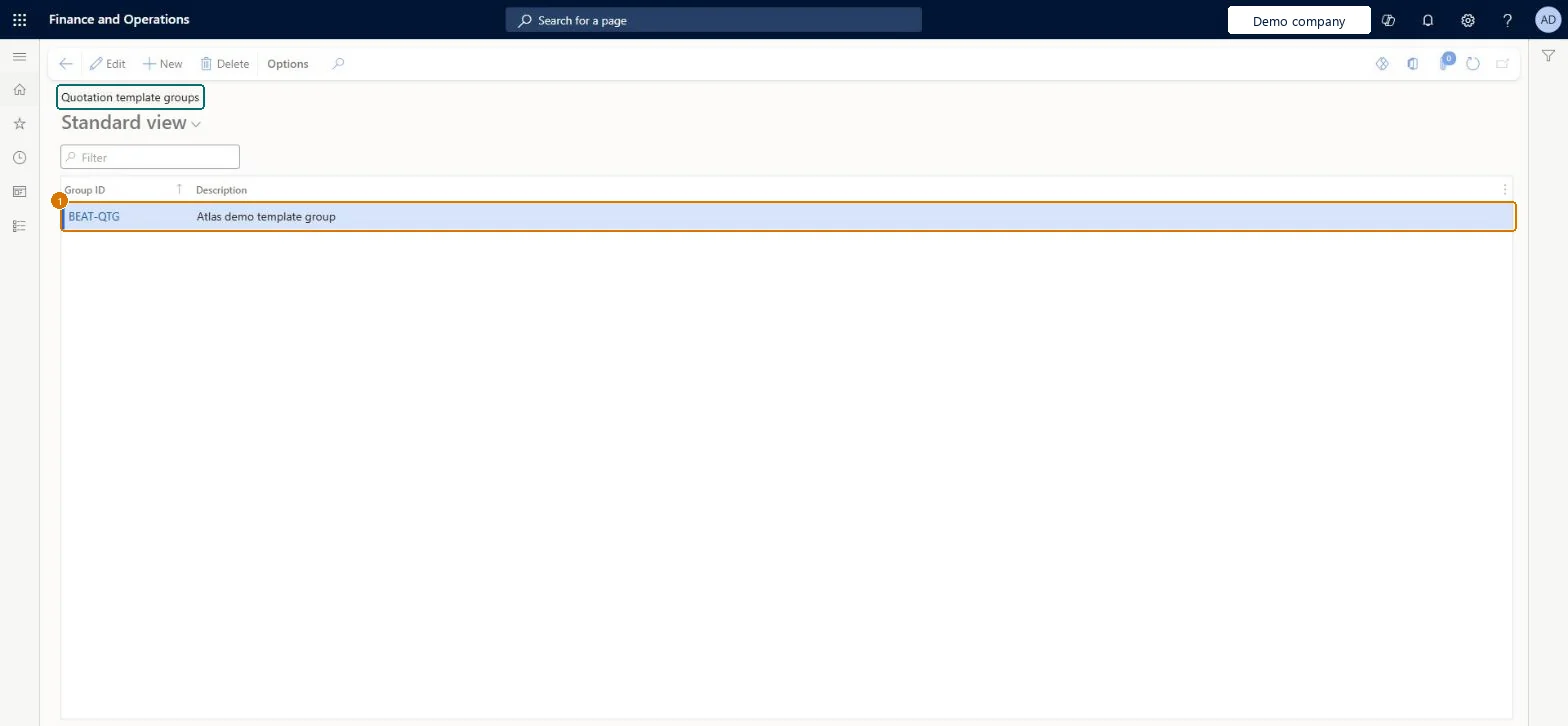
Screen 1
Create a quotation template group
Go to Sales and marketing > Setup > Quotations > Template groups
Select New
Enter the group ID and description
Select Save
Select the group when you save a sales quotation as a template
1Group ID
BEAT-QTG
Description
Template group
Show the full screen page title tab to open what to set or check
Steps from Microsoft
Go to Sales and marketing > Setup > Quotations > Template groups.
Select New and enter an ID in the Group ID field and a description in the Description field.
Select Save and close the page.
On a new quotation, before you add lines, open the header view, expand Setup and set Group ID, Template name and Active = Yes.
Run Sales and marketing > Sales quotations > Quotation update > Mass create quotations with the group and template.
Create the template groups first, then make each template quotation by setting Group ID, Template name and Active = Yes on the quotation header before adding linesA quotation becomes a template only through the header setup, which must be done before lines are added, and only active templates can be applied to new or mass-created quotations.
On the live system, Sales manager, Rental manager, Rental coordinator agent, Rental sales manager and Accounts receivable manager can maintain this page.
Reversible: Groups and templates can be changed or deactivated at any time; quotations already created from them are separate documents. Microsoft Learn
If you change it later
A quotation becomes a template only through the header setup, which must be done before lines are added. Quotations created from a template take its data at that time. Microsoft Learn
Technical architect
6Technical
Menu item
SalesQuotationTemplateGroupChecked in Dynamics 365
Form
SalesQuotationTemplateGroupChecked in Dynamics 365
Table
SalesQuotationTemplateGroupShown as “Quotation template groups” in Record infoKey field: TemplateGroupIdChecked in Dynamics 365
PrivilegesMaintain quotation template groups and types SalesQuotationTemplateGroupMaintainView quotation template groups and types SalesQuotationTemplateGroupViewDutiesEnable quotation to sales order process RentalSalesQuotationToSlsOrdProcessEnableEnable quotation to sales order process SalesQuotationToSalesOrderProcessEnableInquire into quotation to sales order reference data SalesQuotationToSalesOrderRefDataInquir9 security rolesAccounts receivable clerk CustInvoiceAccountsReceivableClerkAccounts receivable manager CustInvoiceAccountsReceivableManagerAccounts receivable centralized payments clerk PaymAccountsReceivableCentralPaymClerkAccounts receivable payments clerk PaymAccountsReceivablePaymentsClerkRental coordinator agent RentalCoordinatorAgentRental manager RentalManagerRental sales manager RentalSalesManagerRetail service RetailServiceSales manager TradeSalesManagerChecked in Dynamics 365
Roles to set it up and use it
To set it up or change itSales manager TradeSalesManagerRental manager RentalManagerRental coordinator agent RentalCoordinatorAgentRental sales manager RentalSalesManagerAccounts receivable manager CustInvoiceAccountsReceivableManagerTo use itAccounts receivable clerk CustInvoiceAccountsReceivableClerkAccounts receivable centralized payments clerk PaymAccountsReceivableCentralPaymClerkAccounts receivable payments clerk PaymAccountsReceivablePaymentsClerkGive people one of these roles. On this system, 9 roles can open this page.Checked in Dynamics 365
Actions on the page
Options: Personalize, Page options, ShareChecked in Dynamics 365
SalesQuotationTemplateGroupEntity (Quotation template groups): loaded for each company, in Microsoft's default template 330 - Sales and marketing.Load order: Microsoft's default template 330 - Sales and marketing loads Quotation template groups at execution unit 1, level 30, sequence 10. Lower levels load first, and entities at the same level load in sequence order.Load first: the default templates at lower levels (System setup to General ledger)Microsoft Learn
Checked in a working Dynamics 365 system, version 10.0.49: the menu item, form, table and security, the page, the demo records and the values in the screenshots.