SETUP GUIDEHow to set it up8 sections. Choose a role to highlight what matters to you.
Everyone
1What it is and why
What it is
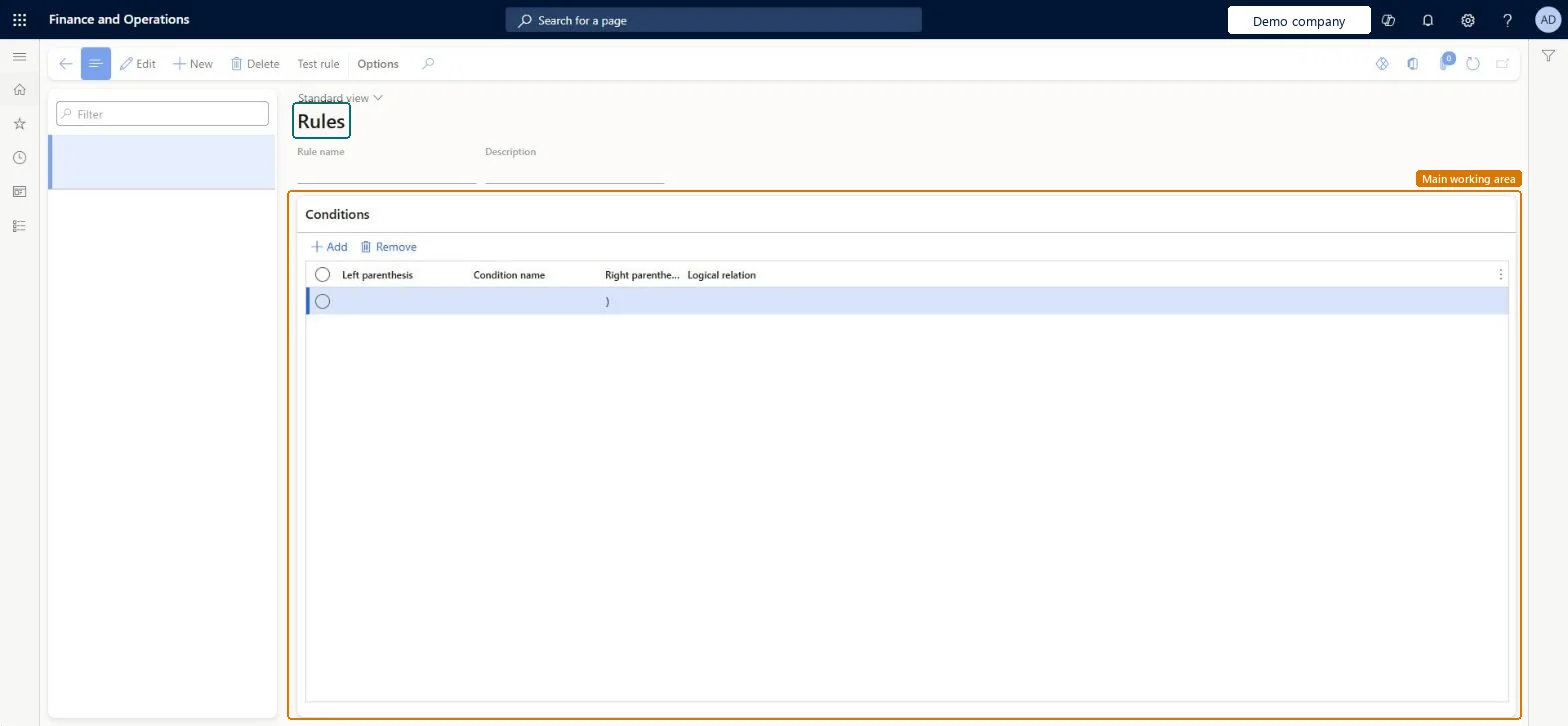
The third up-sell/cross-sell setup page. A rule combines one or more conditions and is linked to products, so the order taker is offered an up-sell or cross-sell product when the rule is true during order entry.
What you do here
Use this page to combine conditions into named rules and test them before they are linked to products.
Example
BEAT creates rule GLOVES-UP with condition WHOLESALE-009 and links it to BEAT-ITEM-009 with up-sell item BEAT-ITEM-016. When a WHOLESALE customer orders 10 boxes of BEAT-ITEM-009 at 12.50, the order taker is offered BEAT-ITEM-016 at 14.90 instead.
The page in Dynamics 365. page title tab to open what to set or check
About the examples: Examples and screenshots in this guide use BEAT, a demo company in a Dynamics 365 test environment. Use your own company's codes and values instead of copying them.
Step by step, with screenshots
Set up Rules1 screen
Use this page to combine conditions into named rules and test them before they are linked to products.
Screen 1
Create an up-sell/cross-sell rule
Go to Sales and marketing > Setup > Up-sell/cross-sell > Rules
Make sure the condition exists (Sales and marketing > Setup > Up-sell/cross-sell > Conditions)
Select New
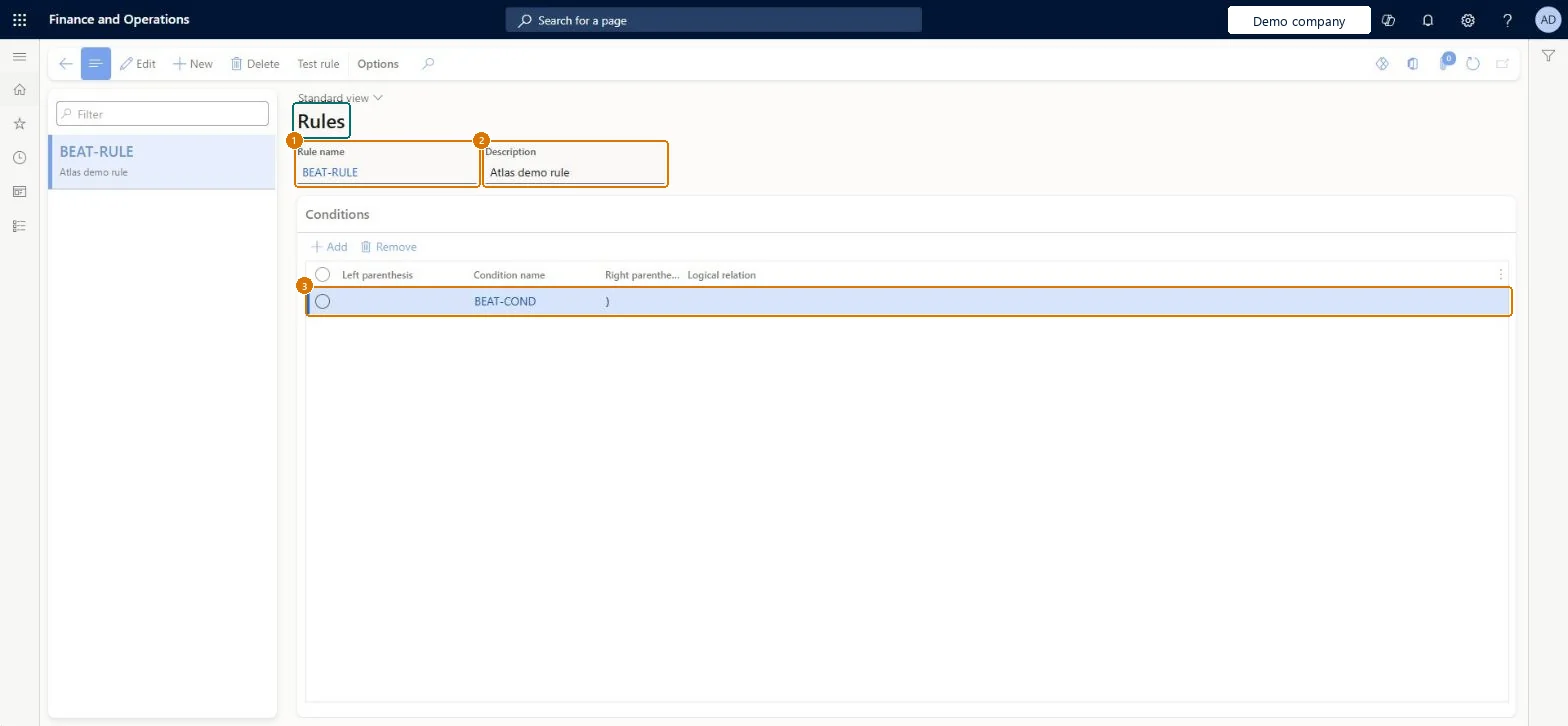
Enter the rule name and description
Under Conditions, select the condition name; add parentheses and a logical relation when you combine several conditions
Select Save
Use Test rule to check the rule before you link it to products
1Rule name
BEAT-RULE
2Description
Rule
3Condition name
BEAT-COND
Show the full screen page title tab to open what to set or check
Steps from Microsoft
Go to Sales and marketing > Setup > Up-sell/cross-sell > Rules.
Select New and enter a Rule name and a Description.
On the Conditions FastTab, add the conditions that must be true.
Select Test rule to check the result for a sample record.
Link the rule to the product's up-sell/cross-sell items on the released product.
The condition that must be met for the rule to apply.Checked in Dynamics 365
HighValue
ConditionName
Common errors and fixes
Message
What to do
No up-sell or cross-sell window appears during order entry
Turn on Enable direct selling for the call center channel; without it, the pop-up windows don't appear even if a valid up-sell or cross-sell is defined for the item. Microsoft Learn
A catalog order shows different suggestions from the product setup
Catalog-specific up-sell and cross-sell items appear instead of the standard ones when the catalog's source code is on the order; check the catalog's Products FastTab. Microsoft Learn
Test checklist
Create rule GLOVES-UP with condition WHOLESALE-009 and select Test rule.
Link the rule to BEAT-ITEM-009 with up-sell item BEAT-ITEM-016.
As a call center user on a channel with Enable direct selling, order BEAT-ITEM-009 for a WHOLESALE customer and check that one suggestion, BEAT-ITEM-016, pops up.
Test every rule with Test rule before linking it to products, and keep one rule per suggestion scenario.Up-selling suggests another product instead of the ordered one; cross-selling suggests a product in addition to it. When you set up product lists you create rules that say when a product is suggested, so a wrong rule shows the wrong product to every order taker.
Reversible: Rules can be edited or unlinked at any time.
If you change it later
A changed rule affects suggestions on orders entered afterwards; it changes no posted data. Microsoft Learn
Technical architect
6Technical
Menu item
MCRUpSellVarRuleChecked in Dynamics 365
Form
MCRUpSellVarRuleChecked in Dynamics 365
Table
MCRUpSellVarRuleShown as “Up sell / cross sell rules” in Record infoChecked in Dynamics 365
Who can open it
PrivilegesMaintain up-sell rules MCRUpSellVarRuleMaintainDutiesMaintain up and cross-selling MCRUpSellCrossMaintain1 security roleSales manager TradeSalesManagerChecked in Dynamics 365
Roles to set it up and use it
To set it up or change itSales manager TradeSalesManagerGive people one of these roles. On this system, 1 role can open this page.Checked in Dynamics 365
Actions on the page
Options: Personalize, Page options, ShareChecked in Dynamics 365
Developer
7Developer
Open it by URL
https://<your-environment>/?mi=MCRUpSellVarRule
Data migration
Load order: Rules has no data entity in Data management. Create the rules by hand in each legal entity after the variables and conditions, select Test rule, and then link them to the products.Checked in Dynamics 365
Checked in a working Dynamics 365 system, version 10.0.49: the menu item, form, table and security, the page, the demo records and the values in the screenshots.
To cite this step: SM-SETUP-480, Set up Rules. Beyond ERP Atlas Hub, 2026-11-11. https://www.beyonderp.cloud/atlas/step/SM-SETUP-480