SETUP GUIDEHow to set it up8 sections. Choose a role to highlight what matters to you.
Everyone
1What it is and why
What it is
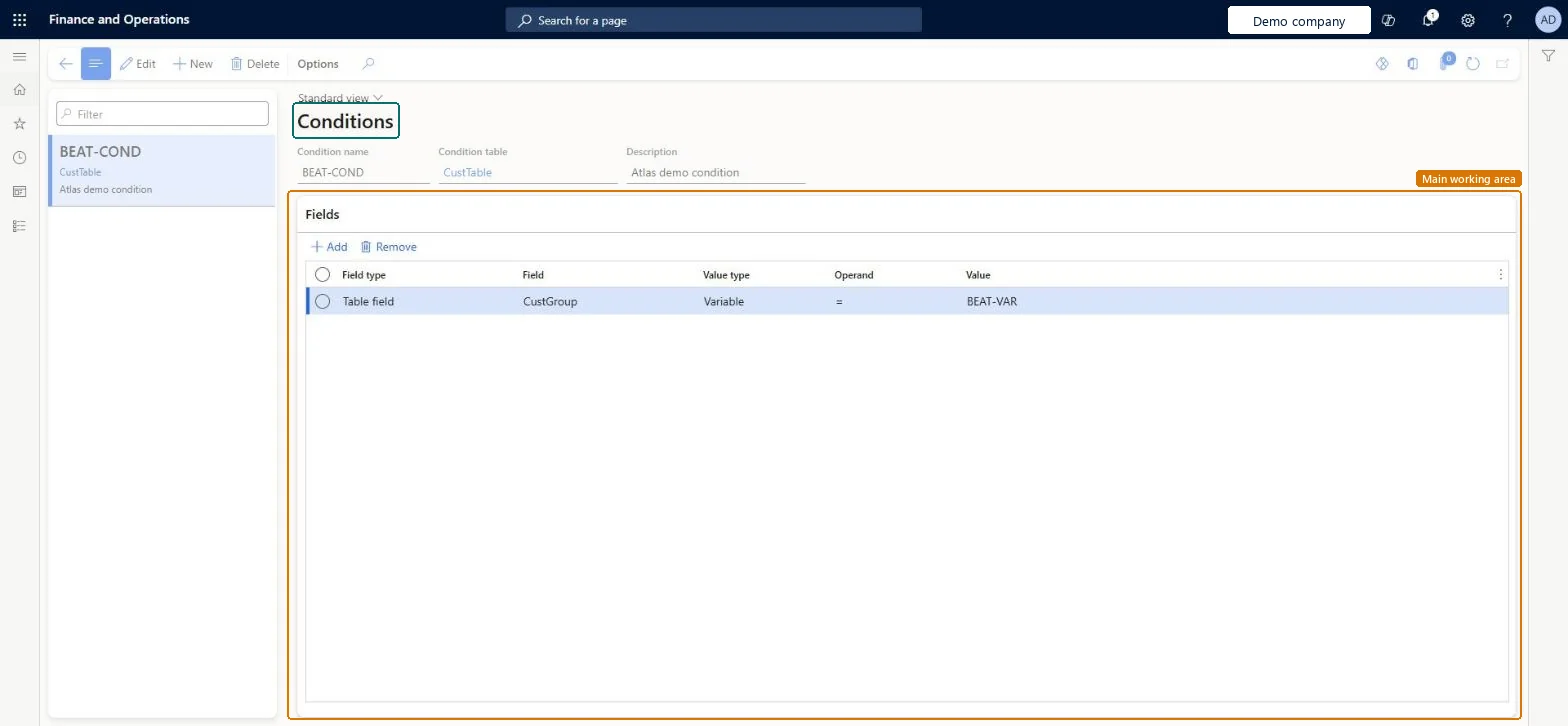
The second up-sell/cross-sell setup page. A condition is a named set of field tests on one table (field, operand and value or variable) that must be true for a rule to suggest a product.
What you do here
Use this page to describe, field by field, the situation in which a product should be suggested, such as a customer group and a product on the order.
Example
BEAT creates condition WHOLESALE-009 on CustTable: CustGroup = WHOLESALE. Rule GLOVES-UP then uses it, so an order line for 10 boxes of BEAT-ITEM-009 at 12.50 for a WHOLESALE customer triggers the suggestion of BEAT-ITEM-016.
The page in Dynamics 365. page title tab to open what to set or check
About the examples: Examples and screenshots in this guide use BEAT, a demo company in a Dynamics 365 test environment. Use your own company's codes and values instead of copying them.
Step by step, with screenshots
Set up Conditions1 screen
Use this page to describe, field by field, the situation in which a product should be suggested, such as a customer group and a product on the order.
Screen 1
Create an up-sell/cross-sell condition
Go to Sales and marketing > Setup > Up-sell/cross-sell > Conditions
Make sure the variable exists (Sales and marketing > Setup > Up-sell/cross-sell > Variables)
Select New
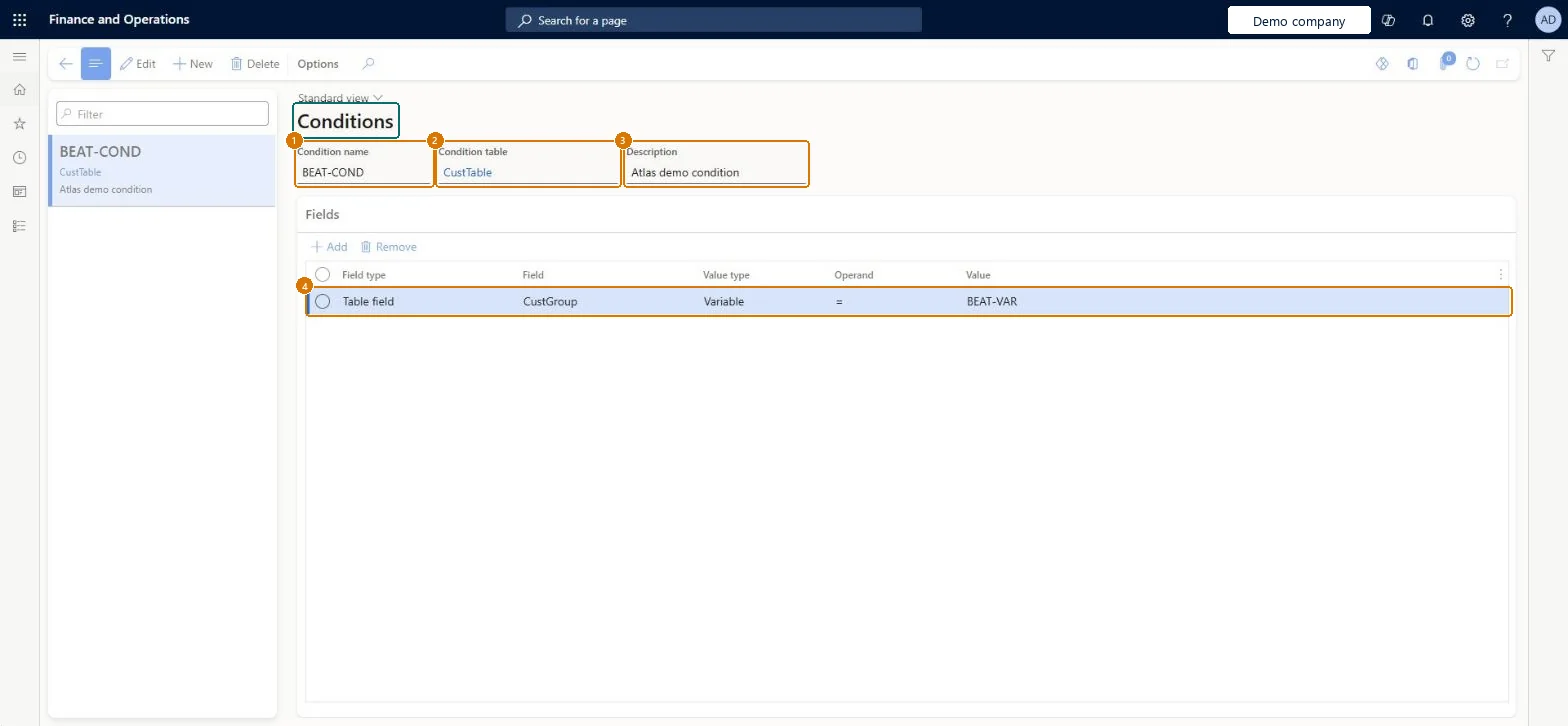
Enter the condition name, select the condition table and enter a description
Select Save
Under Fields, select Add, then choose the field type, field, value type, operand and value
Select Save
1Condition name
BEAT-COND
2Condition table
CustTable
3Description
Condition
4Field
CustGroup
Field type
Table field
Value type
Variable
Operand
=
Value
BEAT-VAR
Show the full screen page title tab to open what to set or check
Steps from Microsoft
Go to Sales and marketing > Setup > Up-sell/cross-sell > Conditions.
Select New and enter a Condition name and a Description.
In Condition table, select the table the condition is based on, for example CustTable.
On the Fields FastTab, select Add and enter Field type, Field, Value type, Operand and Value.
One condition per business situation, named after it (for example WHOLESALE-009), with as few field lines as needed.Up-selling suggests another product instead of the ordered one; cross-selling suggests a product in addition to it. A rule suggests a product only when its conditions are true, so each condition must describe one clear situation.
Reversible: Conditions can be edited at any time; test the rules afterwards.
If you change it later
Every rule that uses the condition changes with it; select Test rule on those rules after a change. Microsoft Learn
Technical architect
6Technical
Menu item
MCRUpSellVarConditionChecked in Dynamics 365
Form
MCRVarConditionChecked in Dynamics 365
Table
MCRUpSellVarConditionShown as “Condition” in Record infoChecked in Dynamics 365
Who can open it
PrivilegesMaintain up-sell conditions MCRUpSellVarConditionMaintainDutiesMaintain up and cross-selling MCRUpSellCrossMaintain1 security roleSales manager TradeSalesManagerChecked in Dynamics 365
Roles to set it up and use it
To set it up or change itSales manager TradeSalesManagerGive people one of these roles. On this system, 1 role can open this page.Checked in Dynamics 365
Actions on the page
Options: Personalize, Page options, ShareChecked in Dynamics 365
Load order: Conditions has no data entity in Data management. Create the conditions by hand in each legal entity after loading the variables, then test the rules that use them.Checked in Dynamics 365
Checked in a working Dynamics 365 system, version 10.0.49: the menu item, form, table and security, the page, the demo records and the values in the screenshots.
To cite this step: SM-SETUP-470, Set up Conditions. Beyond ERP Atlas Hub, 2026-11-11. https://www.beyonderp.cloud/atlas/step/SM-SETUP-470