SETUP GUIDEHow to set it up8 sections. Choose a role to highlight what matters to you.
Everyone
1What it is and why
What it is
A setup page where you create prognosis codes that show when a quotation might become a sales order or a project, as a period in days after the quotation is created.
What you do here
Use this page to show which quotations are in the sales pipeline for a period and to help estimate their expected value.
Example
BEAT defines prognosis 0-30 (from 1 to 30 days) and 31-90 (from 31 to 90 days). Quotation QUO-000220, created on 2 March 2026, gets prognosis 0-30, so the sales manager expects the order by 1 April.
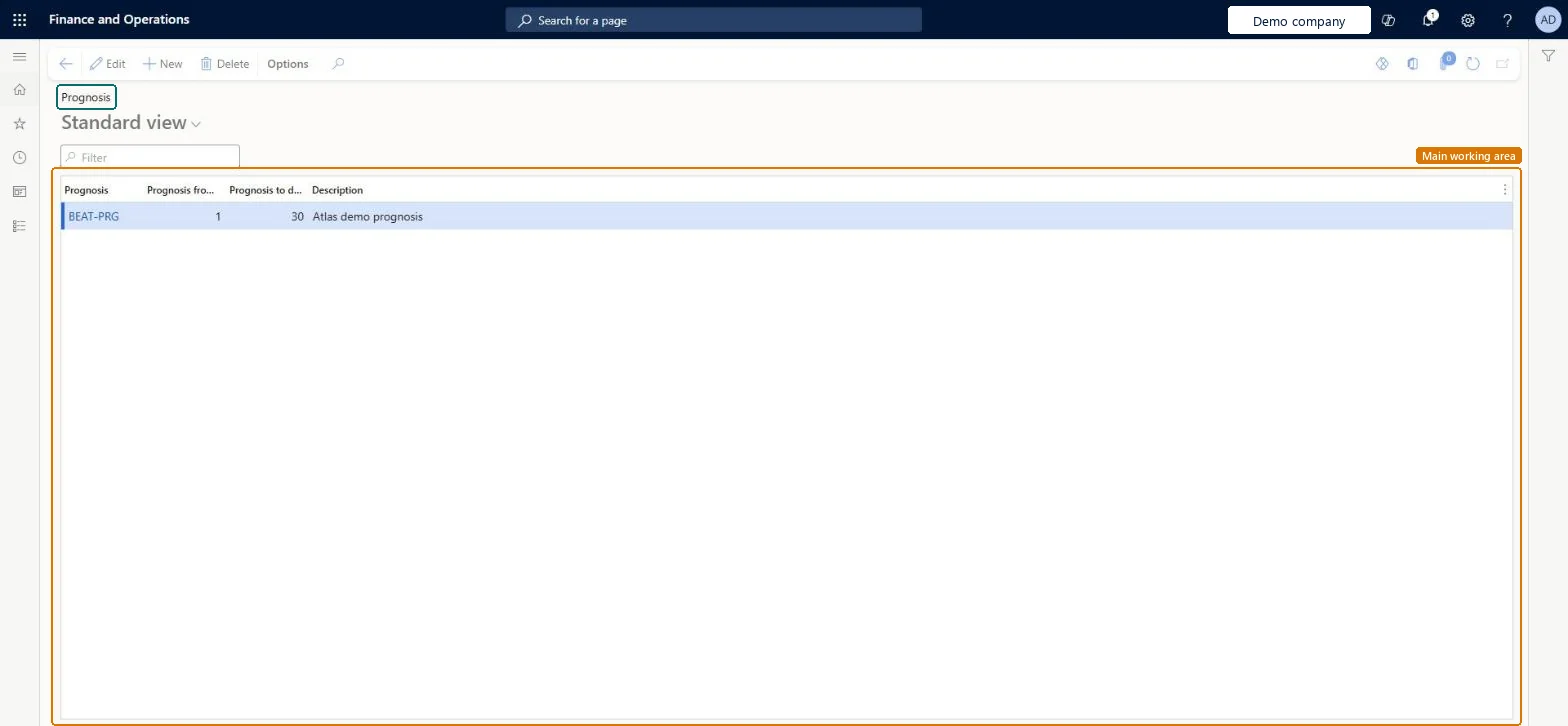
The page in Dynamics 365. page title tab to open what to set or check
About the examples: Examples and screenshots in this guide use BEAT, a demo company in a Dynamics 365 test environment. Use your own company's codes and values instead of copying them.
Step by step, with screenshots
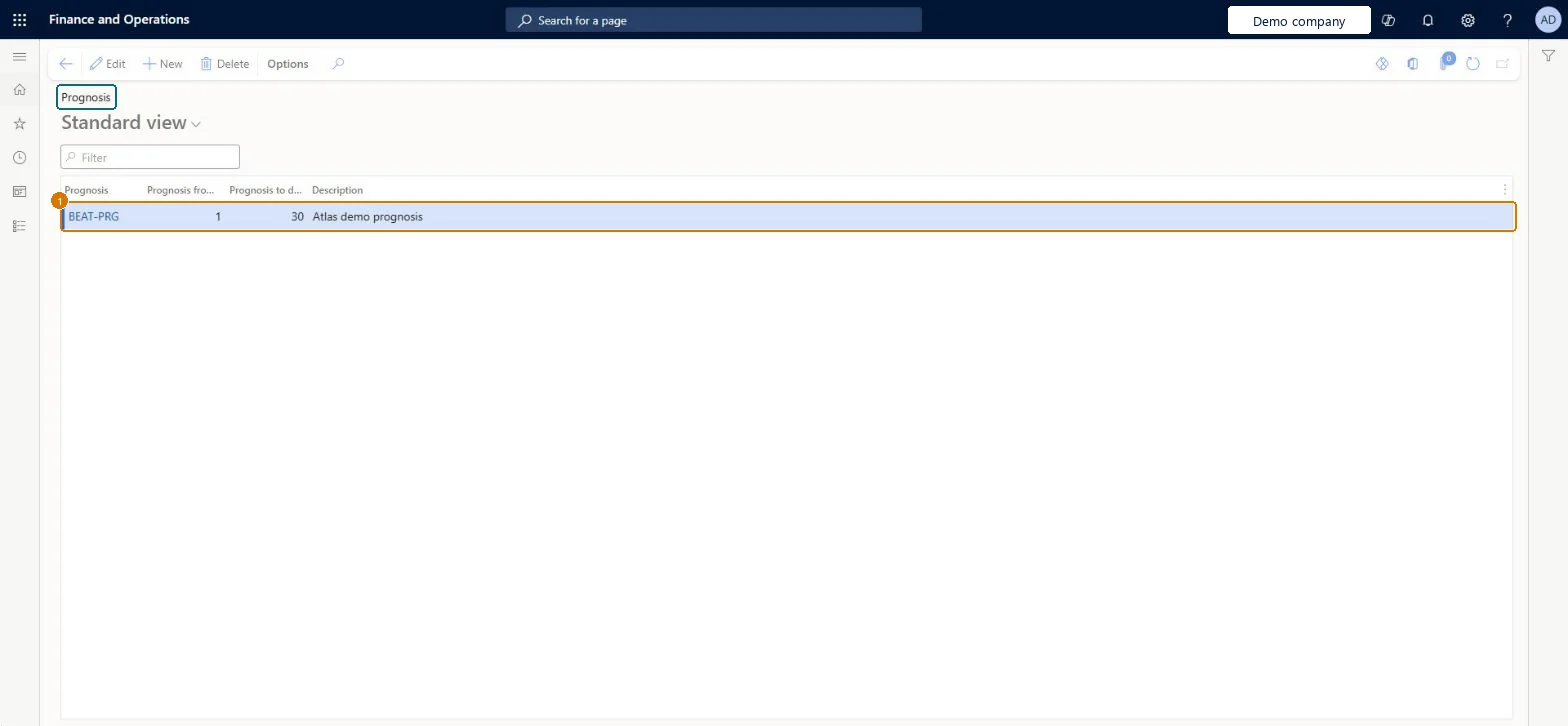
Set up Prognosis1 screen
Use this page to show which quotations are in the sales pipeline and to help estimate their expected value.
Screen 1
Create a prognosis
Go to Sales and marketing > Setup > Opportunities > Prognosis
Select New
Enter the prognosis code
Enter the day range it covers in Prognosis from days and Prognosis to days (from days must be at least 1)
Enter a description
Select Save
1Prognosis
BEAT-PRG
Prognosis from days
1
Prognosis to days
30
Description
Prognosis
Show the full screen page title tab to open what to set or check
Steps from Microsoft
Go to Sales and marketing > Setup > Opportunities > Prognosis.
Select New and enter the Prognosis code, such as 0-30.
Enter Prognosis from days and Prognosis to days so that the periods of different codes don't overlap.
Create a quotation on All quotations and select the prognosis code on its header.
Consecutive, non-overlapping prognosis periods in days (for example 1-30, 31-90, 91-180) that match how long your sales cycle is.The prognosis tells sales management which quotations are expected in which period; overlapping periods make the pipeline count a quotation twice.
Reversible: Codes can be edited; quotations keep their code.
If you change it later
Prognosis is optional on a quotation. When you change the prognosis on the quotation header, the prognosis on the lines changes to match. Microsoft Learn
Technical architect
6Technical
Menu item
smmQuotationPrognosisGroupChecked in Dynamics 365
Form
smmQuotationPrognosisGroupChecked in Dynamics 365
Table
smmQuotationPrognosisGroupShown as “Quotation prognosis” in Record infoChecked in Dynamics 365
PrivilegesMaintain quotation prognosis smmQuotationPrognosisGroupMaintainView quotation prognosis smmQuotationPrognosisGroupViewDutiesEnable the Sales and marketing process smmCRMProcessEnableInquire into Sales and marketing reference data smmCRMReferenceDataInquire2 security rolesInformation technology manager SysServerITManagerSales manager TradeSalesManagerChecked in Dynamics 365
Roles to set it up and use it
To set it up or change itSales manager TradeSalesManagerInformation technology manager SysServerITManagerGive people one of these roles. On this system, 2 roles can open this page.Checked in Dynamics 365
Actions on the page
Options: Personalize, Page options, ShareChecked in Dynamics 365
SalesQuotationPrognosisEntity (Quotation prognosis): loaded for each company, in Microsoft's default template 330 - Sales and marketing.Load order: Microsoft's default template 330 - Sales and marketing loads Quotation prognosis at execution unit 1, level 30, sequence 10. Lower levels load first, and entities at the same level load in sequence order.Load first: the default templates at lower levels (System setup to General ledger)Microsoft Learn
Checked in a working Dynamics 365 system, version 10.0.49: the menu item, form, table and security, the page, the demo records and the values in the screenshots.
To cite this step: SM-SETUP-230, Set up Prognosis. Beyond ERP Atlas Hub, 2026-11-11. https://www.beyonderp.cloud/atlas/step/SM-SETUP-230