Auditor, Collections agent, Collections manager and 5 more roles
Business process
Define customer classifications in Dynamics 365 Supply Chain Management
Menu item
CustGroup
Main table
CustGroup
Data entity
CustCustomerGroupEntity
Setup steps
2 on this page
Show what matters for
SETUP GUIDEHow to set it up8 sections. Choose a role to highlight what matters to you.
Everyone
1What it is and why
What it is
A setup page for groups of customers that share key parameters. It is the Accounts receivable customer groups page, also reached from the prospect setup because a prospect gets a customer group when it is converted.
What you do here
Use it to create and maintain customer groups that share settings such as terms of payment, settle periods, inventory posting ledger accounts, sales tax group and default account setup, and to pick the group that converted prospects receive.
Example
BEAT has the customer groups WHOLESALE (NET30) and RETAIL (NET14). On the Prospects tab of Sales and marketing parameters, WHOLESALE is the default group, so prospect PRO-000180, converted after quotation QUO-000231 for 8,400.00 USD, becomes customer PRO-000180 in WHOLESALE.
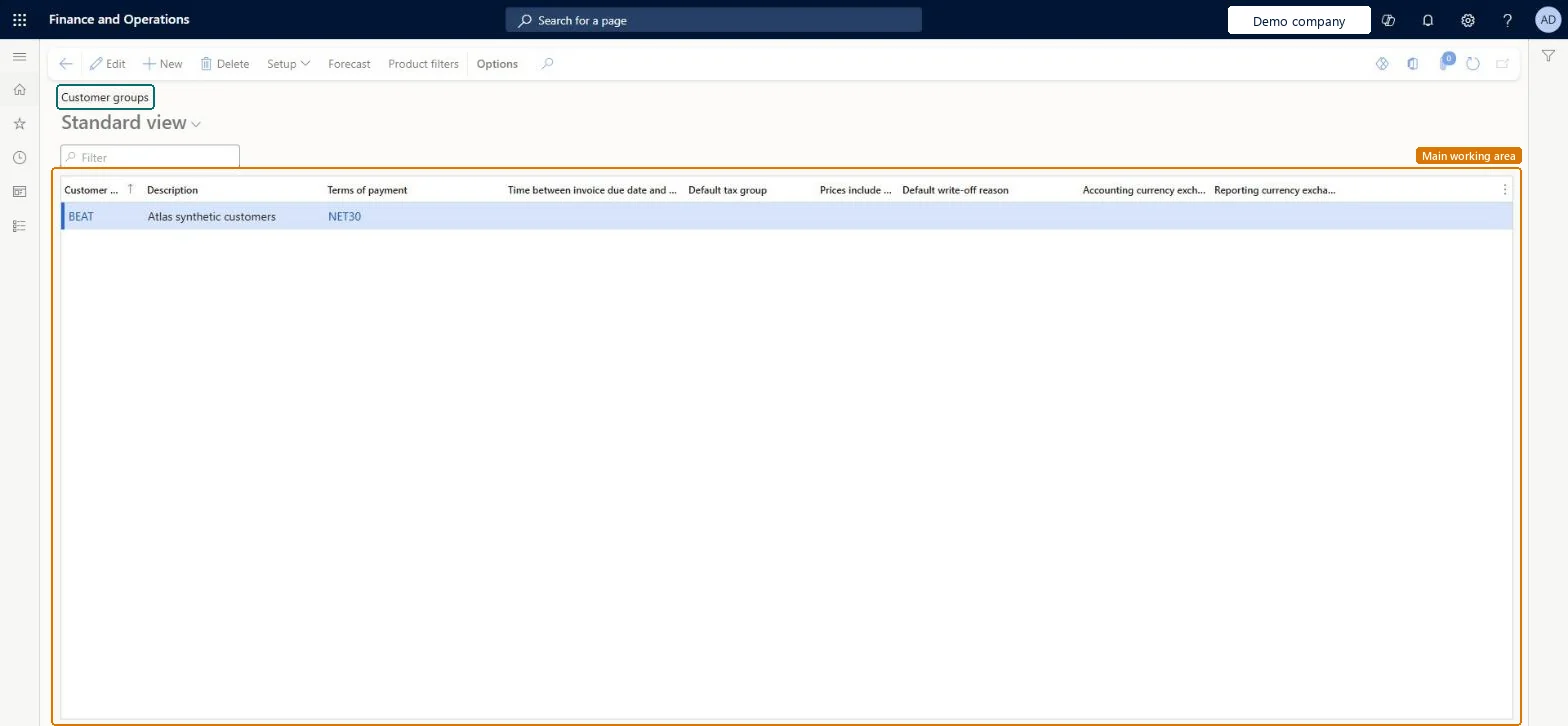
The page in Dynamics 365. page title tab to open what to set or check
About the examples: Examples and screenshots in this guide use BEAT, a demo company in a Dynamics 365 test environment. Use your own company's codes and values instead of copying them.
Step by step, with screenshots
Choose the customer group for converted prospects
Pick the customer group that prospects get when they are converted to customers.
Set up Customer groups1 screen
Create and maintain the groups of customers that share key parameters such as terms of payment, settle periods, inventory posting accounts, sales tax group and default accounts.
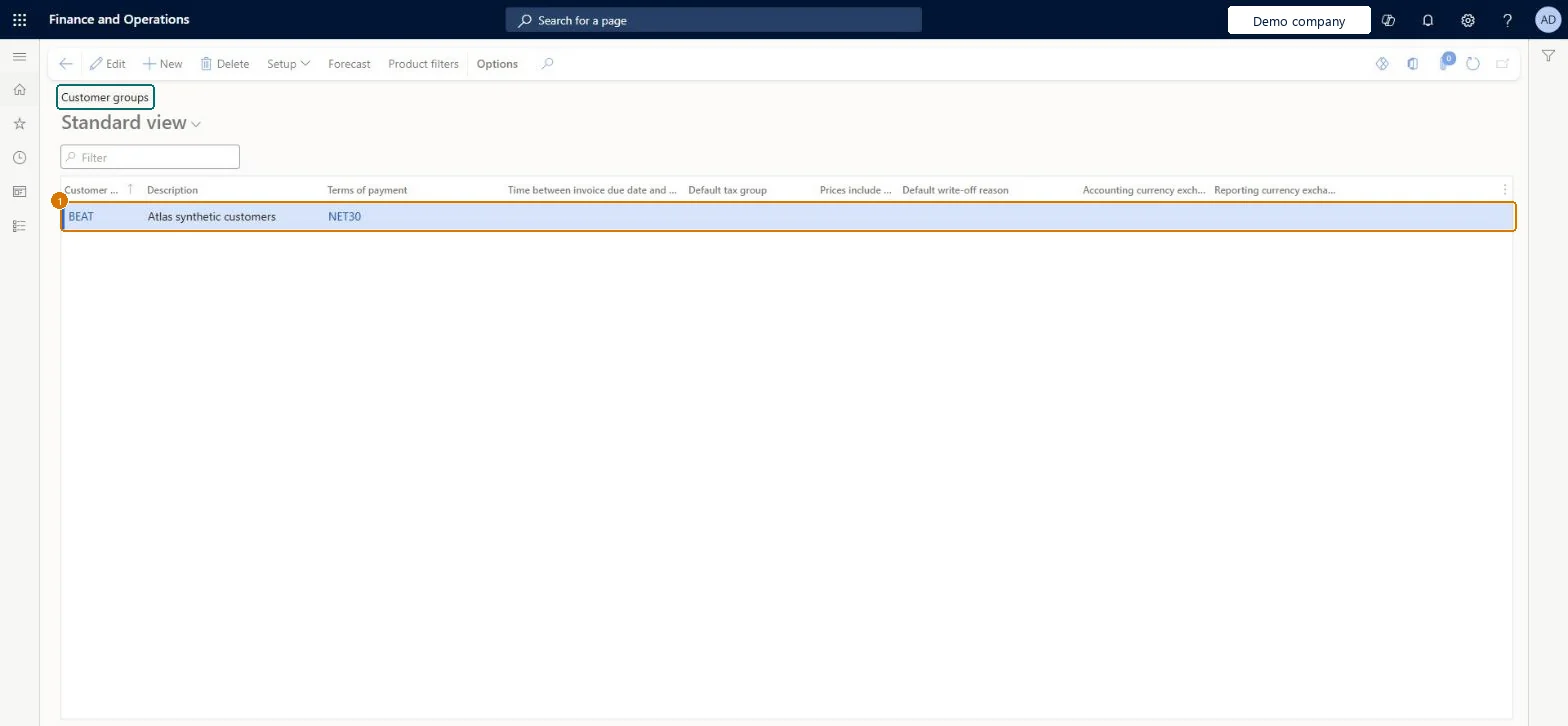
Screen 1
Create the customer group
Go to Accounts receivable > Setup > Customer groups
Select New
Enter the group code, description and terms of payment
1Customer group
BEAT
Description
Customers
Terms of payment
NET30
Show the full screen page title tab to open what to set or check
Steps from Microsoft
Go to Sales and marketing > Setup > Prospects > Customer groups.
Select New to add a customer group, and enter the Customer group code and a Description.
Fill in columns such as Terms of payment, Default tax group and Default write-off reason.
Go to Sales and marketing > Setup > Sales and marketing parameters and, on the Prospects tab, select the group that converted prospects should get.
The code of the customer group. Every customer must have one, so at least one group must exist before customers are created.Microsoft Learn
WHOLESALE
CustGroup
Description
A description of the customer group.Checked in Dynamics 365
Customers
Name
Terms of payment
The terms of payment that new customers in the group get by default.Microsoft Learn
NET30
PaymTermId
Common errors and fixes
Message
What to do
A prospect converted to a customer has no customer group, or the wrong one.
Select a default customer group on the Prospects tab of Sales and marketing parameters; Learn recommends this for a seamless prospect-to-customer conversion. Microsoft Learn
Test checklist
Create the customer group WHOLESALE with terms of payment NET30.
Select WHOLESALE as the default customer group on the Prospects tab of Sales and marketing parameters.
Convert a prospect to a customer from a quotation with Follow up > Convert to customer.
Check that the new customer has customer group WHOLESALE and terms NET30.
A default customer group on the Prospects tab of Sales and marketing parameters, normally the group with the terms and posting most new customers need (for example WHOLESALE).When a prospect is converted, a default customer group is assigned from the Prospects tab of Sales and marketing parameters, and the group supplies defaults such as terms of payment.
Groups that separate customers needing different terms, posting or tax defaults (for example domestic, export, intercompany)Learn describes customer groups as customers that share key parameters such as terms of payment, settle periods, sales tax group and default account setup, and posting profiles can be set per group.
Moving customers between groups after posting: the Customer to ledger reconciliation report then shows differences between customer and ledger balances.
Feature management and licence
Licence or add-in
On the live system, Sales manager, Accounts receivable manager and Collections manager can maintain this page.
Hard to reverse: Customers can be moved to another group, but documents already created keep the defaults they got.
If you change it later
A customer group sets defaults for new customers, such as terms of payment, and can carry its own customer number sequence, which is used before the one on Accounts receivable parameters. With prospect-to-cash, a converted prospect keeps its prospect number and gets the default group from Sales and marketing parameters. Microsoft Learn
Technical architect
6Technical
Menu item
CustGroupChecked in Dynamics 365
Form
CustGroupChecked in Dynamics 365
Table
CustGroupShown as “Customer groups” in Record infoKey field: CustGroupChecked in Dynamics 365
PrivilegesMaintain customer groups CustGroupMaintainView customer groups CustGroupViewDutiesEnable customer process CustCustomerProcessEnableInquire into customer reference data CustCustomerReferenceDataInquire8 security rolesAuditor AuditPolicyManagerCollections agent CollectionLetterCollectionsAgentCollections manager CollectionLetterCollectionsManagerChief financial officer CompanyChiefFinancialOfficerAccounts receivable clerk CustInvoiceAccountsReceivableClerkAccounts receivable manager CustInvoiceAccountsReceivableManagerAccounting manager LedgerAccountingManagerSales manager TradeSalesManagerChecked in Dynamics 365
Roles to set it up and use it
To set it up or change itSales manager TradeSalesManagerAccounts receivable manager CustInvoiceAccountsReceivableManagerCollections manager CollectionLetterCollectionsManagerTo use itAccounts receivable clerk CustInvoiceAccountsReceivableClerkAccounting manager LedgerAccountingManagerCollections agent CollectionLetterCollectionsAgentAuditor AuditPolicyManagerChief financial officer CompanyChiefFinancialOfficerGive people one of these roles. On this system, 8 roles can open this page.Checked in Dynamics 365
Actions on the page
Buttons: Setup, Forecast, Product filtersChecked in Dynamics 365
CustCustomerGroupEntity (Customer groups): loaded for each company, in Microsoft's default template 140 - Accounts receivable.Load order: Microsoft's default template 140 - Accounts receivable loads Customer groups at execution unit 1, level 50, sequence 10. Lower levels load first, and entities at the same level load in sequence order.Load first: Customer write-off reason codes, the default templates at lower levels (System setup to dependency bands 30 to 90)Microsoft Learn
Checked in a working Dynamics 365 system, version 10.0.49: the menu item, form, table and security, the page, the demo records and the values in the screenshots.
To cite this step: SM-SETB-010, Choose the customer group for converted prospects. Beyond ERP Atlas Hub, 2026-11-11. https://www.beyonderp.cloud/atlas/step/SM-SETB-010