Collections manager, Accounts receivable clerk, Accounts receivable manager and 6 more roles
Business process
Define order management policies for Dynamics 365 Supply Chain Management
Menu item
CustDestinationCode
Main table
DestinationCode
Data entity
DeliveryDestinationEntity
Setup steps
2 on this page
Show what matters for
SETUP GUIDEHow to set it up8 sections. Choose a role to highlight what matters to you.
Everyone
1What it is and why
What it is
A setup page where you identify and describe destination codes, used to divide delivery destinations into zones.
What you do here
Use this page to group delivery destinations into zones that you can assign to customers and vendors.
Example
For example, BEAT delivers to its 3 regions on fixed days and gives every customer a destination code, NORTH, SOUTH or WEST, so the 120 northern customers can be selected for the Tuesday route.
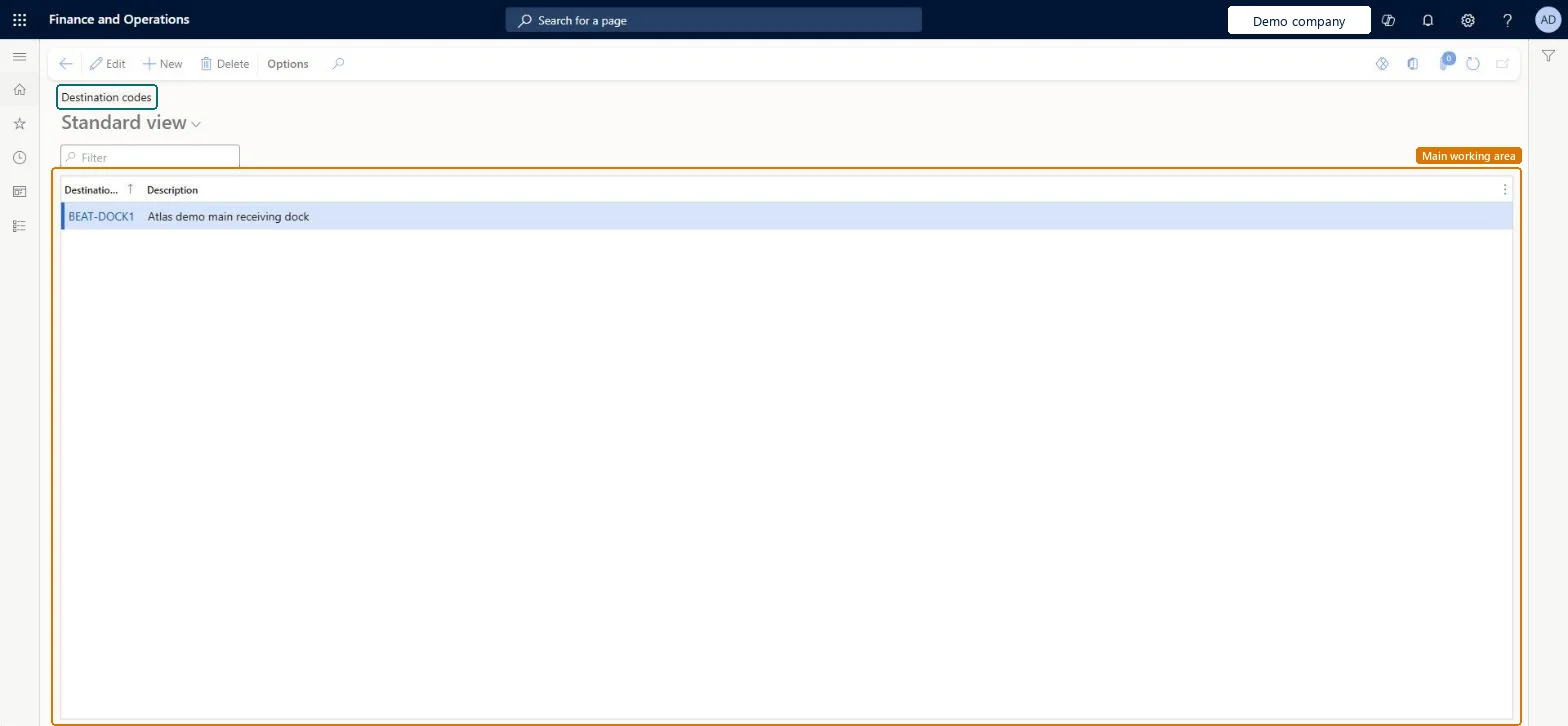
The page in Dynamics 365. page title tab to open what to set or check
About the examples: Examples and screenshots in this guide use BEAT, a demo company in a Dynamics 365 test environment. Use your own company's codes and values instead of copying them.
Step by step, with screenshots
Set up destination codes
Use this page to group delivery destinations into zones that you assign to customers and vendors.
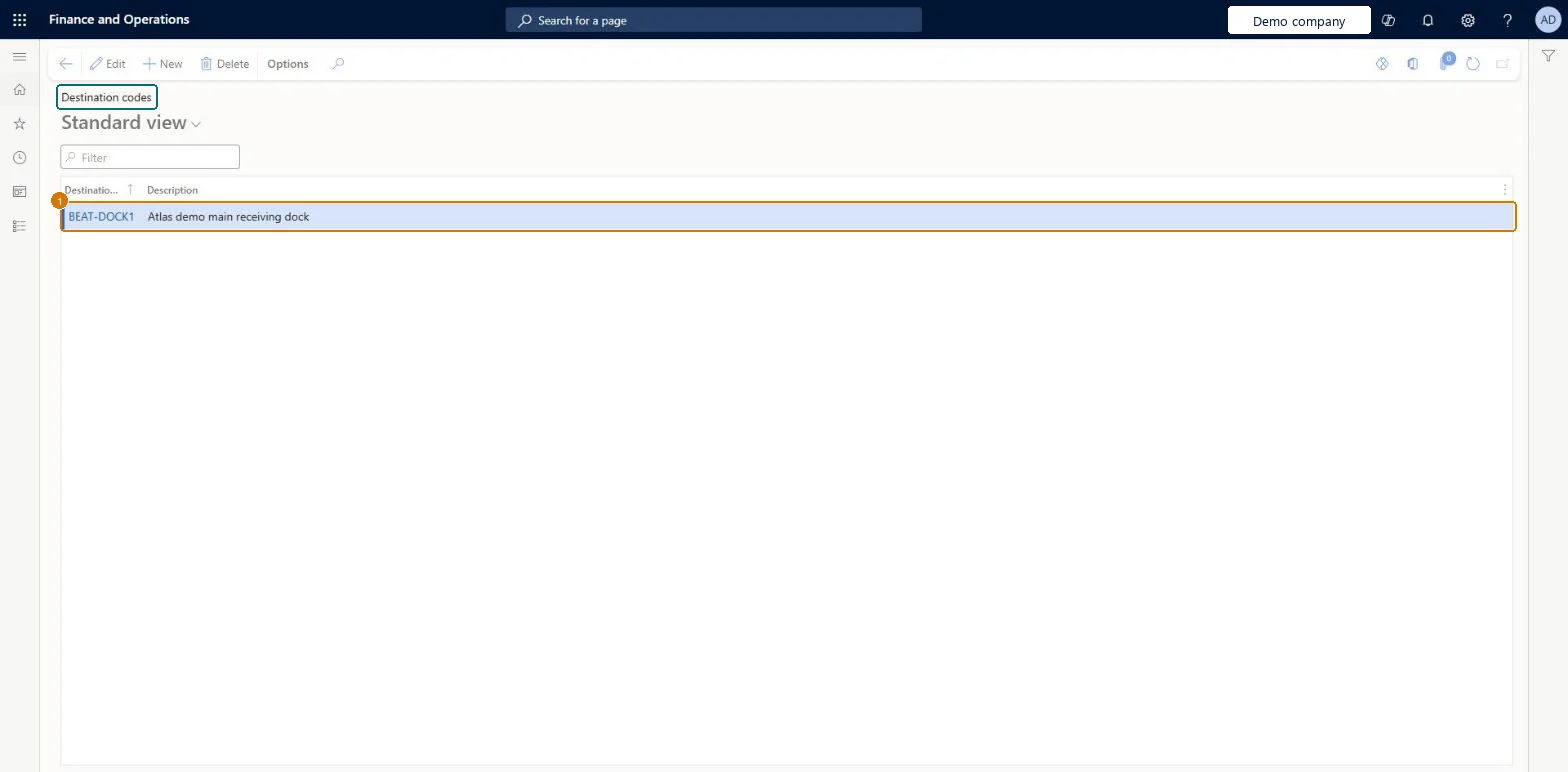
Set up Destination codes1 screen
Use this page to keep a list of delivery destination codes with their descriptions.
Screen 1
Create the destination code
Go to Procurement and sourcing > Setup > Distribution > Destination codes
Select New
Enter the destination code and its description
Select Save
1Destination code
BEAT-DOCK1
Show the full screen page title tab to open what to set or check
Steps from Microsoft
Go to Sales and marketing > Setup > Distribution > Destination codes.
Select New and enter the Destination code, for example NORTH.
Enter a Description that names the zone, such as Northern delivery zone.
Set the destination code on the customers in that zone.
One destination code per delivery zone, set on every customer in that zone.Destination codes divide delivery destinations into zones that you assign to customers and vendors, so orders can be grouped by zone.
On the live system, Rental manager, Rental coordinator agent, Accounts receivable manager, Collections manager and Accounting supervisor can maintain this page, and Accounts receivable clerk, Accounts receivable centralized payments clerk and Accounts receivable payments clerk can use it.
PrivilegesMaintain destination codes CustDestinationCodeMaintainView destination codes CustDestinationCodeViewDutiesEnable invoice and cash process CustInvoiceInvoiceAndCashProcessEnableInquire into invoice and cash reference data CustInvoiceInvoiceAndCashRefDataInquireEnable invoice and cash process RentalCustInvoiceInvAndCashProcEnable9 security rolesCollections manager CollectionLetterCollectionsManagerAccounts receivable clerk CustInvoiceAccountsReceivableClerkAccounts receivable manager CustInvoiceAccountsReceivableManagerAccounting manager LedgerAccountingManagerAccounting supervisor LedgerAccountingSupervisorAccounts receivable centralized payments clerk PaymAccountsReceivableCentralPaymClerkAccounts receivable payments clerk PaymAccountsReceivablePaymentsClerkRental coordinator agent RentalCoordinatorAgentRental manager RentalManagerChecked in Dynamics 365
Roles to set it up and use it
To set it up or change itRental manager RentalManagerRental coordinator agent RentalCoordinatorAgentAccounts receivable manager CustInvoiceAccountsReceivableManagerCollections manager CollectionLetterCollectionsManagerAccounting supervisor LedgerAccountingSupervisorTo use itAccounts receivable clerk CustInvoiceAccountsReceivableClerkAccounts receivable centralized payments clerk PaymAccountsReceivableCentralPaymClerkAccounts receivable payments clerk PaymAccountsReceivablePaymentsClerkGive people one of these roles. On this system, 9 roles can open this page.Checked in Dynamics 365
Actions on the page
Options: Personalize, Page options, ShareChecked in Dynamics 365
DeliveryDestinationEntity (Destination code): loaded for each company, in Microsoft's default template 120 - Accounts payable.Load order: Microsoft's default template 120 - Accounts payable loads Destination code at execution unit 1, level 30, sequence 10. Lower levels load first, and entities at the same level load in sequence order.Load first: the default templates at lower levels (System setup to General ledger)Microsoft Learn
Checked in a working Dynamics 365 system, version 10.0.49: the menu item, form, table and security, the page, the demo records and the values in the screenshots.
To cite this step: SM-SETA-100, Set up destination codes. Beyond ERP Atlas Hub, 2026-11-11. https://www.beyonderp.cloud/atlas/step/SM-SETA-100