Accounts payable manager, Accounts receivable clerk, Accounts receivable centralized payments clerk and 6 more roles
Business process
Define order management policies for Dynamics 365 Supply Chain Management
Menu item
CustDeliveryTerms
Main table
DlvTerm
Data entity
DeliveryTermsEntity
Setup steps
2 on this page
Show what matters for
SETUP GUIDEHow to set it up8 sections. Choose a role to highlight what matters to you.
Everyone
1What it is and why
What it is
A setup page where you define the terms of delivery, the conditions for an item's transfer from seller to buyer.
What you do here
Use this page to set up the delivery terms used for the company, customers and vendors, and on sales and purchase orders.
Example
For example, BEAT uses FCA for its Dutch distributor BEAT-000321 and enters Intrastat code FCA on the term, so the 18 dispatches a month to the Netherlands reach the Intrastat declaration with the delivery terms code.
The page in Dynamics 365. page title tab to open what to set or check
About the examples: Examples and screenshots in this guide use BEAT, a demo company in a Dynamics 365 test environment. Use your own company's codes and values instead of copying them.
Step by step, with screenshots
Set up terms of delivery
Use this page to set up the delivery terms used for customers and vendors and on sales and purchase orders.
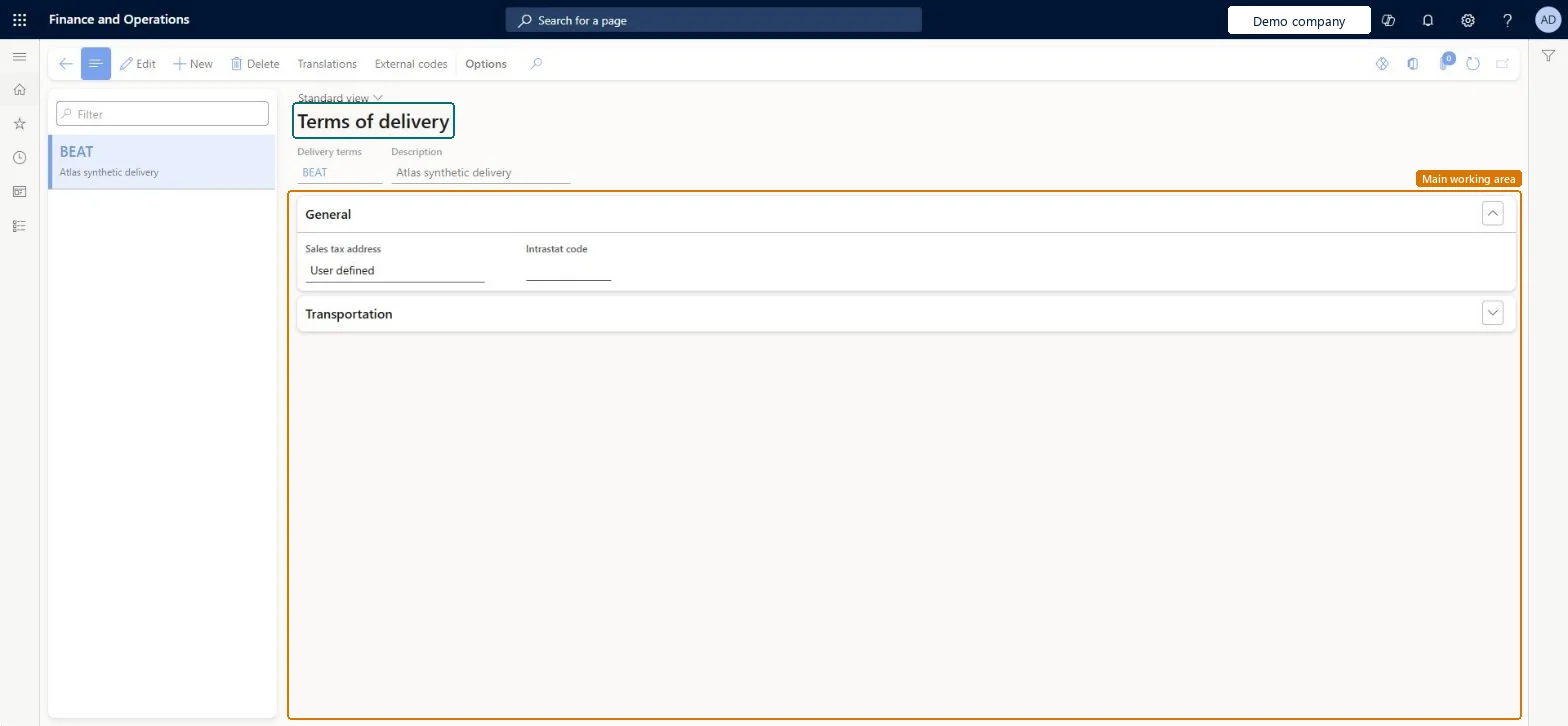
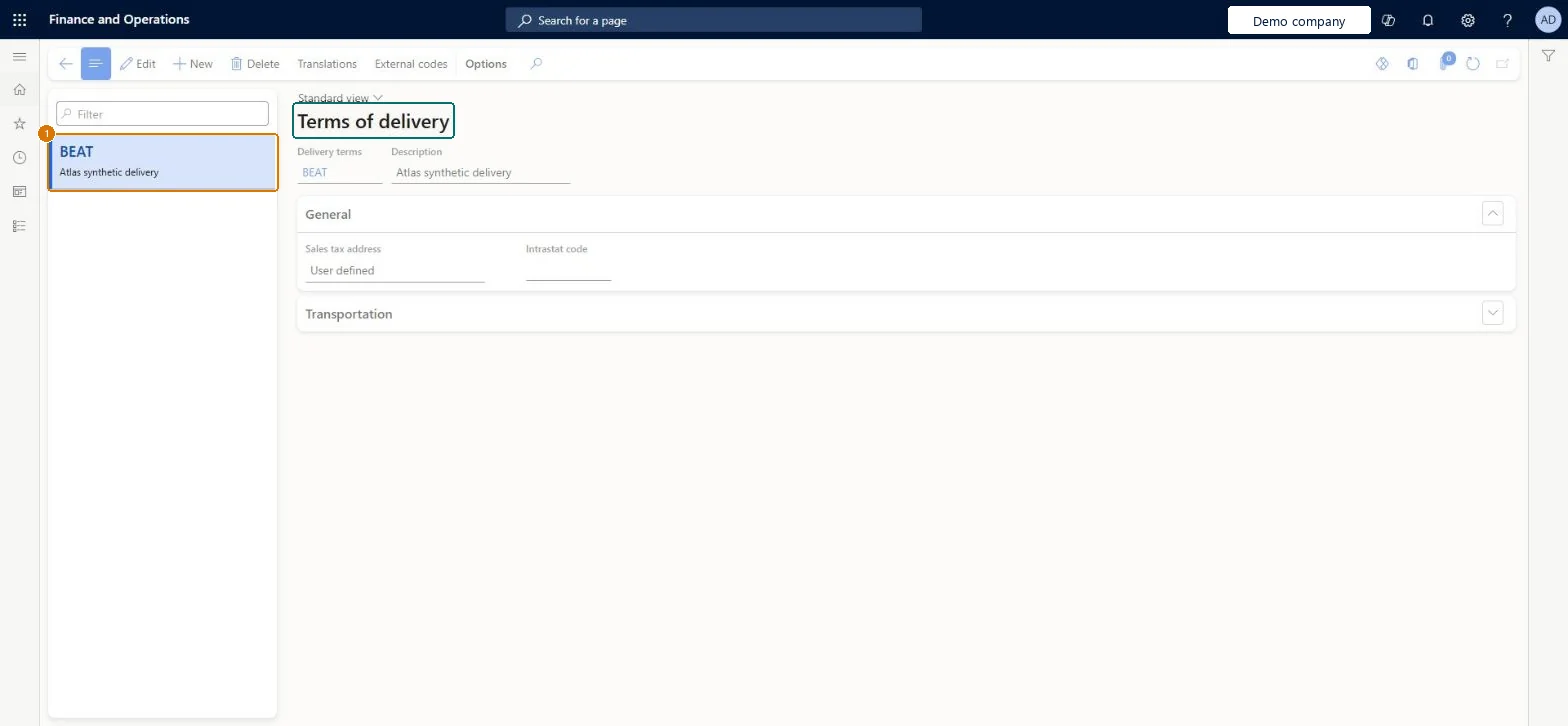
Set up Terms of delivery1 screen
Create and maintain the conditions under which an item is transferred from the seller to the buyer.
Screen 1
Create the terms of delivery
Go to Accounts payable > Setup > Terms of delivery
Select New and enter the delivery terms and description
On the General FastTab, set Sales tax address and leave Intrastat code blank
1Delivery terms
BEAT
Description
Delivery
Sales tax address
User defined
Show the full screen page title tab to open what to set or check
Steps from Microsoft
Go to Sales and marketing > Setup > Distribution > Terms of delivery.
Select New to create a delivery term, or select a term in the left list and then Edit.
Enter the Delivery terms code and the Description that is printed on documents.
On the General FastTab, set the Sales tax address and, for EU trade, the Intrastat code.
Select the terms as the default on the customer's Invoice and delivery FastTab.
One term per Incoterm the company really uses, with the Intrastat code filled in for EU legal entities, and the term set as default on each customer.The terms default from the customer onto orders and the Intrastat code on the term is what Intrastat reports, so a complete term means no manual fix on each order.
For EU legal entities, fill the Intrastat code on every terms of delivery used with EU vendorsIntrastat setup in Learn assigns the Intrastat code on Terms of delivery, and the terms default from the vendor's Invoice and delivery FastTab onto orders.
Leaving the Intrastat code blank, so arrivals for those terms reach the Intrastat declaration without the delivery terms code the authority expects.
Feature management and licence
Feature to turn on
Enable purch parameters to control delivery information sync on sales and purchase orders (Optional, from 10.0.41)
Licence or add-in
On the live system, Rental manager, Rental coordinator agent, Rental sales manager, Purchasing manager and Accounts payable manager can maintain this page, and Accounts receivable clerk, Retail service, Accounts receivable centralized payments clerk and Accounts receivable payments clerk can use it.
Reversible: Terms can be edited at any time; orders already created keep their terms.
If you change it later
Terms default from the customer onto new orders. For purchase orders created from sales orders, a Procurement and sourcing parameter decides whether the purchase order takes the terms from the sales order or from the vendor. Microsoft Learn
Technical architect
6Technical
Menu item
CustDeliveryTermsChecked in Dynamics 365
Form
DeliveryTermsChecked in Dynamics 365
Table
DlvTermShown as “Terms of delivery” in Record infoKey field: CodeChecked in Dynamics 365
PrivilegesMaintain terms of delivery DeliveryTermsMaintainView terms of delivery DeliveryTermsViewDutiesEnable purchase order to invoice process PurchOrderToInvoiceProcessEnableEnable quotation to sales order process RentalSalesQuotationToSlsOrdProcessEnableInquire into quotation to sales order reference data SalesQuotationToSalesOrderRefDataInquir9 security rolesAccounts receivable clerk CustInvoiceAccountsReceivableClerkAccounts receivable centralized payments clerk PaymAccountsReceivableCentralPaymClerkAccounts receivable payments clerk PaymAccountsReceivablePaymentsClerkRental coordinator agent RentalCoordinatorAgentRental manager RentalManagerRental sales manager RentalSalesManagerRetail service RetailServicePurchasing manager TradePurchasingManagerAccounts payable manager VendInvoiceAccountsPayableManagerChecked in Dynamics 365
Roles to set it up and use it
To set it up or change itRental manager RentalManagerRental coordinator agent RentalCoordinatorAgentRental sales manager RentalSalesManagerPurchasing manager TradePurchasingManagerAccounts payable manager VendInvoiceAccountsPayableManagerTo use itAccounts receivable clerk CustInvoiceAccountsReceivableClerkRetail service RetailServiceAccounts receivable centralized payments clerk PaymAccountsReceivableCentralPaymClerkAccounts receivable payments clerk PaymAccountsReceivablePaymentsClerkGive people one of these roles. On this system, 9 roles can open this page.Checked in Dynamics 365
Actions on the page
Options: Personalize, Page options, ShareChecked in Dynamics 365
DeliveryTermsEntity (Terms of delivery): loaded for each company, in Microsoft's default template 120 - Accounts payable.Load order: Microsoft's default template 120 - Accounts payable loads Terms of delivery at execution unit 1, level 30, sequence 10. Lower levels load first, and entities at the same level load in sequence order.Load first: the default templates at lower levels (System setup to General ledger)Microsoft Learn
Checked in a working Dynamics 365 system, version 10.0.49: the menu item, form, table and security, the page, the demo records and the values in the screenshots.
To cite this step: SM-SETA-080, Set up terms of delivery. Beyond ERP Atlas Hub, 2026-11-11. https://www.beyonderp.cloud/atlas/step/SM-SETA-080