SETUP GUIDEHow to set it up8 sections. Choose a role to highlight what matters to you.
Everyone
1What it is and why
What it is
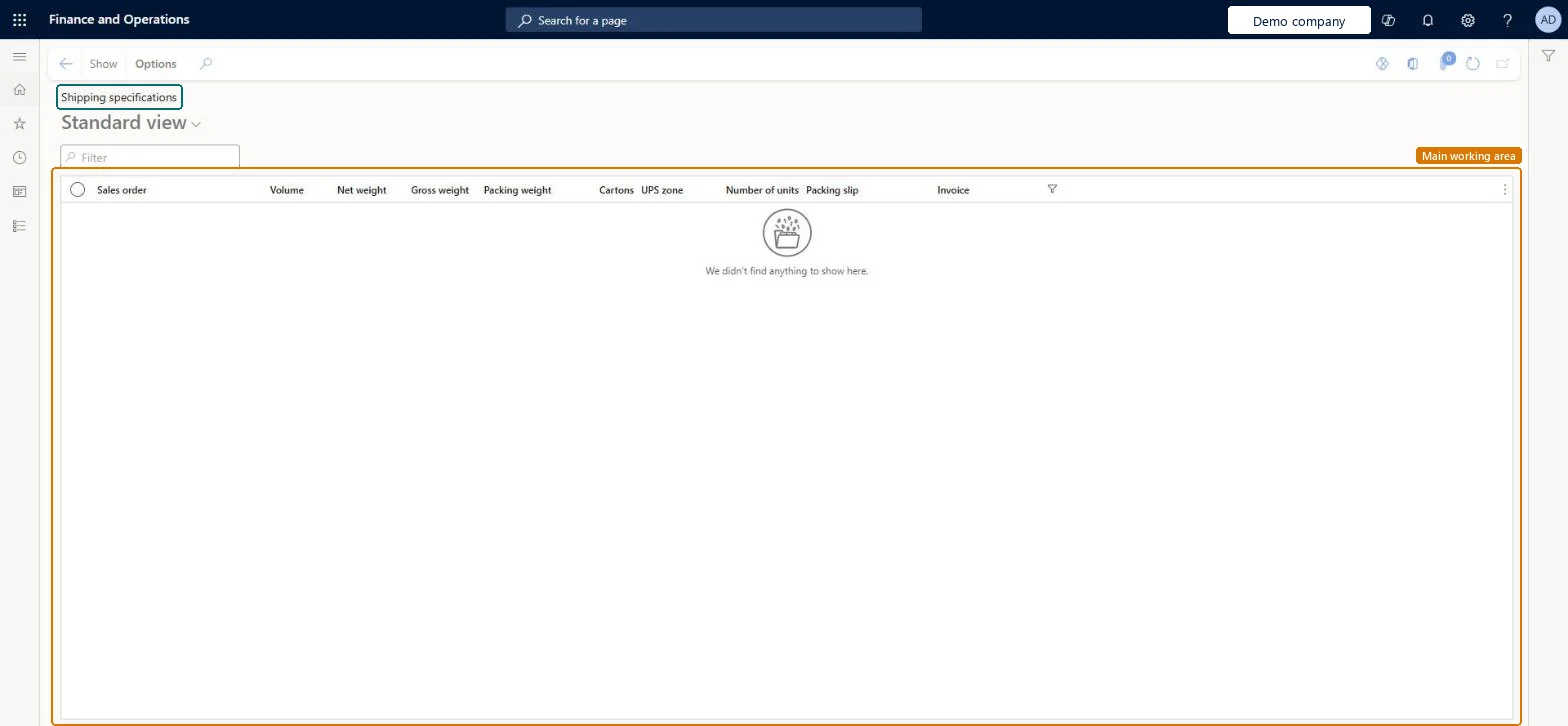
A list page that shows shipping specifications by sales order, with volume, net, gross and packing weight, cartons, UPS zone, number of units, packing slip and invoice.
What you do here
Use this page to review the weights, volumes and carton counts recorded for shipped sales orders and the packing slip and invoice they relate to.
Example
For example, carrier invoices for November look high, so BEAT's shipping clerk opens Shipping specifications for SO-001234 and sees 3 cartons, gross weight 48.50 kg and packing weight 2.40 kg on packing slip PS-000918.
The page in Dynamics 365. page title tab to open what to set or check
About the examples: Examples and screenshots in this guide use BEAT, a demo company in a Dynamics 365 test environment. Use your own company's codes and values instead of copying them.
Setup steps on this page
Check shipping specifications
Check weights and cartons of shipped orders.
How to use it
Go to Sales and marketing > Sales orders > Order shipping > Shipping specifications.
Filter on the sales order.
Read the Volume, Net weight, Gross weight, Packing weight and Cartons columns.
Check the Packing slip and Invoice columns to see which documents the figures belong to.
Open the packing slip to compare the shipped lines.
To use itAccounts receivable clerk CustInvoiceAccountsReceivableClerkShipping clerk InventShippingClerkGive people one of these roles. On this system, 2 roles can open this page.Checked in Dynamics 365
Actions on the page
Options: Personalize, Page options, ShareChecked in Dynamics 365
Developer
7Developer
Open it by URL
https://<your-environment>/?mi=SalesShippingStat
Data migration
Load order: Shipping specifications has no data entity in Data management. No entity in the Common Data Model is built on its table (SalesShippingStat); the figures are recorded with shipments and aren't migrated.Checked in Dynamics 365