PAGE GUIDEWhat the page does and how to use it8 sections. Choose a role to highlight what matters to you.
Everyone
1What it is and why
What it is
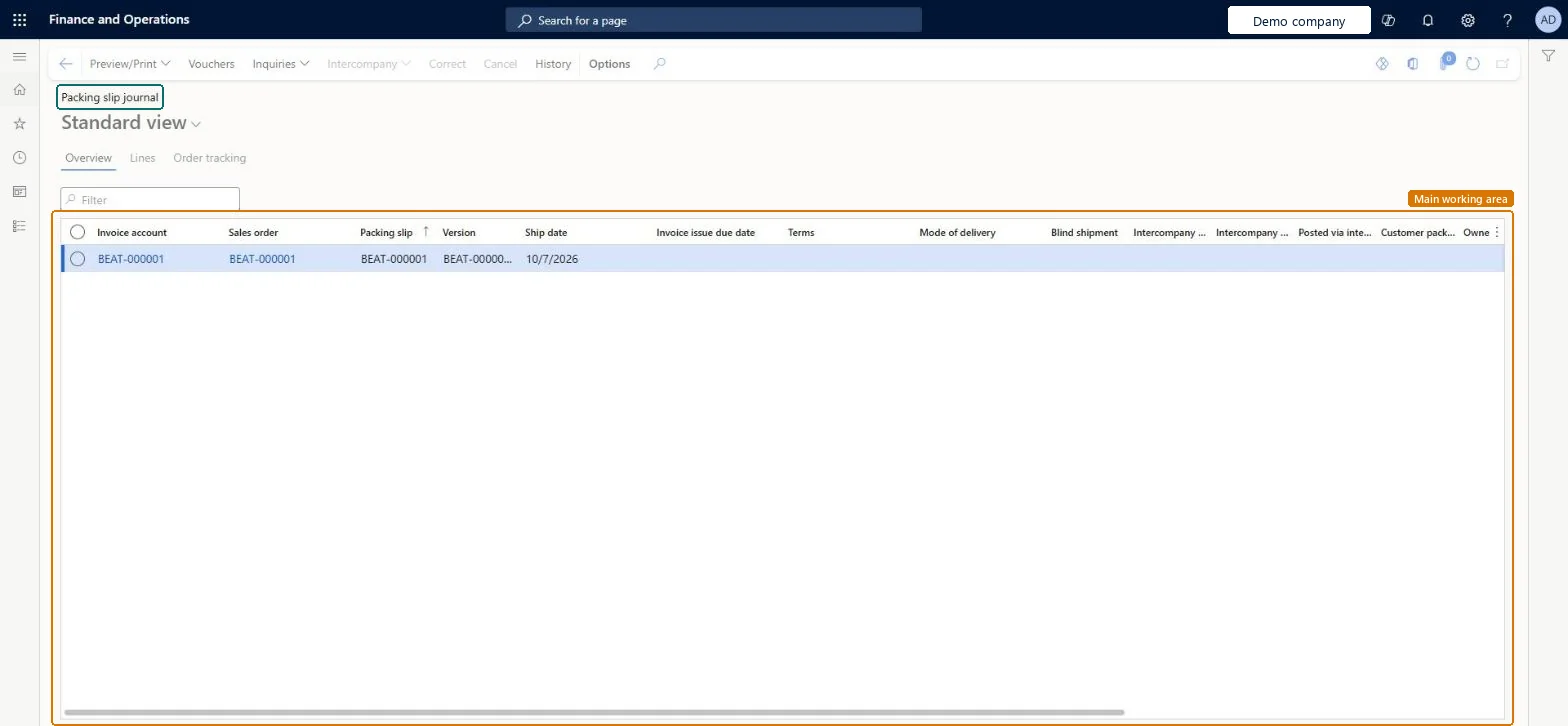
A journal page that lists the posted packing slips for sales orders.
What you do here
Use this journal to review the details of posted packing slips and print them again.
Example
For example, customer BEAT-000123 says delivery PS-000918 for SO-001234 was short; the clerk opens Packing slip, filters on the sales order, sees 12.00 pcs shipped on 2026-11-10 and reprints it with Preview/Print.
The page in Dynamics 365. page title tab to open what to set or check
About the examples: Examples and screenshots in this guide use BEAT, a demo company in a Dynamics 365 test environment. Use your own company's codes and values instead of copying them.
Setup steps on this page
Review posted packing slips
Look up and reprint shipped documents.
Steps from Microsoft
Go to Sales and marketing > Sales orders > Order shipping > Packing slip.
Filter by Sales order or Packing slip number.
Check the Ship date and the lines of each packing slip; an order shipped from two sites has one packing slip per site.
Select Preview/Print to print the packing slip again for the customer.
Unable to post packing slip when stopping a sales order line after confirming the outbound shipment A quantity cannot be picked.
On each related sales order line, on the Line details FastTab, General tab, set Stopped to No, post the packing slip, then handle the customer's cancellation as a return. Microsoft Learn
Test checklist
Create a sales order for an inventoried item with a quantity above 1 and enough on-hand stock.
Select Pick and pack > Post packing slip, set Quantity to All, then on the Lines tab enter an Update quantity lower than the order quantity and post.
Check the order status stays Open and Document status shows Packing slip.
Select Pick and pack > Packing slip and check the posted document is listed and can be printed.
Hard to reverse: A posted packing slip stays in this journal. For items under warehouse management processes, a packing slip posted from the sales order can't be canceled; Microsoft treats this as a feature limitation. Post packing slips from the load instead, so the reversal (Cancel packing slips on the load) stays available. Microsoft Learn
If you change it later
A journal of posted packing slips; invoicing uses them as the basis of the sales invoice. Microsoft Learn
Technical architect
6Technical
Menu item
CustPackingSlipJournalChecked in Dynamics 365
Form
CustPackingSlipJournalChecked in Dynamics 365
Table
CustPackingSlipJourShown as “Customer packing slips” in Record infoChecked in Dynamics 365
Data entities
ScpHistoricalSalesDemandEntityHistorical Sales Demand Entity Checked in Dynamics 365
Roles to set it up and use it
To use itSales manager TradeSalesManagerRental manager RentalManagerRental coordinator agent RentalCoordinatorAgentAccounts receivable clerk CustInvoiceAccountsReceivableClerkAccounts receivable manager CustInvoiceAccountsReceivableManagerGive people one of these roles. On this system, 21 roles can open this page.Checked in Dynamics 365
ScpHistoricalSalesDemandEntity data entity Checked in Dynamics 365
Data migration
Load order: Packing slip has no data entity in Data management. No entity in the Common Data Model is built on its table (CustPackingSlipJour); posted packing slips are history created by posting, so migrate open orders and post new packing slips.Checked in Dynamics 365