SETUP GUIDEHow to set it up8 sections. Choose a role to highlight what matters to you.
Everyone
1What it is and why
What it is
A periodic job that creates picking lists for sales orders so the items can be picked from inventory.
What you do here
Use this periodic task to release sales order lines for picking, if needed only for the quantity that is on hand.
Example
For example, SO-001234 has 20.00 pcs of SPK-100 and 10.00 pcs of SPK-200 but only 6.00 pcs of SPK-200 on hand; with Reduce quantity on, the picking list gets 20.00 and 6.00 pcs, and the other 4.00 pcs wait until stock arrives.
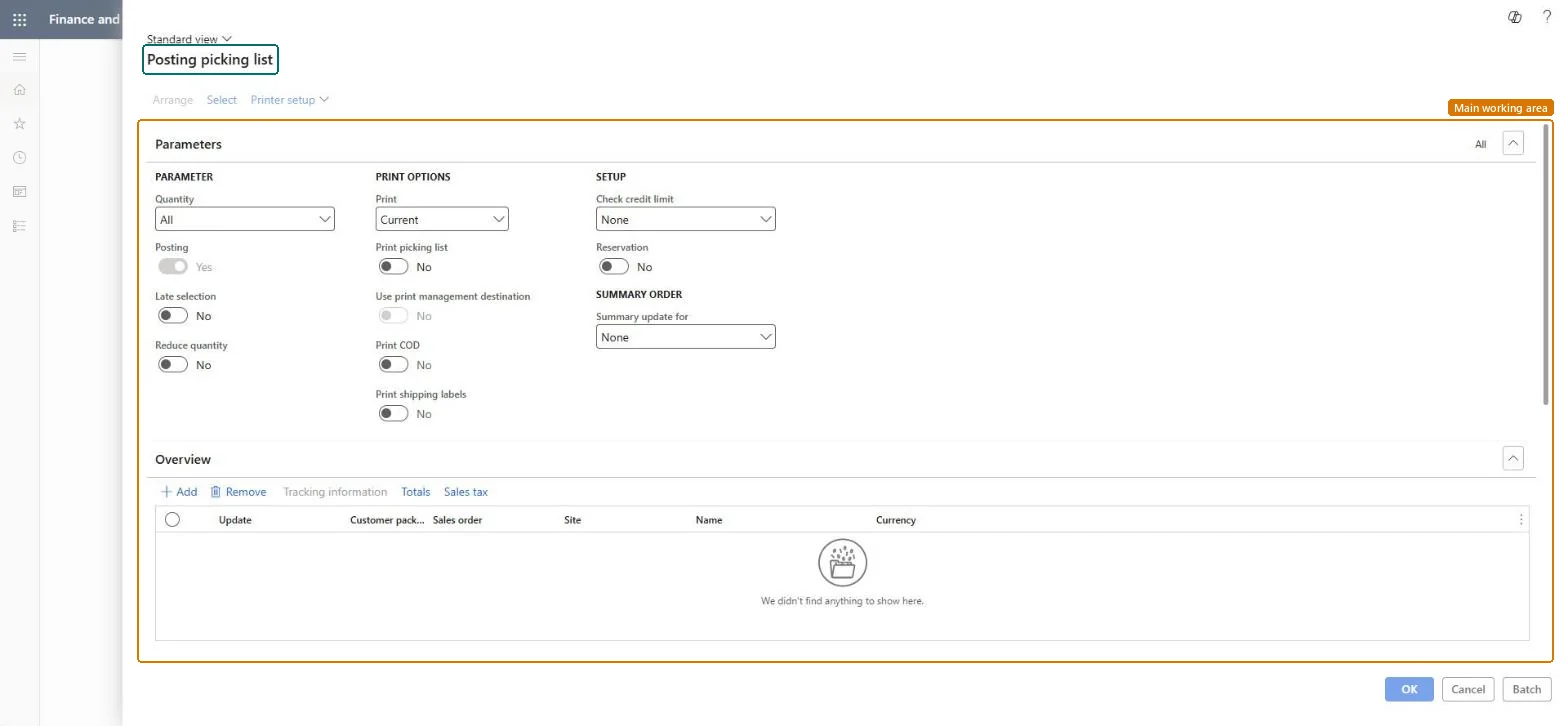
The page in Dynamics 365. page title tab to open what to set or check
About the examples: Examples and screenshots in this guide use BEAT, a demo company in a Dynamics 365 test environment. Use your own company's codes and values instead of copying them.
When to run it
When to run it
When sales orders are confirmed and the warehouse should start picking the goods, without using warehouse management processes.
How often
Daily or per picking wave, depending on how often the warehouse picks.
Batch settings
Run it in the background at fixed times, for example before each shift, for all orders due to ship.
What the output shows
Picking lists with one line per order line and quantity to pick, plus an output order and shipment for each list. Lines missing from the list usually had no available stock while Reduce quantity was on.
Release confirmed orders to picking without warehouse management processes.
Steps from Microsoft
Go to Sales and marketing > Sales orders > Order shipping > Generate picking list.
Under Parameters, choose the Quantity and set Late selection. Set Reduce quantity to Yes to create picking lines only for inventory that is available.
Under Setup, choose Reservation and Check credit limit. Reservation works together with Reduce quantity, so stock that isn't reserved yet is reserved when the list is generated.
Under Print options, turn on Print picking list, and Print COD or Print shipping labels if the warehouse needs them.
Select Select to filter the sales orders, or Add under Overview to add them one by one, then run it.
Open the picking list. If Picking route status is Activated in the Accounts receivable parameters, register the picking; if it is Completed, picking is done automatically.
Creates picking lines only for inventory that is available, and works together with the reservation setting.Microsoft Learn
Yes
Reservation
Triggers reservation when the list is generated; inventory not yet reserved is reserved.Microsoft Learn
Yes
Picking route status
Set on the Accounts receivable parameters: Completed picks automatically when the list is generated; Activated means picking is registered by hand.Microsoft Learn
Activated
Common errors and fixes
Message
What to do
Lines are missing from the picking list.
With Reduce quantity on, lines are created only for available stock; release the rest later or remove it from the order. Microsoft Learn
Test checklist
A picking list exists for each selected order.
Quantities match available stock when Reduce quantity is on.
Picking status follows the Picking route status setting.
Decide Picking route status (Activated or Completed) and use Reduce quantity so lists only hold available stock.With Completed, picking is done automatically when the list is generated; with Activated it must be registered.
On the live system, Sales clerk, Shipping clerk, Credit management clerk and Credit management manager use this page.
Checked in Dynamics 365
Solution architect
5Design impact
Shared or per company
Per company: Picking route status is set on the Accounts receivable parameters of each legal entity. Microsoft Learn
Can it be undone
Reversible with effort: Unavailable quantities can be released later; completed picking needs correction.
If you change it later
Creates picking lists, output orders and shipments, and can reserve inventory; with Picking route status Completed the picking is also completed. Microsoft Learn
Technical architect
6Technical
Menu item
action:SalesFormLetter_PickingListChecked in Dynamics 365
Form
SalesEditLinesChecked in Dynamics 365
Roles to set it up and use it
To use itSales clerk TradeSalesClerkProject manager ProjProjectManagerCredit management clerk CredManClerkCredit management manager CredManManagerShipping clerk InventShippingClerkGive people one of these roles. On this system, 6 roles can run this page.Checked in Dynamics 365
Load order: Generate picking list has no data entity in Data management. It's a posting job; picking lists are created by running it on migrated open orders.Checked in Dynamics 365