SETUP GUIDEHow to set it up8 sections. Choose a role to highlight what matters to you.
Everyone
1What it is and why
What it is
A periodic task dialog that terminates, or removes the termination from, many billing schedule lines at once.
What you do here
Use this page to terminate the billing schedule lines shown by giving a termination date and reason code, or to remove terminations from several billing schedules.
Example
For example, BEAT retires a product line on 15 June: the billing manager terminates all its lines at once with Adjust schedule and Issue credit, and a 12-month contract at 100.00 a month gets a 150.00 credit for 16 June to 31 July.
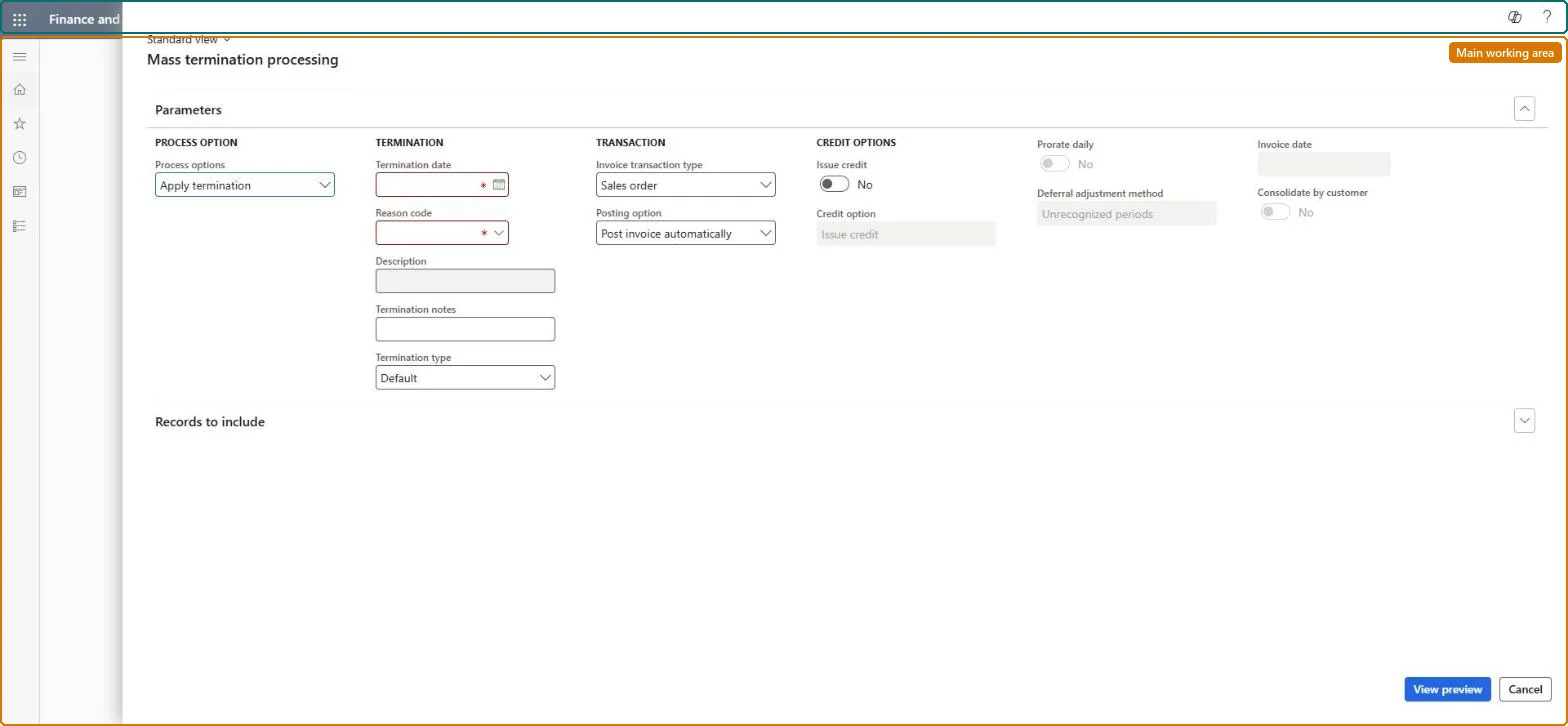
The page in Dynamics 365. page title tab to open what to set or check
About the examples: Examples and screenshots in this guide use BEAT, a demo company in a Dynamics 365 test environment. Use your own company's codes and values instead of copying them.
When to run it
When to run it
When many subscriptions end at the same date, for example at a contract end or a product retirement.
How often
On demand, for each group of contracts that end together.
What the output shows
Terminated billing schedule lines whose status and final billing follow the Termination type, with credits created by the Credit option. Billing schedules that use multiple element allocation and lines in a running Generate invoice batch don't appear in the preview.
End many contracts at once with the agreed final billing and credit.
Steps from Microsoft
Go to Subscription billing > Recurring contract billing > Periodic tasks > Mass termination processing.
Set the Termination date, Reason code and Termination type (Adjust schedule, Bill remaining or No adjustment), which decides how the final billing is calculated.
Choose the Credit option for any credit (credit adjustment, credit note or no credit) and set Prorate daily if refunds should be calculated at a daily rate.
Select View preview to see the billing schedule lines that will be terminated, then select Process.
To undo terminations, set Process options to Remove termination and filter on Billing schedule.
Yes calculates any refund at a daily rate; the default comes from the parameters.Microsoft Learn
Yes
Common errors and fixes
Message
What to do
A billing schedule is missing from the Mass termination preview
Billing schedules with multiple element revenue allocation don't appear; terminate them one at a time. Lines in an active Generate invoice batch are also left out. Microsoft Learn
Remove termination doesn't show a terminated line
Lines terminated with a credit that is already invoiced can't have the termination removed, and they don't appear in the preview. Microsoft Learn
Terminate isn't available for a billing schedule
Only Active billing schedules and lines can be terminated. Remove the hold first, then terminate. Microsoft Learn
A one-time line can't be terminated with a refund
Set One time can terminate with refund to Yes on Recurring contract billing parameters before the line is invoiced; a one-time refund also needs Prorate daily set to Yes. Microsoft Learn
Test checklist
The previewed lines have a terminated status after processing.
Credits match the Credit option and Prorate daily setting.
Termination type and Credit option from the contract terms: Adjust schedule with Issue credit for refunds; Bill remaining when the customer pays to the end; No adjustment with No credit for a clean stop.The type decides the final billing (Adjust schedule cuts at the date and reverses deferrals, Bill remaining bills the rest), and the credit option decides whether a credit note or a future credit is created.
Subscription billing (Must be on)Recurring contract billing (Must be on)
Licence or add-in
Turn off the Revenue recognition feature first: Subscription billing can't be used while it is on. Then, in Feature management, turn on Subscription billing and after it Recurring contract billing. Revenue recognition was deprecated in January 2024 and replaced by Subscription billing. Subscription billing managers run this task.
Hard to reverse: Remove termination works only until a credit for the line is invoiced.
If you change it later
Terminated lines change status according to the termination type, and lines terminated with an invoiced credit can't have the termination removed. Microsoft Learn
Technical architect
6Technical
Menu item
SubBillMassTerminationProcessingChecked in Dynamics 365
Form
SubBillMassTerminationProcessingChecked in Dynamics 365
Data entities
SubBillMassTerminationRemovalEntitySubscription billing mass termination removal (only removing terminations in bulk) Checked in Dynamics 365
Roles to set it up and use it
To use itSubscription billing manager SubBillBillingMaintainSubscription billing allocation, deferral, and billing manager SubBillMaintainGive people one of these roles. On this system, 2 roles can run this page.Checked in Dynamics 365
SubBillMassTerminationRemovalEntity (Subscription billing mass termination removal): removes terminations in bulk through Data management.Load order: Terminations are made on loaded billing schedules; this entity removes terminations in bulk. Clear its records afterwards with Mass termination table clean up.Load first: Billing schedulesMicrosoft Learn
Checked in a working Dynamics 365 system, version 10.0.49: the menu item, form, table and security, the page.
To cite this step: SB-PER-060, Choose the termination type and credit. Beyond ERP Atlas Hub, 2026-11-11. https://www.beyonderp.cloud/atlas/step/SB-PER-060