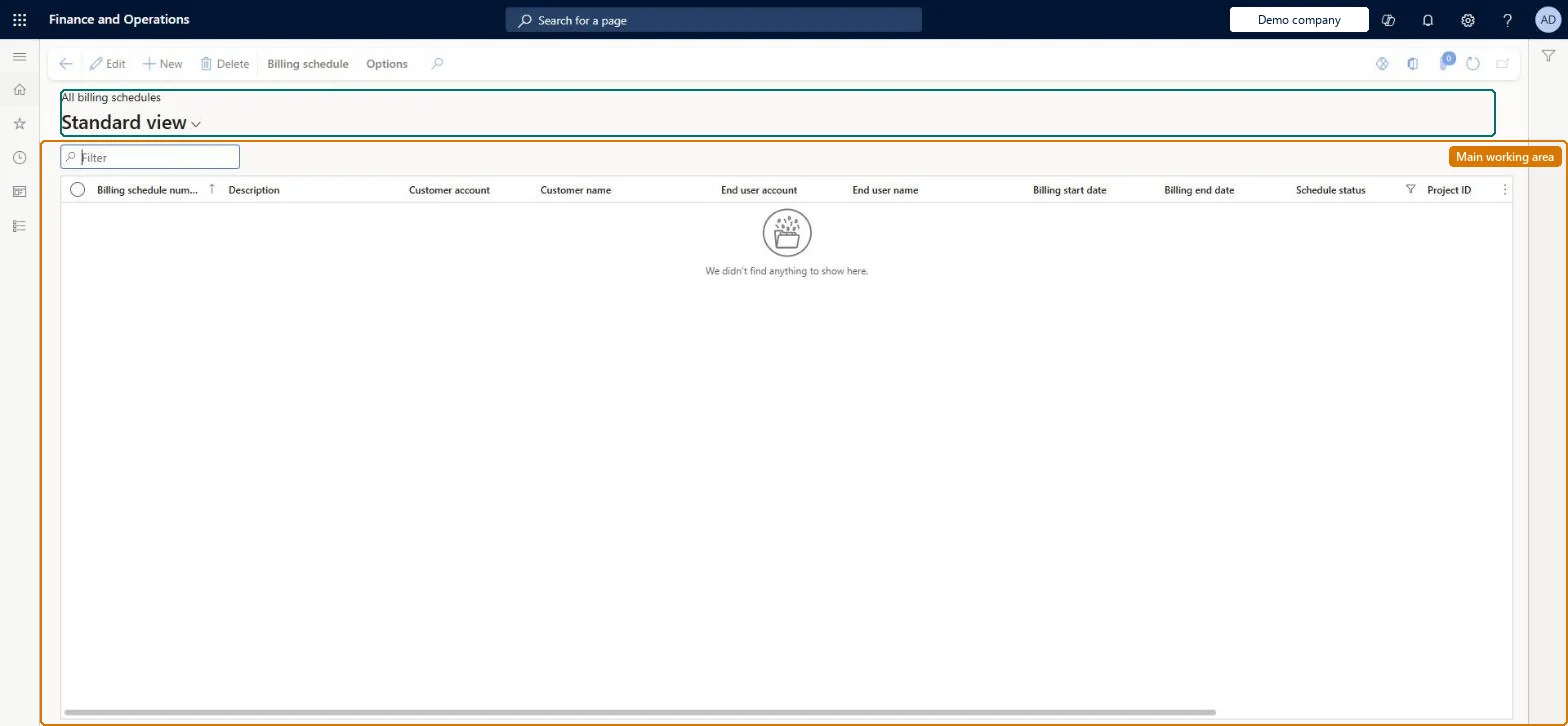
A list page that opens the billing schedule form filtered on schedule status, so it shows the billing schedules that are active, from which you open, hold, terminate or invoice a schedule.
Subscription billing manager, Subscription billing user, Subscription billing allocation, deferral, and billing manager and 1 more role
Business process
Bill subscriptions
Menu item
SubBillSchedulesActive
Main table
SubBillScheduleTable
Data entity
SubBillScheduleTableEntity
Setup steps
1 on this page
Show what matters for
PAGE GUIDEWhat the page does and how to use it8 sections. Choose a role to highlight what matters to you.
Everyone
1What it is and why
What it is
A list page that opens the billing schedule form filtered on schedule status, so it shows the billing schedules that are active, from which you open, hold, terminate or invoice a schedule.
What you do here
Use this page to work on running contracts: open a schedule, apply an escalation or discount, place or remove a hold, terminate, or generate the invoice from the Billing schedule tab.
Example
For example, a BEAT billing clerk filters the active list on customer account and terminates the line of a cancelled 12-month contract with termination date 15 June.
The page in Dynamics 365. page title tab to open what to set or check
About the examples: Examples and screenshots in this guide use BEAT, a demo company in a Dynamics 365 test environment. Use your own company's codes and values instead of copying them.
Setup steps on this page
Work on running contracts from the active list
Use the filtered list to change running contracts without opening every schedule.
Steps from Microsoft
Go to Subscription billing > Recurring contract billing > Billing schedules > Active billing schedules.
Filter the list on customer account, end user account or billing dates to find the schedule.
On the Billing schedule tab use Escalation and discount, Hold or Termination for the selected schedule, or Invoice to generate its invoice.
Open the billing schedule number to see its lines and billing detail.
The end user of the contract, when End users are used.Microsoft Learn
Billing start date / Billing end date
The first and last billing dates of the schedule.Microsoft Learn
Schedule status
The status of the schedule; this page is filtered on it.Checked in Dynamics 365
Active
Project ID
The project, for billing schedules with projects.Microsoft Learn
Common errors and fixes
Message
What to do
Terminate isn't available for a billing schedule
Only Active billing schedules and lines can be terminated. Remove the hold first, then terminate. Microsoft Learn
An escalation isn't applied to a period that has passed
Escalations and discounts can't be applied retroactively. Enter them with a start date in a period that isn't billed yet. Microsoft Learn
A user can't remove a hold
Removing a hold needs a user group with Allow remove hold. Set it in Remove hold user group override on Recurring contract billing parameters and add the user to the group. Microsoft Learn
Test checklist
Open an active schedule from the list and select Terminate.
Set Termination date, Termination type and Credit option = Issue credit.
Check the status follows the termination type (Terminated, or Last billing until the last invoice).
Apply an escalation from a future start date and check it applies to the next unbilled period.
Use the active list for day-to-day holds, terminations and escalations, and filter on customer and billing dates before acting.Only Active schedules and lines can be terminated, and an escalation applies only to periods that aren't billed yet.
Subscription billing (Must be on)Recurring contract billing (Must be on)
Licence or add-in
Turn off the Revenue recognition feature first: Subscription billing can't be used while it is on. Then, in Feature management, turn on Subscription billing and after it Recurring contract billing. Revenue recognition was deprecated in January 2024 and replaced by Subscription billing. Subscription billing managers act on the schedules; Subscription billing users can view the list.
Hard to reverse: From this list you can terminate schedules and apply escalations or discounts. A termination can be removed again from Terminated lines (Remove termination), but escalations and discounts can't be applied retroactively to past periods. Microsoft Learn
If you change it later
Actions taken from the list change the selected schedule: a hold stops billing, a termination ends it from the termination date, and an escalation changes the price of periods not yet billed. Microsoft Learn
Technical architect
6Technical
Menu item
SubBillSchedulesActiveChecked in Dynamics 365
Form
SubBillScheduleTableChecked in Dynamics 365
Table
SubBillScheduleTableShown as “BILLING SCHEDULE” in Record infoKey field: SubBillBillingScheduleNumberChecked in Dynamics 365
Data entities
SubBillScheduleTableEntitySubscription billing schedule header Checked in Dynamics 365SubBillScheduleLineEntitySubscription billing schedule line Checked in Dynamics 365
Who can open it
PrivilegesSubscription billing manager SubBillBillingMaintainMaintain Subscription billing billing schedule table operations SubBillBillingScheduleTableMaintainView Subscription billing billing schedule table operations SubBillBillingScheduleTableViewSubscription billing user SubBillBillingViewSubscription billing allocation, deferral, and billing manager SubBillMaintainSubscription billing module user with capabilities including billing, allocation, and deferral features SubBillViewDutiesSubscription billing user SubBillBillingInquireSubscription billing manager SubBillBillingMaintainSubscription billing module user with capabilities including billing, allocation, and deferral features SubBillInquireSubscription billing allocation, deferral, and billing manager SubBillMaintain4 security rolesSubscription billing manager SubBillBillingMaintainSubscription billing user SubBillBillingViewSubscription billing allocation, deferral, and billing manager SubBillMaintainSubscription billing module user with capabilities including billing, allocation, and deferral features SubBillViewChecked in Dynamics 365
Roles to set it up and use it
To set it up or change itSubscription billing manager SubBillBillingMaintainSubscription billing allocation, deferral, and billing manager SubBillMaintainTo use itSubscription billing user SubBillBillingViewSubscription billing module user with capabilities including billing, allocation, and deferral features SubBillViewGive people one of these roles. On this system, 4 roles can open this page.Checked in Dynamics 365
SubBillScheduleTableEntity data entity Checked in Dynamics 365
Data migration
SubBillScheduleTableEntity (Subscription billing schedule header): the same records as All billing schedules.Load order: Load billing schedules after customers, released products and all Recurring contract billing setup. Load the header first and then its lines. Lines that were already billed in the old system are then marked billed with Mass stubbing process, so Generate invoice doesn't bill them again.Load first: Customers, Released products, Recurring contract billing setupMicrosoft Learn