SETUP GUIDEHow to set it up8 sections. Choose a role to highlight what matters to you.
Everyone
1What it is and why
What it is
A periodic task dialog that creates recurring invoices in bulk from the billing schedules and their billing detail.
What you do here
Use this page to create invoices for many billing schedules in one run instead of invoicing each schedule separately. Each invoiced line gets the item description and the billing start and end dates of the schedule line.
Example
For example, on 1 December a BEAT billing clerk runs it with Filter by Start date and To date 31 December, removes one disputed line and selects Generate all, creating the sales orders for the month.
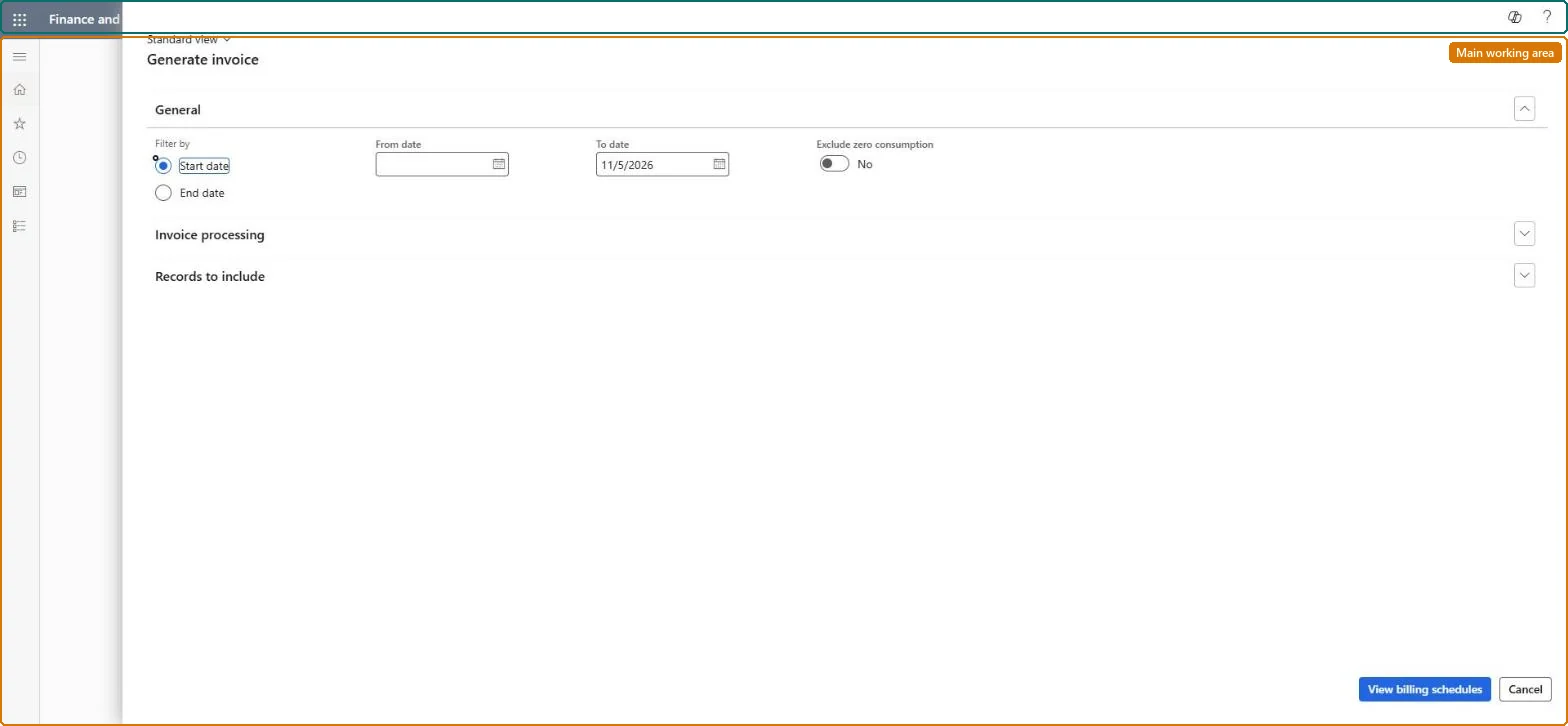
The page in Dynamics 365. page title tab to open what to set or check
About the examples: Examples and screenshots in this guide use BEAT, a demo company in a Dynamics 365 test environment. Use your own company's codes and values instead of copying them.
When to run it
When to run it
At each billing date, after usage and new billing schedules for the period are entered.
How often
At each billing cycle, usually monthly.
Batch settings
Use the Batch button to add the lines to a batch job that is processed later; for unattended recurring runs, use Generate invoice batch processing.
What the output shows
Sales orders or free text invoices for the billing schedule lines in the date range, posted or not depending on the Posting option. Each line gets the item description with the billing start and end dates. A missing line usually lies outside the date filter, was removed, or is on hold.
Generate the period's recurring invoices with the posting option and consolidation the company agreed.
Steps from Microsoft
Go to Subscription billing > Recurring contract billing > Periodic tasks > Generate invoice.
On General, set Filter by to Start date or End date and enter the From date and To date. Leave From date blank to take all lines up to the To date. Set Exclude zero consumption to Yes to leave out usage lines with a net amount of 0.00.
On Invoice processing, choose the Posting option: Create sales order, Show Posting invoice or Create invoice proposal page, Create free text invoice, or Post invoice automatically, and set the Invoice date.
Select View billing schedules to see the lines that are due, select Remove selected for lines you don't want to bill now, and select Generate all.
Open the created sales orders or invoices and compare the line amounts and billing dates in the item descriptions with the billing schedules.
Selects billing detail lines by their start date or end date.Microsoft Learn
Start date
From date / To date
The date range of the lines to bill; leave From date blank to take all lines up to To date.Microsoft Learn
Exclude zero consumption
Yes leaves out usage lines with a net amount of 0.00.Microsoft Learn
No
Posting option
Create sales order, Show Posting invoice or Create invoice proposal page, Create free text invoice, or Post invoice automatically.Microsoft Learn
Create sales order
Invoice date
Defaults to the session date; not used with Create sales order.Microsoft Learn
Consolidate all periods / by customer / by item
Combine periods, schedules of one customer, or lines of the same item on one invoice.Microsoft Learn
Split by item group
Yes creates a sales order per item group and turns on top billing.Microsoft Learn
View billing schedules
Shows the lines that are due; Remove selected leaves lines out, Generate all bills the rest, Batch sends them to a batch job.Microsoft Learn
Common errors and fixes
Message
What to do
Two billing schedules of one customer give two sales orders although Consolidate by customer is Yes
Schedules are combined only when customer, sales document ID, customer reference, project and currency match, and payment terms, method and schedule are the same. Microsoft Learn
One billing schedule creates several sales orders
A separate sales order is created for each bill-to address. Check the Bill to address on the schedule lines. Microsoft Learn
Generate invoice skips a milestone line
Each milestone event needs an end date before it can be invoiced. Set it on the line or with Update completion date process. Microsoft Learn
The invoice for an unbilled revenue line has nothing to reverse from unbilled revenue
Create the unbilled revenue journal entry before invoicing, with Create journal entry on the line or on Unbilled revenue mass processing. Microsoft Learn
Test checklist
Create a billing schedule with three monthly lines of 100.00 from 1 January.
Run Generate invoice with Filter by Start date, To date 31 January and Posting option Post invoice automatically.
Check one invoice of 100.00 is posted with the billing dates in the item description.
Run it again for January and check the line isn't offered a second time.
Posting option Show Posting invoice or Create invoice proposal page for the first runs, then Post invoice automatically once the results are trusted; Consolidate by customer = Yes.The review option lets you check the sales orders before posting, while Post invoice automatically creates and posts in one step; consolidation keeps one invoice per customer when the conditions match.
Subscription billing (Must be on)Recurring contract billing (Must be on)
Licence or add-in
Turn off the Revenue recognition feature first: Subscription billing can't be used while it is on. Then, in Feature management, turn on Subscription billing and after it Recurring contract billing. Revenue recognition was deprecated in January 2024 and replaced by Subscription billing. Subscription billing managers run this task.
Hard to reverse: Sales orders that aren't invoiced can be deleted; a posted invoice needs an offsetting line and a credit note.
If you change it later
Creates sales orders or free text invoices from billing schedule lines and, with Post invoice automatically, posts them to the customer and the ledger. Microsoft Learn
Technical architect
6Technical
Menu item
SubBillGenerateInvoiceChecked in Dynamics 365
Form
SubBillGenerateInvoiceChecked in Dynamics 365
Roles to set it up and use it
To use itSubscription billing manager SubBillBillingMaintainSubscription billing allocation, deferral, and billing manager SubBillMaintainGive people one of these roles. On this system, 2 roles can run this page.Checked in Dynamics 365
Load order: Generate invoice has no data entity in Data management, so there is nothing to load from a file or a configuration template. It creates sales orders and invoices from billing schedules; to move billing history, load the billing schedules and mark the billed lines with Mass stubbing process.Microsoft Learn
Checked in a working Dynamics 365 system, version 10.0.49: the menu item, form, table and security, the page.
To cite this step: SB-PER-010, Choose the posting option for the invoice run. Beyond ERP Atlas Hub, 2026-11-11. https://www.beyonderp.cloud/atlas/step/SB-PER-010