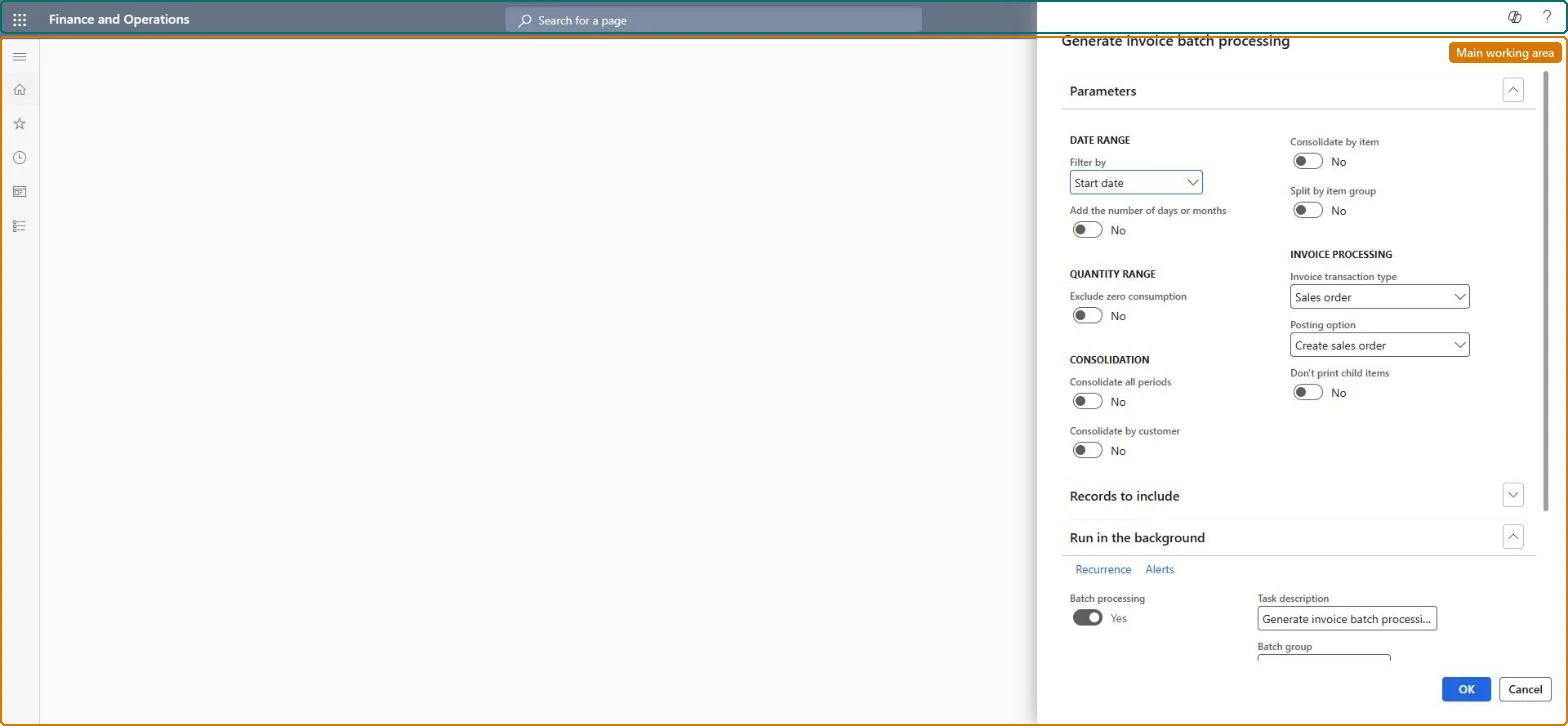
About the examples: Examples and screenshots in this guide use BEAT, a demo company in a Dynamics 365 test environment. Use your own company's codes and values instead of copying them.
When to run it
When to run it
When recurring invoicing should run unattended on a schedule instead of being started by a user.
How often
On the recurrence of your billing cycle, for example monthly for monthly billing.
Batch settings
Always runs as a batch job. Use a relative date range (days or months from today) so each recurrence picks up the lines that are due on that run date.
What the output shows
Recurring invoices for the billing schedules whose start or end date falls in the relative range. Example: in January, Months with 2 includes lines through March. Lines invoiced twice or missing usually mean the offset in days or months doesn't match the recurrence of the job.
Run recurring invoicing unattended with a date range relative to today.
Steps from Microsoft
Go to Subscription billing > Recurring contract billing > Periodic tasks > Generate invoice batch processing.
In the Date range filter, choose whether billing schedules are selected by start date or end date.
To use a date other than today, set Add the number of days or months to Yes. In Select by days or months, choose Days (0 is today) or Months (0 is the first through the last day of the current month) and enter the number.
Set the recurrence of the batch job; Batch processing is always Yes for this task.
After each run, review the created sales orders or invoices and the batch job log.
Selects billing schedules by their start date or end date.Microsoft Learn
Start date
Add the number of days or months
Set to Yes to use a start or end date other than today's date.Microsoft Learn
Select by days or months
Chooses whether the offset from today is counted in days or months, with the number entered alongside.Microsoft Learn
Months
Batch processing
Always set to Yes for this task and can't be changed.Microsoft Learn
Common errors and fixes
Message
What to do
Batch processing can't be set to No
Generate invoice batch processing always runs as a batch job. To invoice now and review the lines, use Generate invoice instead. Microsoft Learn
Two billing schedules of one customer give two sales orders although Consolidate by customer is Yes
Schedules are combined only when customer, sales document ID, customer reference, project and currency match, and payment terms, method and schedule are the same. Microsoft Learn
Generate invoice skips a milestone line
Each milestone event needs an end date before it can be invoiced. Set it on the line or with Update completion date process. Microsoft Learn
Test checklist
The first run picks up exactly the lines in the expected date range.
The next recurrence doesn't invoice the same lines again.
Select by Months with 0, so each monthly run takes the lines of the whole current month, and a recurrence of monthly on the first day.Months 0 means the first through the last day of the current month, and the current month is always included, so a monthly recurrence bills each month once.
Subscription billing (Must be on)Recurring contract billing (Must be on)
Licence or add-in
Turn off the Revenue recognition feature first: Subscription billing can't be used while it is on. Then, in Feature management, turn on Subscription billing and after it Recurring contract billing. Revenue recognition was deprecated in January 2024 and replaced by Subscription billing. Subscription billing managers run this task.
Hard to reverse: Each run creates sales orders and invoices; posted invoices need credit notes.
If you change it later
Creates recurring invoices from billing schedules on every run of the batch job. Microsoft Learn
Technical architect
6Technical
Menu item
SubBillGenerateInvoiceBatchProcessingChecked in Dynamics 365
Form
SysOperationTemplateFormChecked in Dynamics 365
Roles to set it up and use it
To use itSubscription billing manager SubBillBillingMaintainSubscription billing allocation, deferral, and billing manager SubBillMaintainGive people one of these roles. On this system, 2 roles can run this page.Checked in Dynamics 365
Load order: Generate invoice batch processing has no data entity in Data management, so there is nothing to load from a file or a configuration template. Set up its recurring batch job again in each environment.Microsoft Learn
Checked in a working Dynamics 365 system, version 10.0.49: the menu item, form, table and security, the page.
To cite this step: SB-PER-020, Set the relative date range of the batch run. Beyond ERP Atlas Hub, 2026-11-11. https://www.beyonderp.cloud/atlas/step/SB-PER-020