SETUP GUIDEHow to set it up8 sections. Choose a role to highlight what matters to you.
Everyone
1What it is and why
What it is
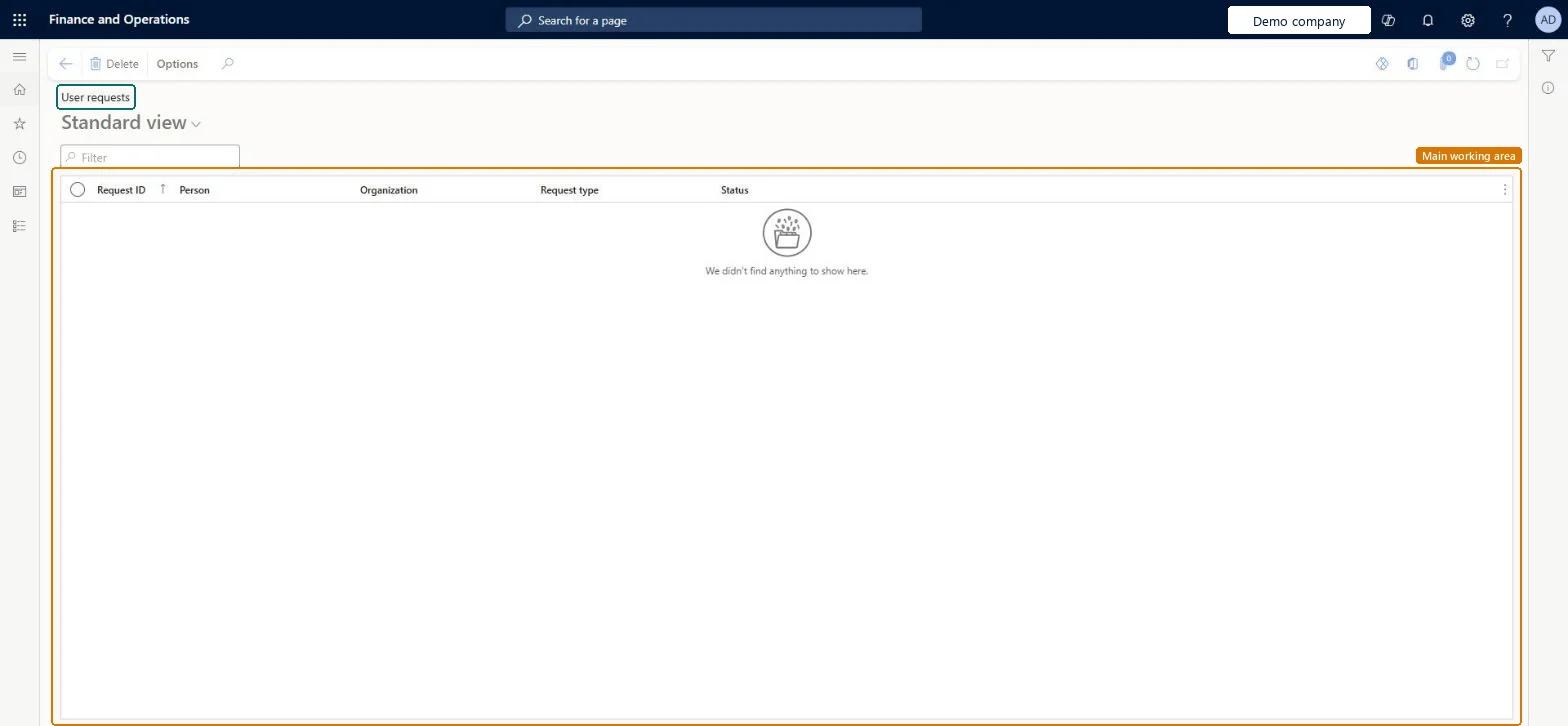
A list page that shows user requests, with the request ID, person, organization, request type and status of each request.
What you do here
Use this page to review user requests and to delete a request that is no longer needed.
Example
For example, a BEAT purchasing agent requests a vendor user for a supplier contact; the request appears here with type Add user and status In review until the user workflow approves it.
The page in Dynamics 365. page title tab to open what to set or check
About the examples: Examples and screenshots in this guide use BEAT, a demo company in a Dynamics 365 test environment. Use your own company's codes and values instead of copying them.
Setup steps on this page
Follow user requests to provisioning
Use the list to see which user requests wait for approval or provisioning.
Steps from Microsoft
Go to System administration > Users > User requests.
Type in the Filter box to find a request.
Check the Request ID, Person, Organization, Request type and Status columns.
Select a request, then select Delete on the Action Pane to remove it.
Filter on Status to find requests that are still in review, and only delete a request that the requester agreed to withdrawRequests are provisioned by the user workflow; a deleted request is lost and must be submitted again.
Can't be undone: Deleting a request can't be reversed.
If you change it later
A request is processed by the active user request workflow; deleting a request here stops it from being provisioned. Microsoft Learn
Technical architect
6Technical
Menu item
UserRequestListPageChecked in Dynamics 365
Form
UserRequestListPageChecked in Dynamics 365
Table
UserRequestShown as “User requests” in Record infoKey field: M_requestType, M_accountNumber, M_organizationName, Person, Person_Name, M_jobTitleChecked in Dynamics 365
Who can open it
PrivilegesMaintain user requests UserRequestMaintainDutiesMaintain user requests UserRequestMaintain1 security roleInformation technology manager SysServerITManagerChecked in Dynamics 365
Roles to set it up and use it
To set it up or change itInformation technology manager SysServerITManagerGive people one of these roles. On this system, 1 role can open this page.Checked in Dynamics 365
Actions on the page
Options: Personalize, Page options, ShareChecked in Dynamics 365
Checked in a working Dynamics 365 system, version 10.0.49: the menu item, form, table and security, the page.
To cite this step: SA-USER-530, Follow user requests to provisioning. Beyond ERP Atlas Hub, 2026-11-11. https://www.beyonderp.cloud/atlas/step/SA-USER-530