About the examples: Examples and screenshots in this guide use BEAT, a demo company in a Dynamics 365 test environment. Use your own company's codes and values instead of copying them.
When to run it
When to run it
After a PBIX report built on the Entity store is uploaded to Lifecycle Services, and again when deployed reports show sign-in or connection errors after Entity store credentials changed.
How often
On demand, once per new or changed report in each environment.
What the output shows
The report and its dataset published to your PowerBI.com subscription, pointing to the Entity store of the current environment. Errors such as invalid SQL credentials in PowerBI.com after maintenance usually mean the report must be deployed again.
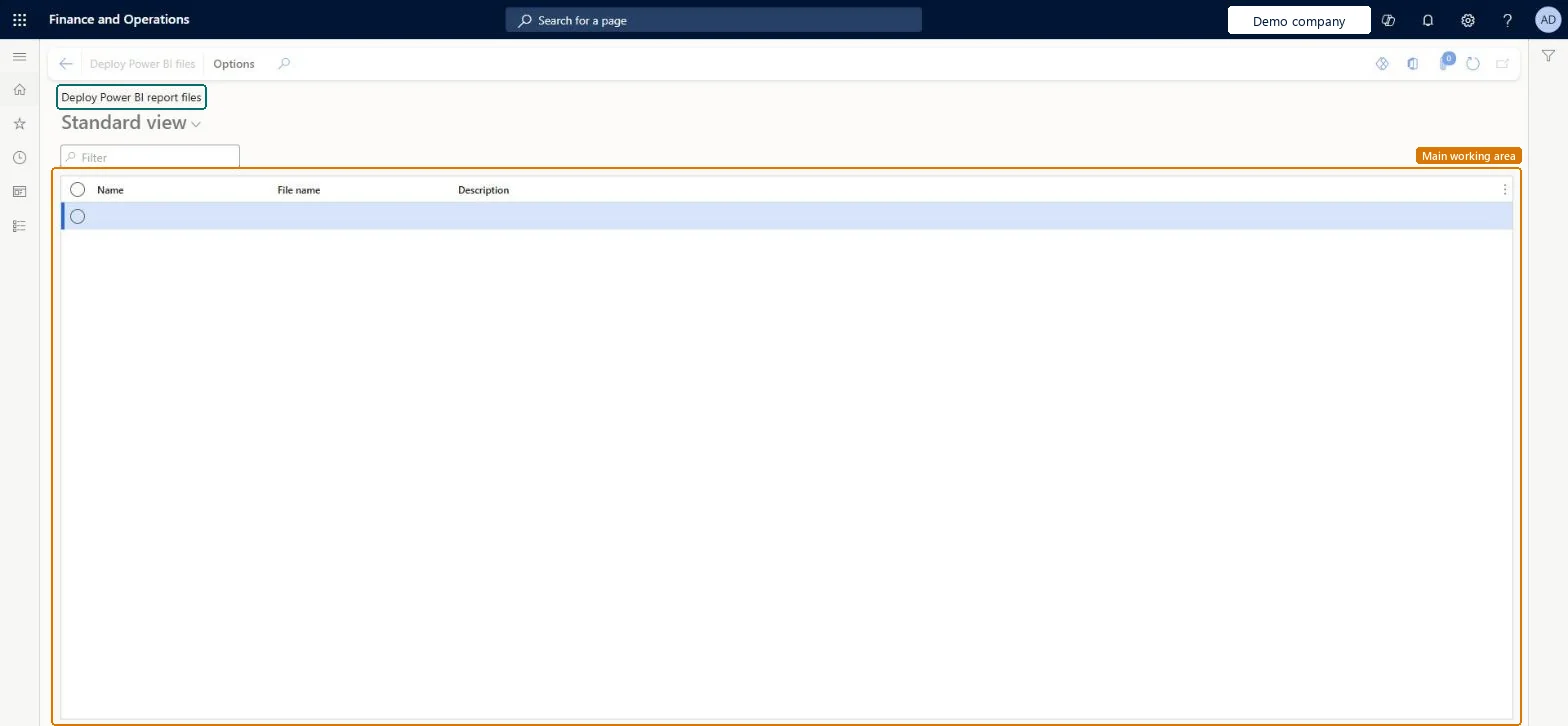
Use this page to publish Power BI reports built on Entity store so they point to this environment.
Steps from Microsoft
Go to System administration > Setup > Deploy Power BI files.
Before you start, on System parameters, on the Help tab, select in Lifecycle services help configuration the Lifecycle Services project that holds the PBIX file. Only projects you can access are listed.
Select the report file that was uploaded to the asset library of that project.
Select Deploy Power BI files. If you are asked to consent to publishing to PowerBI.com, follow the link, give consent, and then select Close.
Open PowerBI.com and confirm that the report appears and shows data from the Entity store of this environment.
A PBIX file uploaded to the asset library of the Lifecycle Services project selected on System parameters (Lifecycle services help configuration).Microsoft Learn
Deploy Power BI files
Publishes the selected report and its dataset to your PowerBI.com subscription, pointing to this environment's Entity store.Microsoft Learn
Common errors and fixes
Message
What to do
The credentials provided for the SQL source are invalid.
Redeploy the report from Deploy Power BI files. If the error stays, delete the report and its dataset in PowerBI.com and deploy it again. Microsoft Learn
Keep every report's PBIX file in the Lifecycle Services asset library and deploy from it after each change and after Entity store credentials changeDeploying overwrites the report in PowerBI.com; only what is in the PBIX file in Lifecycle Services survives a redeploy.
On this system the page opens for Information technology manager. IT administrators deploy reports. No Feature management feature needs to be turned on for this page.
Per environment: the report is deployed to PowerBI.com pointing to the Entity store of the current environment. Microsoft Learn
Can it be undone
Hard to reverse: Redeploying overwrites the report in PowerBI.com; changes made only there are lost unless exported to a PBIX file first.
If you change it later
Redeploying a report overwrites it, and any changes not saved as a PBIX file in Lifecycle Services are lost. Microsoft Learn
Technical architect
6Technical
Menu item
PowerBIPbixDeployMenuItemChecked in Dynamics 365
Form
PowerBIPbixDeployFormChecked in Dynamics 365
Table
TmpPowerBISetupTableChecked in Dynamics 365
Who can open it
PrivilegesPowerBIPbixDeployPrivilegeDutiesPower BI PBIX deploy PowerBIPbixDeployDuty1 security roleInformation technology manager SysServerITManagerChecked in Dynamics 365
Roles to set it up and use it
To set it up or change itInformation technology manager SysServerITManagerGive people one of these roles. On this system, 1 role can open this page.Checked in Dynamics 365
Actions on the page
Options: Personalize, Page options, ShareChecked in Dynamics 365
Load order: Deploy Power BI files has no data entity in Data management, so it can't be loaded from a file or a configuration template. The page reads PBIX files from the Lifecycle Services asset library; deploy them again in each environment.Checked in Dynamics 365
Checked in a working Dynamics 365 system, version 10.0.49: the menu item, form, table and security, the page.
To cite this step: SA-SETUP-610, Deploy Entity store reports to PowerBI.com. Beyond ERP Atlas Hub, 2026-11-11. https://www.beyonderp.cloud/atlas/step/SA-SETUP-610