PAGE GUIDEWhat the page does and how to use it8 sections. Choose a role to highlight what matters to you.
Everyone
1What it is and why
What it is
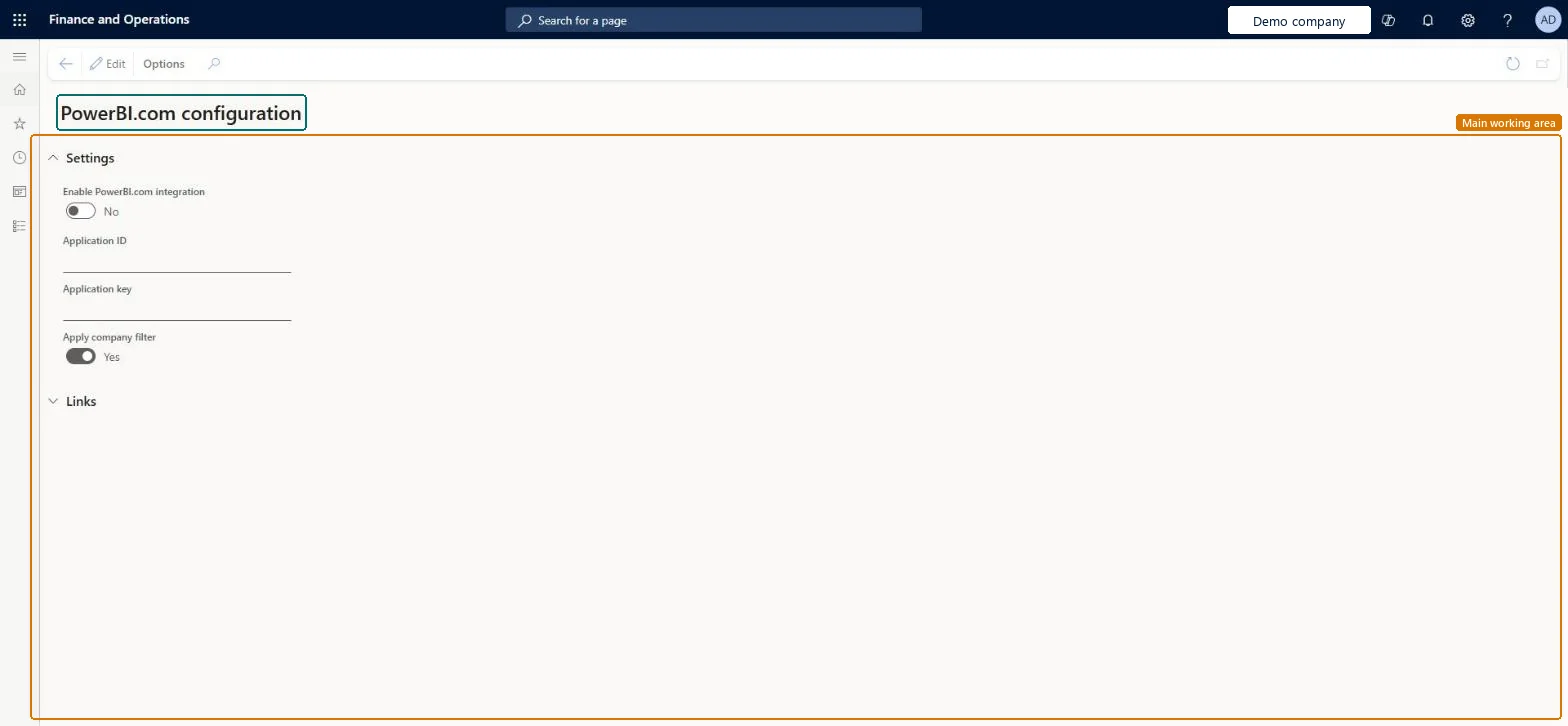
A setup page where administrators connect the system to PowerBI.com, so users can pin Power BI tiles, dashboards and reports to workspaces.
What you do here
Use this page for the one-time setup that lets Power BI communicate and authenticate correctly with the system.
Example
For example, to show the Global Inventory Accounting report, an administrator turns on the integration, enters the application ID and key, and then opens the report catalog.
The page in Dynamics 365. page title tab to open what to set or check
About the examples: Examples and screenshots in this guide use BEAT, a demo company in a Dynamics 365 test environment. Use your own company's codes and values instead of copying them.
Step by step, with screenshots
Set up PowerBI.com configuration1 screen
Use this page for the one-time setup that lets Power BI communicate and authenticate correctly with the system.
Screen 1
Review the PowerBI.com configuration
Go to System administration > Setup > PowerBI.com configuration
Select Edit
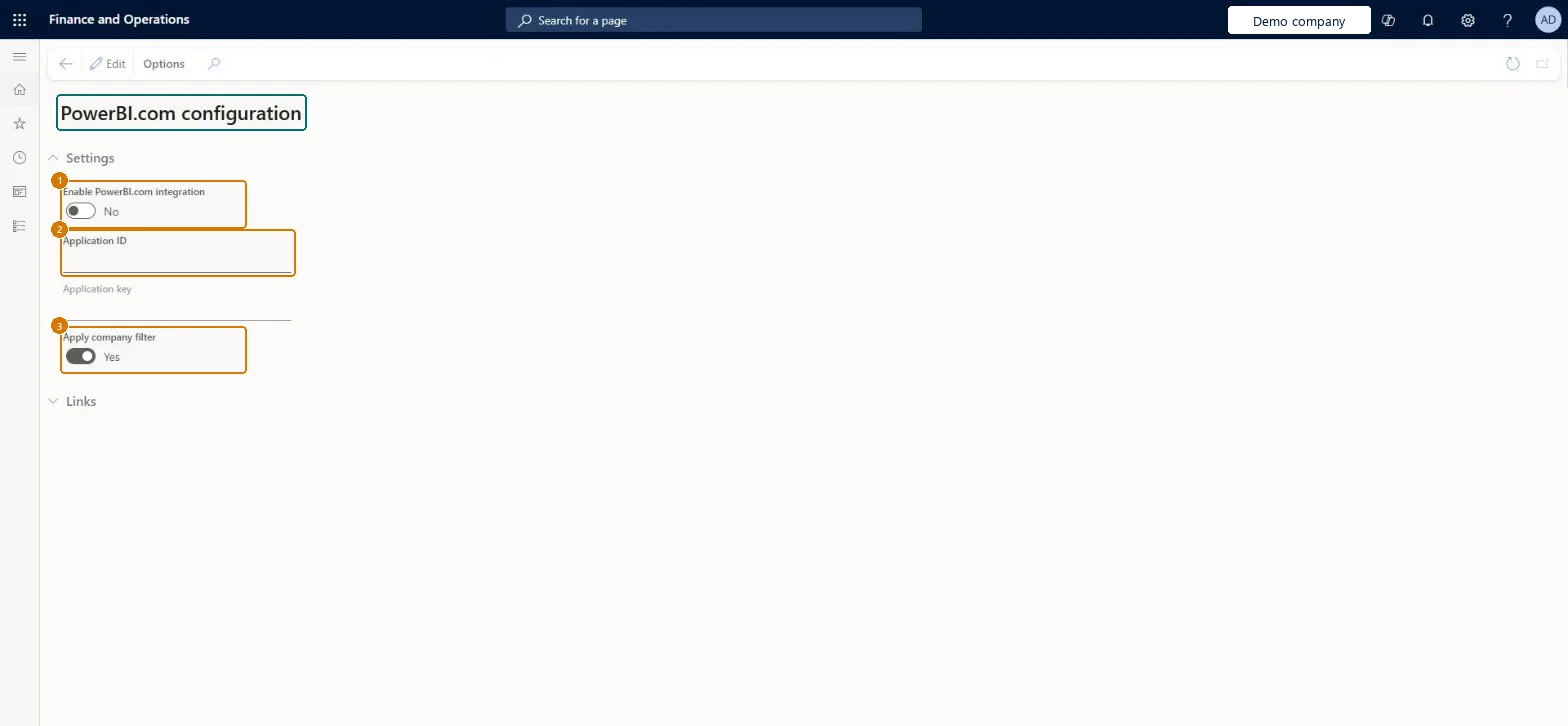
Turn on Enable PowerBI.com integration
Enter the application ID and application key from your Microsoft Entra ID registration
Select Save
Show the full screen page title tab to open what to set or check
Steps from Microsoft
Go to System administration > Setup > PowerBI.com configuration.
Select Edit.
Set the Enabled option to Yes.
In the Application ID field, enter the application ID from the Microsoft Entra app registration.
In the Application key field, enter the secret value from the app registration.
Select Save.
Select Get started to check the connection and pin tiles to a workspace.
Enabled = Yes, with the Application ID and secret of a single-tenant Entra app (Web, redirect URI ending in /oauth) that has the delegated Power BI Service permissions and admin consentThis one-time setup lets the server call Power BI on behalf of each user, so users only see tiles and reports from their own PowerBI.com account.
PowerBIConfigurationEntity (Power BI configuration): shared by all companies. Enter the Application key again in each environment: it is the secret of the app registration.Load order: PowerBIConfigurationEntity isn't in any of Microsoft's default templates in BEAT, so add it to your own data project when you move this setup.Checked in Dynamics 365
Checked in a working Dynamics 365 system, version 10.0.49: the menu item, form, table and security, the page, the demo records and the values in the screenshots.