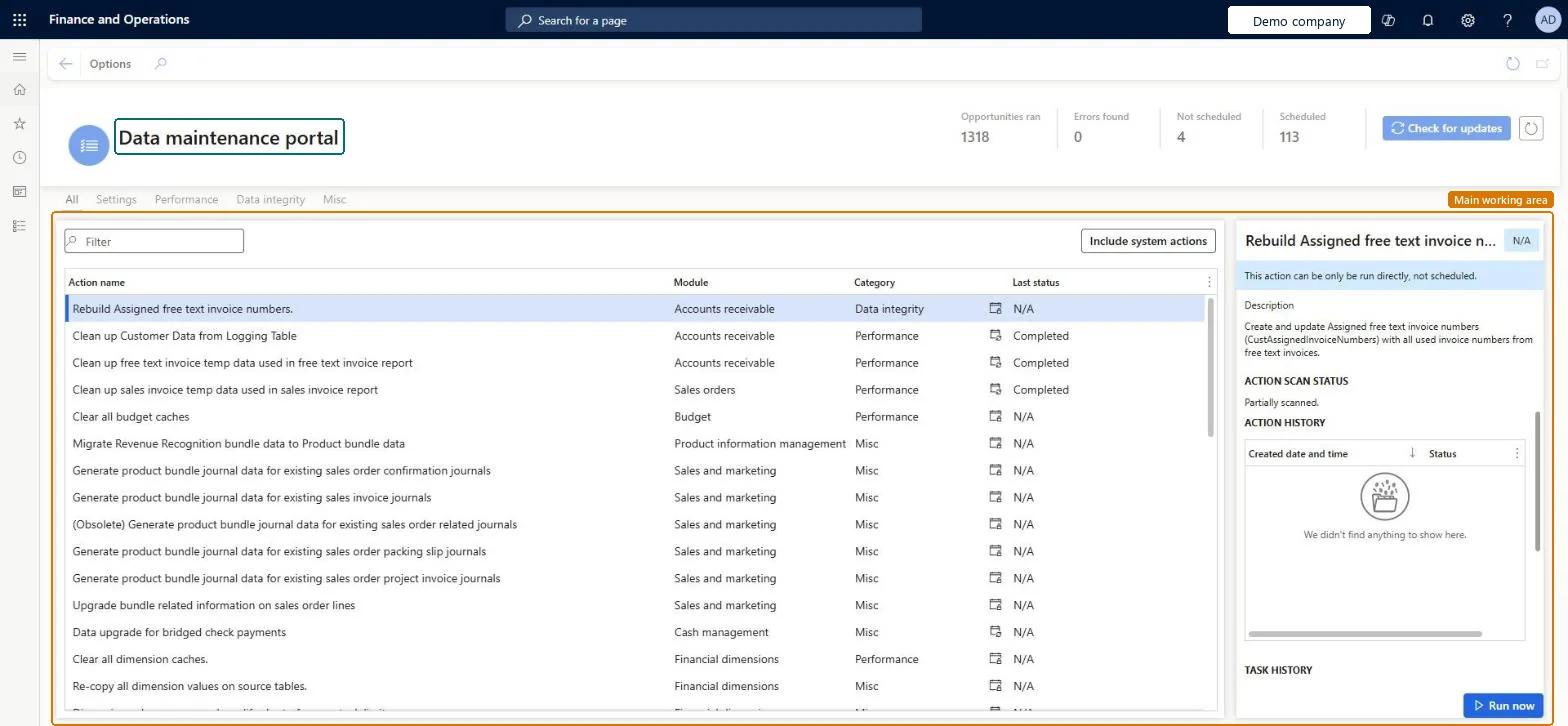
About the examples: Examples and screenshots in this guide use BEAT, a demo company in a Dynamics 365 test environment. Use your own company's codes and values instead of copying them.
When to run it
When to run it
When you want to find or fix data inconsistencies, or when Microsoft Support asks you to run a direct action.
How often
Scanning and fixing actions run a few times a day once they are scheduled; direct actions run on demand.
What the output shows
The latest status of each action. Fixing actions might not repair all data in one run, so a problem that is still reported after the first run is expected; it should shrink over the following runs.
Keep data maintenance actions from blocking schema changes made in maintenance mode.
Steps from Microsoft
Go to System administration > Periodic tasks > Data maintenance.
Review the list of actions and the latest status of each. Direct actions run only on demand, Scanning actions look for problems a few times a day, and Fixing actions schedule a fix a little at a time.
Select an action and read the information in the right panel before you start it.
Select Schedule, when it is offered, to let the action run on its own cadence, or select Run now to run it on demand.
Before maintenance-mode work such as a package deployment, set a sleep period for the two data maintenance background processes on Process automations and cancel running data maintenance jobs; remove the sleep period afterwards.
Actions that search the data a few times a day for problems.Microsoft Learn
Fixing
Actions that schedule a fix when they find a problem, a little at a time.Microsoft Learn
Common errors and fixes
Message
What to do
A package deployment or license key change times out or fails
Data maintenance jobs were running and blocked tables. Set sleep periods on the two data maintenance background processes and cancel running data maintenance jobs before maintenance mode. Microsoft Learn
A fixing action still reports the problem after its first run
Fixing actions fix a subset of data on each run; the problem shrinks over the following runs. Microsoft Learn
Test checklist
Open Data maintenance and note the latest status of each action.
Select a scanning action and read the right panel.
Before a maintenance-mode change, set a sleep period on both data maintenance background processes and check no data maintenance job runs in Batch jobs.
After the change, remove the sleep periods and check the actions run again.
Set a sleep period on both data maintenance background processes and cancel running data maintenance jobs before any maintenance-mode change; remove the sleep afterwardsLearn: data maintenance jobs can block tables and cause timeouts or failures during package deployments, updates, license key changes and dimension activation.
Environment-wide: the portal lists the system actions defined by Microsoft for the environment; you can't enable or disable them. Microsoft Learn
Can it be undone
No: Direct and fixing actions change data directly. Read the action details before you select Run now. Microsoft Learn
If you change it later
Pause data maintenance before maintenance-mode changes such as package deployments or license key changes, because the jobs can lock tables. Microsoft Learn
Technical architect
6Technical
Menu item
DataMaintenancePortalChecked in Dynamics 365
Form
DataMaintenancePortalChecked in Dynamics 365
Who can open it
PrivilegesData maintenance portal DataMaintenancePortalChecked in Dynamics 365
Actions on the page
Options: Page options, ShareChecked in Dynamics 365
Load order: Data maintenance has no data entity in Data management, so it can't be loaded from a file or a configuration template. The actions are defined by Microsoft and come with the application.Checked in Dynamics 365