SETUP GUIDEHow to set it up8 sections. Choose a role to highlight what matters to you.
Everyone
1What it is and why
What it is
A setup page where you connect the system to a B2B invitation service application in Microsoft Entra ID.
What you do here
Use this page to export business-to-business (B2B) users to Microsoft Entra ID automatically instead of by a manual file upload.
Example
For example, BEAT's vendor collaboration user requests use a workflow with the Provision Microsoft Entra B2B user task, so a vendor's contact is invited as a guest user in Microsoft Entra ID without a .csv file being sent to the tenant administrator.
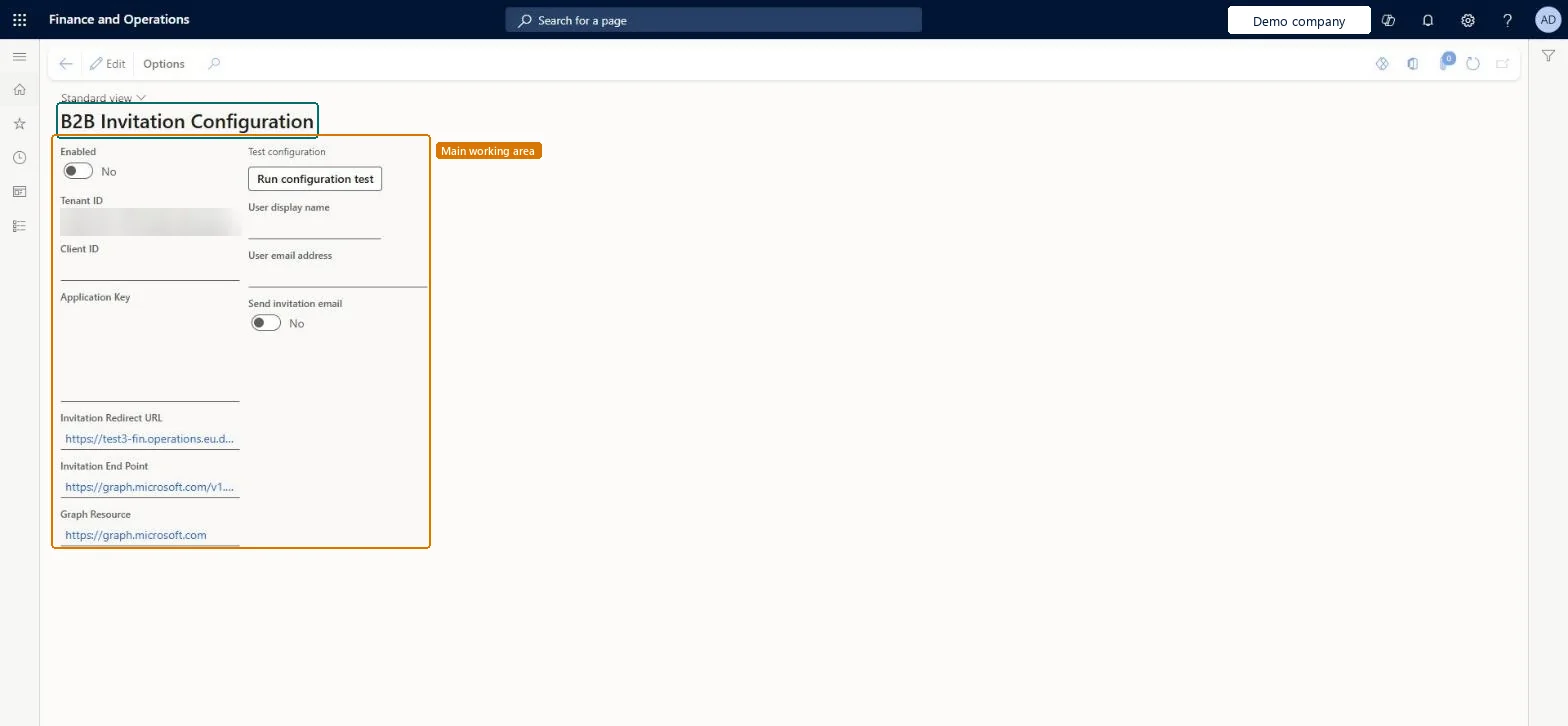
The page in Dynamics 365. page title tab to open what to set or check
About the examples: Examples and screenshots in this guide use BEAT, a demo company in a Dynamics 365 test environment. Use your own company's codes and values instead of copying them.
Setup steps on this page
Set up B2B Invitation Configuration
Use this page to export business-to-business (B2B) users to Microsoft Entra ID automatically instead of by a manual file upload.
Steps from Microsoft
Ask the Microsoft Entra tenant administrator to register the B2B invitation service application and give you its Application ID and key value.
Go to System administration > Setup > B2B Invitation Configuration and select Edit.
Select Enabled.
Check that the Tenant ID matches the Directory ID of your Microsoft Entra tenant.
In the Client ID field, enter the Application ID of the B2B invitation app.
Enter the app's key value in the Application Key field.
The Application Key can't be found again after the app registration was saved
The key value is shown only once, when it's saved in the app registration. Create a new key, copy the value straight away and enter it here; keys also expire after the duration set in Expires. Microsoft Learn
Test checklist
Enter Tenant ID, Client ID and Application Key, select Enabled and save.
Add the Provision Microsoft Entra B2B user task to a user request workflow.
Submit a request for an external user and complete the workflow.
Check in Microsoft Entra ID that the guest user was created.
Enabled, with Tenant ID equal to the Entra Directory ID, Client ID of a dedicated B2B invitation app that has the Microsoft Graph permissions Learn lists, and its key value in Application KeyThis one-time setup lets the Provision Microsoft Entra B2B user workflow task export B2B users to Entra ID automatically instead of by a .csv file.
The B2B invitation app needs the Microsoft Graph permissions to invite guest users and read and write directory data and user profiles, granted by the tenant administrator. No Feature management feature needs to be turned on for this page.
Reversible: Values can be updated or Enabled cleared at any time.
If you change it later
Once the settings are saved, the Provision Microsoft Entra B2B user workflow task can export B2B users to Microsoft Entra ID automatically, replacing the manual .csv export that the tenant administrator loaded through the Azure portal. Microsoft Learn
Technical architect
6Technical
Menu item
B2BInvitationConfigurationChecked in Dynamics 365
Form
B2BInvitationConfigurationChecked in Dynamics 365
Table
B2BInvitationConfigShown as “Configuration for B2B Invitation” in Record infoChecked in Dynamics 365
Actions on the page
Options: Personalize, Page options, ShareChecked in Dynamics 365
Load order: B2B Invitation Configuration has no data entity in Data management, so it can't be loaded from a file or a configuration template. Enter the Tenant ID, Client ID and Application Key by hand in each environment; the key is copied from the app registration in Microsoft Entra ID.Checked in Dynamics 365
Checked in a working Dynamics 365 system, version 10.0.49: the menu item, form, table and security, the page.
To cite this step: SA-SETUP-180, Set up B2B Invitation Configuration. Beyond ERP Atlas Hub, 2026-11-11. https://www.beyonderp.cloud/atlas/step/SA-SETUP-180