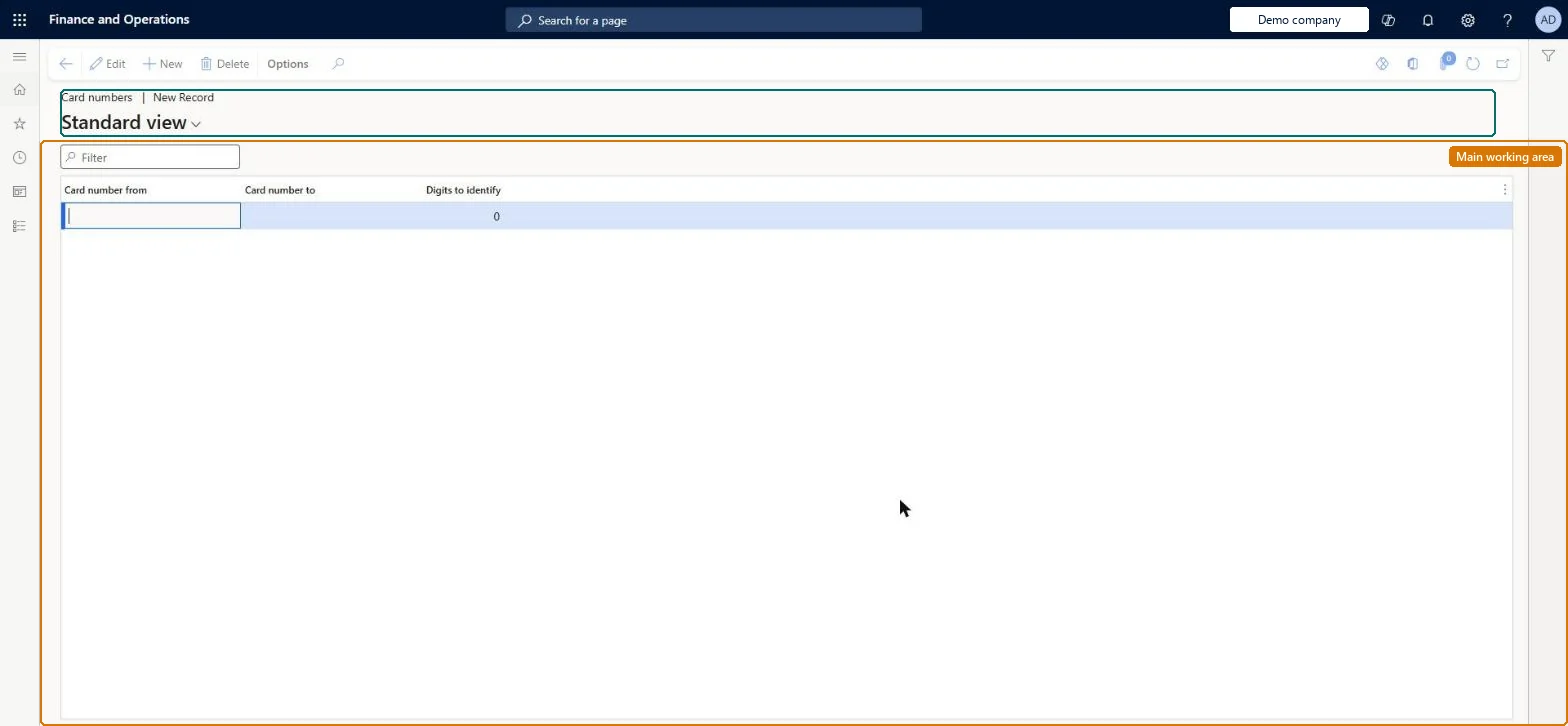
Setup step on the Card numbers page · Retail and Commerce
Set up Card numbers
Use this page to enter, for each card type, the Card number from and Card number to range and the Digits to identify, so that a card presented at payment is matched to the right card type for processing and reporting.
SETUP GUIDEHow to set it up8 sections. Choose a role to highlight what matters to you.
Everyone
1What it is and why
What it is
A setup page, opened from a card type, where you define the card number (BIN) ranges and the number of leading digits that identify a card as that card type.
What you do here
Use this page to enter, for each card type, the Card number from and Card number to range and the Digits to identify, so that a card presented at payment is matched to the right card type for processing and reporting.
Example
For example, gift cards whose first four digits fall between 6000 and 6999 can be mapped to the external gift card type.
The page in Dynamics 365. page title tab to open what to set or check
About the examples: Examples and screenshots in this guide use BEAT, a demo company in a Dynamics 365 test environment. Use your own company's codes and values instead of copying them.
Setup steps on this page
Set up Card numbers
Use this page to enter, for each card type, the Card number from and Card number to range and the Digits to identify, so that a card presented at payment is matched to the right card type for processing and reporting.
Steps from Microsoft
Go to Retail and Commerce > Channel setup > Payment methods > Card types.
Select the card type, then select Card numbers.
Select New.
Enter the Card number from and Card number to values.
In the Digits to identify field, enter the number of leading digits to compare.
Select Save.
On the Distribution schedule page, run the 1070 and 1110 jobs.
Short BIN ranges (one or two digits) agreed with the payment gateway, for example VISA 4 to 4 with Digits to identify 1Learn notes a smaller range is less complex and catches broader card scenarios, and that the gateway can advise on mappings. Learn's table is an example, not a prescribed set.
Changing ranges and testing straight away. Run jobs 1070 and 1110 and wait about 15 minutes for the Retail Server cache; if nothing matches and no store default is set, the authorization is declined.
Solution architect
5Design impact
Can it be undone
Reversible: Ranges can be changed at any time; they apply after jobs 1070 and 1110 and the cache refresh.
If you change it later
After changing ranges you must run jobs 1070 and 1110 and allow about 15 minutes for the Retail Server cache; if no range matches and no default is set, the authorization is declined. Microsoft Learn
Technical architect
6Technical
Menu item
RetailTenderTypeCardNumbersChecked in Dynamics 365
Form
RetailTenderTypeCardNumbersChecked in Dynamics 365
Table
RetailTenderTypeCardNumbersShown as “CARD NUMBER” in Record infoKey field: cardTypeId, cardNumberFrom, cardNumberToChecked in Dynamics 365
PrivilegesMaintain retail card tender type RetailCardTenderTypeMaintainDutiesMaintain retail store tenders RetailStoreTendersMaintain2 security rolesRetail operations manager RetailOperationsManagerRetail service RetailServiceChecked in Dynamics 365
Roles to set it up and use it
To set it up or change itRetail service RetailServiceRetail operations manager RetailOperationsManagerGive people one of these roles. On this system, 2 roles can open this page.Checked in Dynamics 365