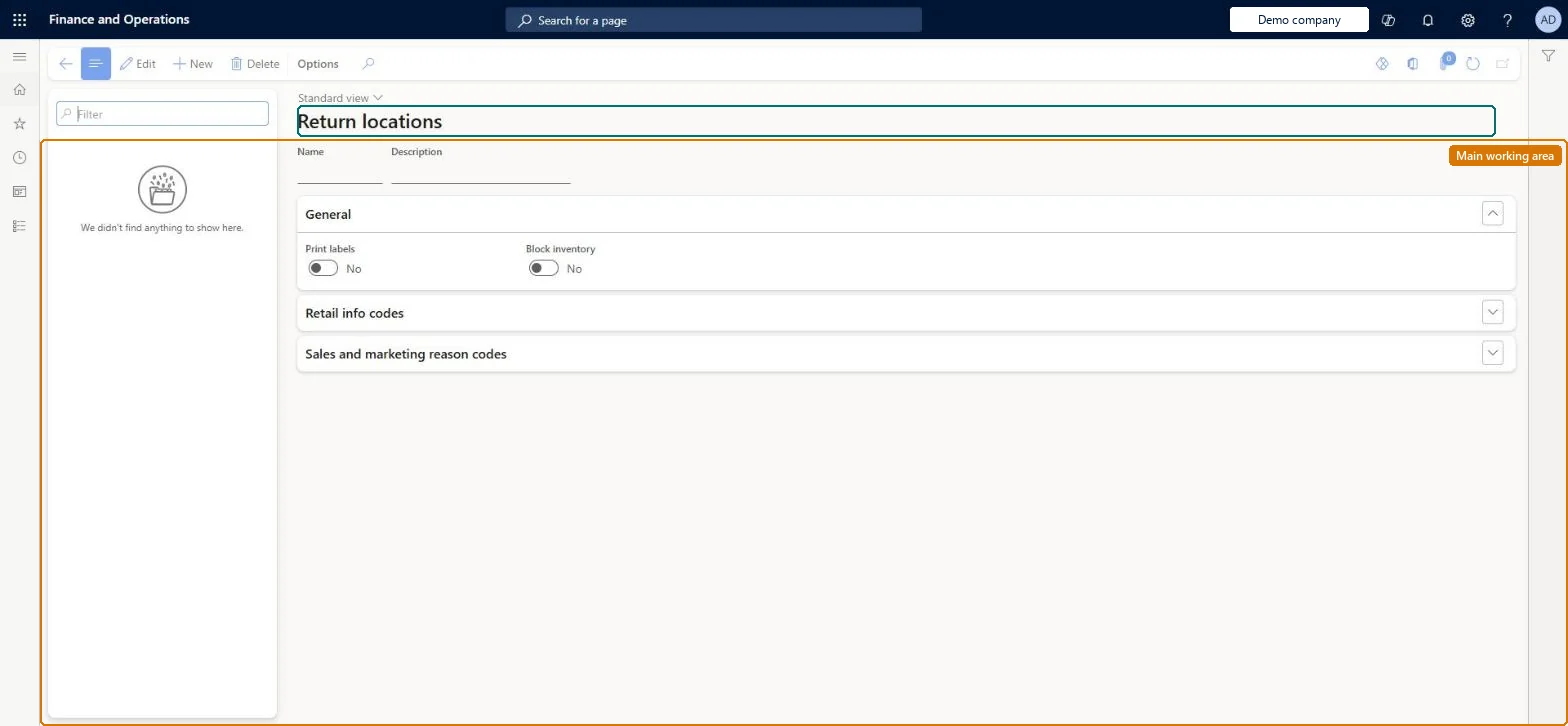
Setup step on the Return locations page · Retail and Commerce
Set up Return locations
Use this page to send returned products to different inventory locations according to the return reason the cashier selects at the POS, and to decide whether returned stock is blocked from sale and whether labels are printed.
Product designer, Retail operations manager, Retail service
Business process
Manage sales channels
Menu item
RetailReturnPolicy
Main table
RetailReturnPolicy
Data entity
RetailReturnPolicyEntity
Setup steps
1 on this page
Show what matters for
SETUP GUIDEHow to set it up8 sections. Choose a role to highlight what matters to you.
Everyone
1What it is and why
What it is
A setup page where you define return location policies that map retail info codes and subcodes, and sales and marketing reason codes, to the warehouse, location or pallet where returned products are placed.
What you do here
Use this page to send returned products to different inventory locations according to the return reason the cashier selects at the POS, and to decide whether returned stock is blocked from sale and whether labels are printed.
Example
For example, a customer returns a defective product, and the cashier processes the return transaction.
The page in Dynamics 365. page title tab to open what to set or check
About the examples: Examples and screenshots in this guide use BEAT, a demo company in a Dynamics 365 test environment. Use your own company's codes and values instead of copying them.
Setup steps on this page
Set up Return locations
Use this page to send returned products to different inventory locations according to the return reason the cashier selects at the POS, and to decide whether returned stock is blocked from sale and whether labels are printed.
Steps from Microsoft
Go to Retail and Commerce > Inventory management > Return locations.
Select New to create a return location policy and enter a unique name and description.
On the General FastTab, set Print labels and Block inventory as required.
On the Retail info codes FastTab, select Add and map an Info code, Subcode, Store and Warehouse/Location/Pallet ID.
On the Sales and marketing reason codes FastTab, select Add and map a Reason code, Store and Warehouse/Location/Pallet ID.
Go to Retail and Commerce > Commerce product hierarchy and, on Manage inventory category properties, select the Return location for the category.
Set Default return location and Default return pallet on each store warehouse first, then map return reason codes to locations, with Block inventory on for codes such as defectiveUnmapped reasons fall back to the warehouse default, and Block inventory takes the returned goods out of sellable stock.
Leaving reasons unmapped and Block inventory off on the General FastTab: returns go to the default location and stay sellable.
Solution architect
5Design impact
Can it be undone
Reversible: Policies can be changed any time; the Return location on the category decides which policy a store uses.
If you change it later
If a cashier's return reason matches none of the mapped codes, the item falls back to the warehouse's default return location, and the policy's General-tab Block inventory setting decides whether it is blocked. Microsoft Learn
Technical architect
6Technical
Menu item
RetailReturnPolicyChecked in Dynamics 365
Form
RetailReturnPolicyChecked in Dynamics 365
Table
RetailReturnPolicyShown as “RETURN LOCATION” in Record infoKey field: PolicyNumberChecked in Dynamics 365
PrivilegesMaintain retail infocodes RetailInfocodesMaintainMaintain retail POS infocodes RetailPOSInfocodesMaintainDutiesMaintain retail infocodes RetailInfocodesMaintainMaintain retail reference data RetailReferenceDataMaintain3 security rolesProduct designer BOMProductDesignerRetail operations manager RetailOperationsManagerRetail service RetailServiceChecked in Dynamics 365
Roles to set it up and use it
To set it up or change itRetail service RetailServiceRetail operations manager RetailOperationsManagerProduct designer BOMProductDesignerGive people one of these roles. On this system, 3 roles can open this page.Checked in Dynamics 365