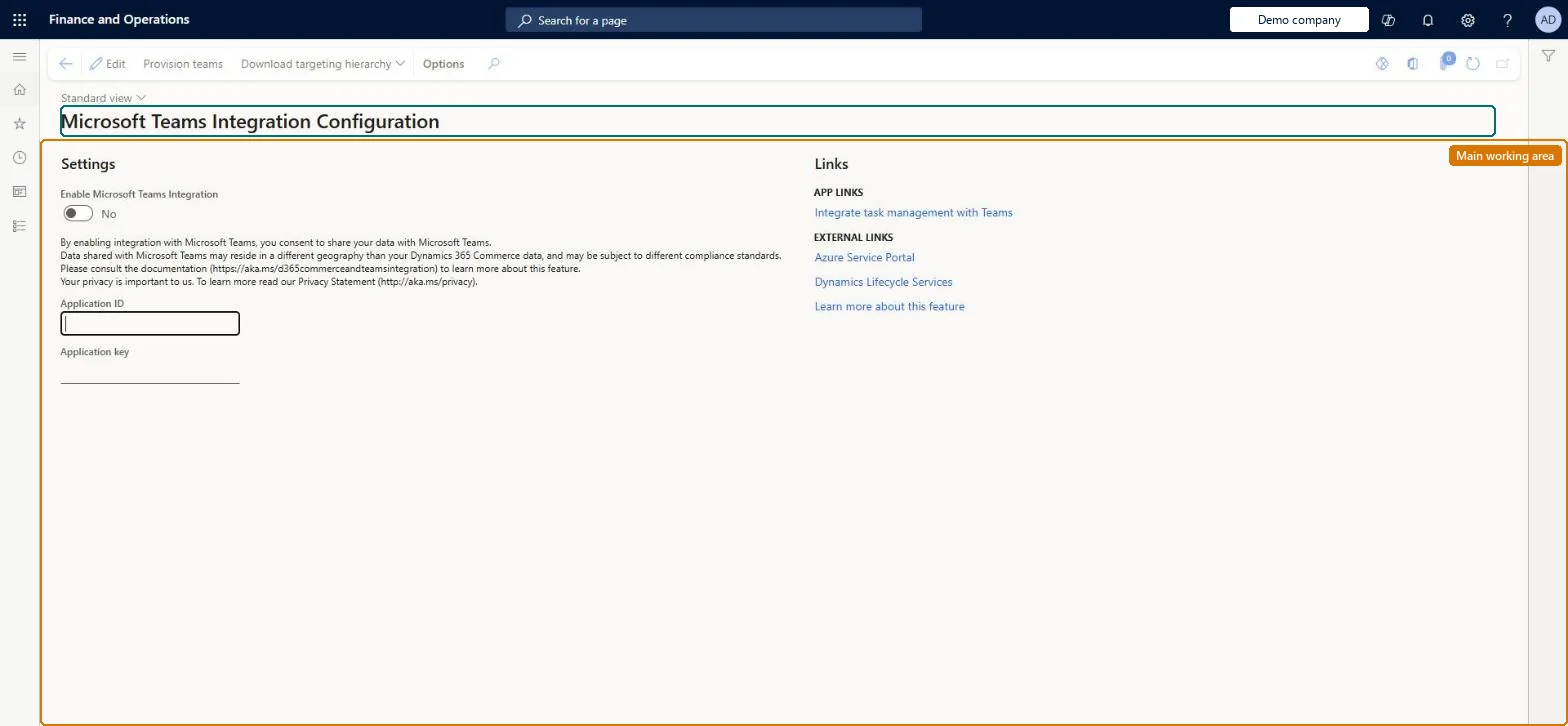
Setup step on the Microsoft Teams Integration Configuration page · Retail and Commerce
Set up Microsoft Teams Integration Configuration
Use this page to enable or disable Teams integration and to enter the Application ID and Application key from the Azure app registration. It is also the page from which you provision teams for your stores and download the targeting hierarchy.
Retail catalog manager, Retail merchandising manager, Retail operations manager and 7 more roles
Business process
Manage sales channels
Menu item
RetailTeamsIntegrationConfigurationPage
Main table
RetailTeamsIntegrationOAuthConfigurationTmp
Setup steps
1 on this page
Show what matters for
SETUP GUIDEHow to set it up8 sections. Choose a role to highlight what matters to you.
Everyone
1What it is and why
What it is
A setup page where you switch on the integration between Commerce headquarters and Microsoft Teams and store the application ID and key of the Teams app registered in Azure that Commerce uses to connect.
What you do here
Use this page to enable or disable Teams integration and to enter the Application ID and Application key from the Azure app registration. It is also the page from which you provision teams for your stores and download the targeting hierarchy.
Example
For example, a retailer that wants store workers to see tasks published from Teams on the POS enables the integration here first.
The page in Dynamics 365. page title tab to open what to set or check
About the examples: Examples and screenshots in this guide use BEAT, a demo company in a Dynamics 365 test environment. Use your own company's codes and values instead of copying them.
Setup steps on this page
Set up Microsoft Teams Integration Configuration
Use this page to enable or disable Teams integration and to enter the Application ID and Application key from the Azure app registration. It is also the page from which you provision teams for your stores and download the targeting hierarchy.
Steps from Microsoft
Go to Retail and Commerce > Channel setup > Microsoft Teams integration configuration.
On the action pane, select Edit.
Set the Enable Microsoft Teams integration option to Yes.
In the Application ID field, enter the Application (client) ID from the Azure app registration.
In the Application key field, enter the client secret value from the Azure app registration.
Yes, with the Application ID and the client secret value of a dedicated Azure app registration that has the Microsoft Graph Group.ReadWrite.All (delegated and application) and Microsoft Teams Retail Service TaskPublishing permissionsCommerce can only provision teams and synchronize task management with POS through the registered Teams app. The redirect URL must be the headquarters URL followed by /oauth.
Enabling the integration without checking data residency. When you enable it you consent to share data with Teams, which may be stored in another country/region under different compliance standards.
Solution architect
5Design impact
Can it be undone
Reversible: To disable, set Enable Microsoft Teams integration to No and clear Application ID and Application key. After that, POS terminals no longer show tasks published from Teams.
If you change it later
Disabling the integration stops POS terminals from showing tasks that were published from Teams. Microsoft Learn
Technical architect
6Technical
Menu item
RetailTeamsIntegrationConfigurationPageChecked in Dynamics 365
Form
RetailTeamsIntegrationConfigurationPageChecked in Dynamics 365
Table
RetailTeamsIntegrationOAuthConfigurationTmpShown as “OAUTH CONFIGURATION OF TEAMS INTEGRATION” in Record infoChecked in Dynamics 365
Who can open it
PrivilegesMaintain Teams Integration RetailTeamsIntegrationMaintainView Teams Integration RetailTeamsIntegrationViewDutiesMaintain retail channels RetailChannelsMaintainView retail channels RetailChannelsViewMaintain task management process RetailTaskManagementMaintainView task management process RetailTaskManagementView10 security rolesRetail catalog manager RetailCatalogManagerRetail merchandising manager RetailMerchandisingManagerRetail operations manager RetailOperationsManagerRetail service RetailServiceRetail store IT RetailStoreITRetail store manager RetailStoreManagerRetail task manager RetailTaskManagerRetail warehouse clerk RetailWarehouseClerkRetail warehouse manager RetailWarehouseManagerInformation technology manager SysServerITManagerChecked in Dynamics 365
Roles to set it up and use it
To set it up or change itRetail service RetailServiceRetail operations manager RetailOperationsManagerRetail store manager RetailStoreManagerRetail store IT RetailStoreITRetail task manager RetailTaskManagerTo use itRetail merchandising manager RetailMerchandisingManagerInformation technology manager SysServerITManagerRetail catalog manager RetailCatalogManagerRetail warehouse clerk RetailWarehouseClerkRetail warehouse manager RetailWarehouseManagerGive people one of these roles. On this system, 10 roles can open this page.Checked in Dynamics 365
Actions on the page
(Action Pane without tabs): Provision teams, Download targeting hierarchyChecked in Dynamics 365
Checked in a working Dynamics 365 system, version 10.0.49: the menu item, form, table and security, the page.
To cite this step: RC-CHANNEL-100, Set up Microsoft Teams Integration Configuration. Beyond ERP Atlas Hub, 2026-11-11. https://www.beyonderp.cloud/atlas/step/RC-CHANNEL-100