Purchasing agent, Purchasing Agent - Public Sector, Human resource assistant
Business process
Configure and manage surveys
Menu item
KMQuestionnaireStatistics
Main table
KMQuestionnaireStatistic
Setup steps
1 on this page
Show what matters for
SETUP GUIDEHow to set it up8 sections. Choose a role to highlight what matters to you.
Everyone
1What it is and why
What it is
An inquiry page where you define and run statistics calculations, such as averages, totals and percentages, on the results of a completed questionnaire.
What you do here
Use this page to analyze questionnaire results for a specific group of respondents, grouped by characteristics such as gender, age or postal code.
Example
For example, BEAT defines statistics SAT-AGE on its satisfaction survey with a 5-year Age interval and Grouping by Gender then Age, and finds the 25 to 29 group averaging 62 percent against 78 percent overall.
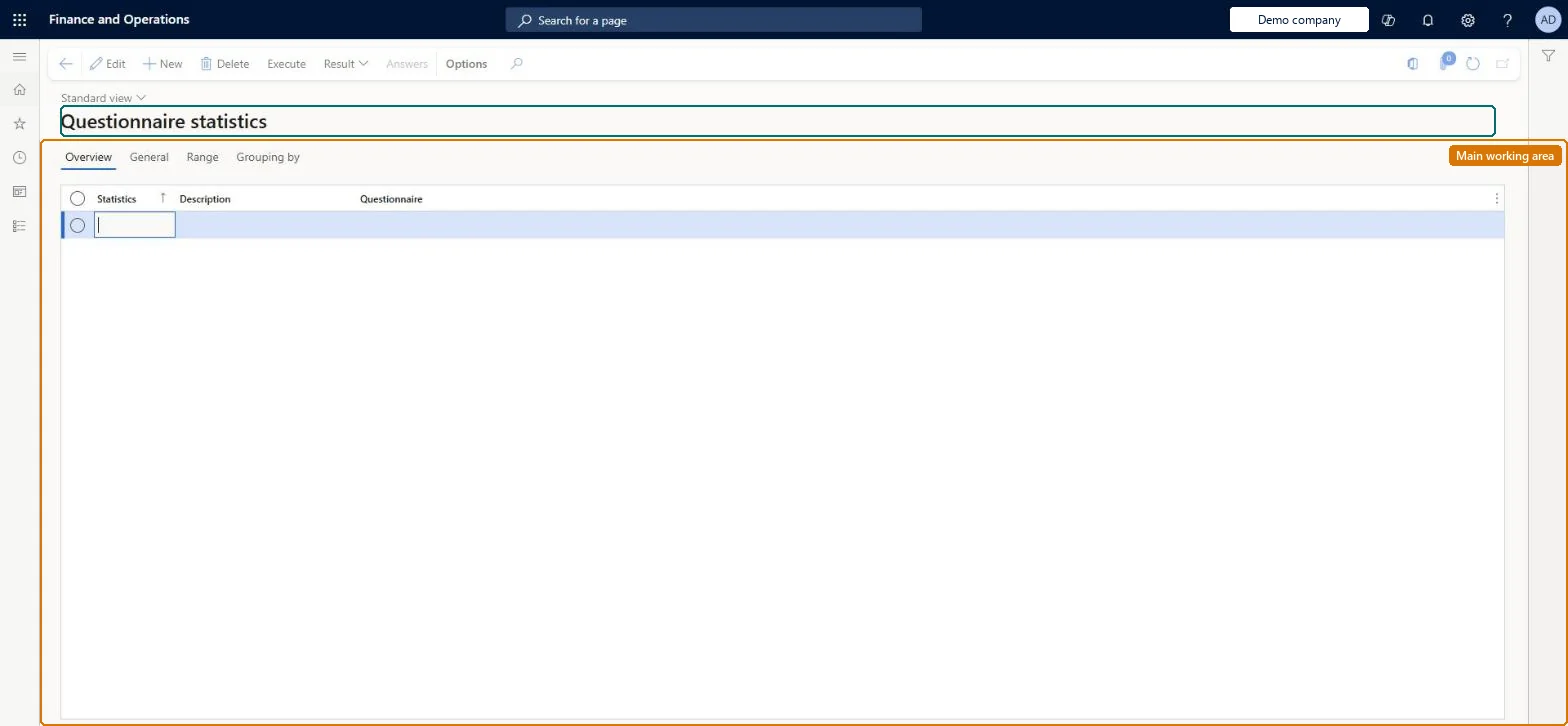
The page in Dynamics 365. page title tab to open what to set or check
About the examples: Examples and screenshots in this guide use BEAT, a demo company in a Dynamics 365 test environment. Use your own company's codes and values instead of copying them.
Setup steps on this page
Define statistics for a survey
Use this page to analyze questionnaire results for a specific group of respondents, grouped by characteristics such as gender, age or postal code.
Steps from Microsoft
Go to Questionnaire > View and analyze results > Questionnaire statistics.
Select New and enter a Statistics ID and a Description.
In the Questionnaire field, select the questionnaire.
On the General tab, choose which respondents to include (anonymous, workers, contacts, applicants) and any age or seniority intervals.
On the Range tab, limit the result set; on the Grouping by tab, move groupings to the Selected side in the order you want.
Select Execute, choose the calculation function, and select OK.
Calculate at the level you group by (questionnaire, result group, question or question row) and keep Delete previous searches on when you rerun.AX 2012 help warns to group at the same level as you calculate; the saved settings let you recalculate the same statistics each period.
No Feature management feature is needed for questionnaires; Microsoft Learn describes them without one. Questionnaires belong to the Human resources area, and in this system the same pages are also granted through procurement (vendor and RFQ questionnaires), sales and marketing (campaigns, telemarketing) and case management duties, as the Security section shows. Survey owners and HR analysts define statistics; in AX 2012 this page sat under the Questionnaire II configuration key.
The respondents you select (anonymous, workers, contacts, applicants) of one questionnaire, limited by the Range tab. Microsoft Learn
Can it be undone
Reversible: Definitions can be changed and run again.
If you change it later
The system saves the settings you define and can reuse them to recalculate results periodically; when executing, you can choose to delete previous searches. Microsoft Learn
Technical architect
6Technical
Menu item
KMQuestionnaireStatisticsChecked in Dynamics 365
Form
KMQuestionnaireStatisticsChecked in Dynamics 365
Table
KMQuestionnaireStatisticShown as “QUESTIONNAIRE STATISTICS - MAIN” in Record infoChecked in Dynamics 365
To set it up or change itHuman resource assistant HcmHumanResourceAssistantTo use itPurchasing Agent - Public Sector VendPurchasingAgent_PSNPurchasing agent VendPurchasingAgentGive people one of these roles. On this system, 3 roles can open this page.Checked in Dynamics 365
Actions on the page
(Action Pane without tabs): Execute, Result, AnswersChecked in Dynamics 365
Load order: Questionnaire statistics has no data entity in Data management, so it can't be loaded from a file or a configuration template. Recreate the statistics definitions by hand; their results are recalculated from the answers.Checked in Dynamics 365