About the examples: Examples and screenshots in this guide use BEAT, a demo company in a Dynamics 365 test environment. Use your own company's codes and values instead of copying them.
Step by step, with screenshots
Set up Modes of delivery1 screen
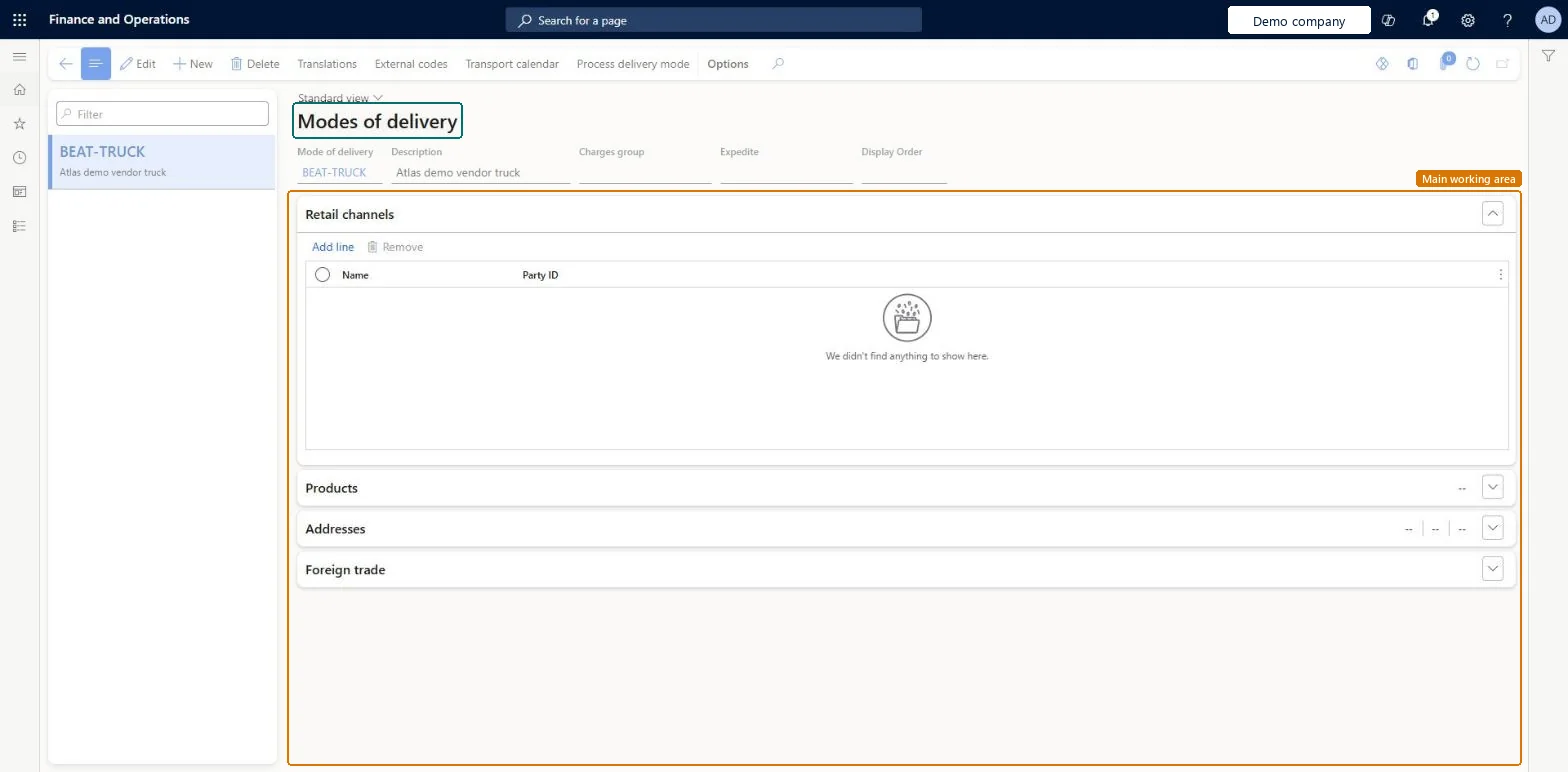
Use this page to keep the list of delivery methods and, for retail, to set which channels, products and areas each mode of delivery serves.
Screen 1
Create the mode of delivery
Go to Procurement and sourcing > Setup > Distribution > Modes of delivery
Select New
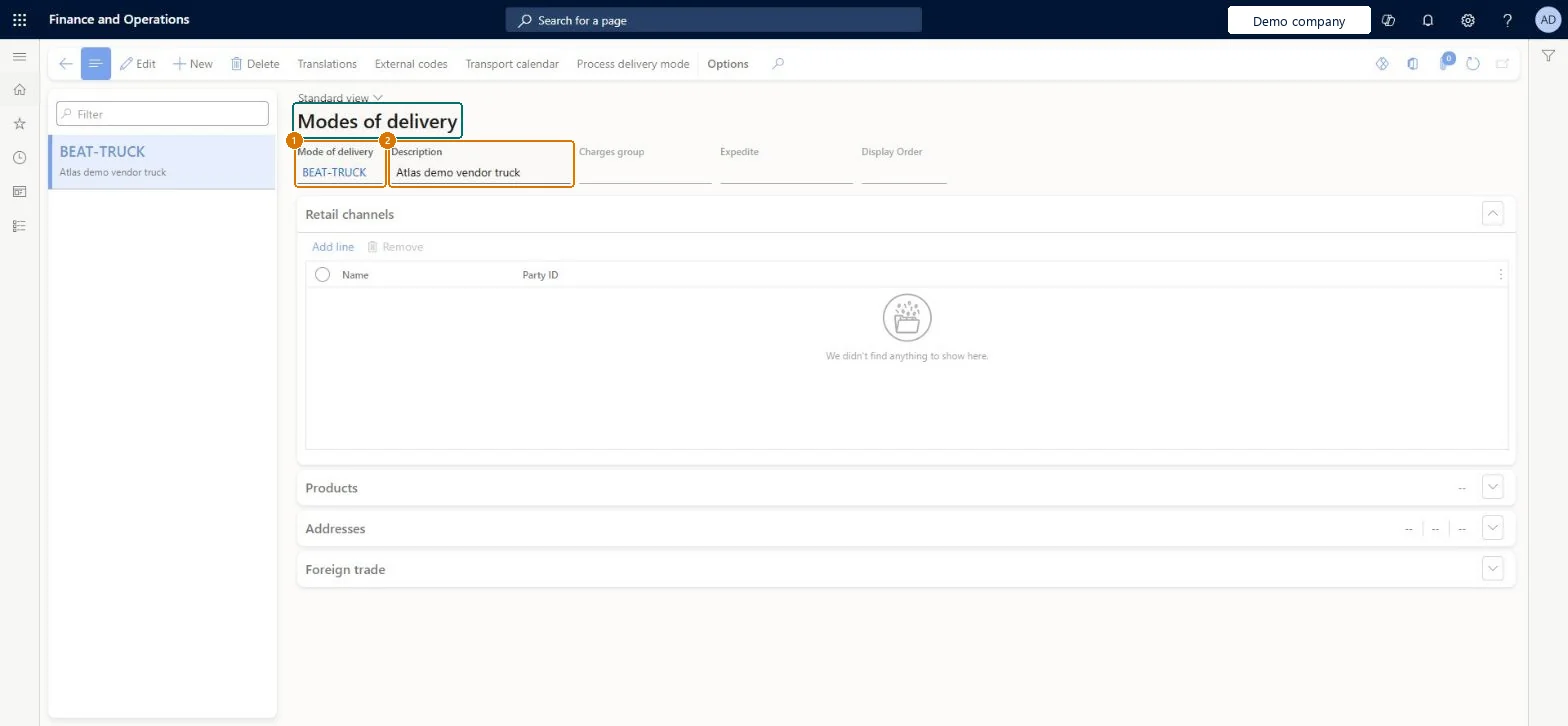
Enter the mode of delivery and its description
Select Save
1Mode of delivery
BEAT-TRUCK
2Description
Vendor truck
Show the full screen page title tab to open what to set or check
Steps from Microsoft
Go to Procurement and sourcing > Setup > Distribution > Modes of delivery.
Select New, or select an existing mode of delivery.
On the Retail channels FastTab, select Add line and add the channels that use this mode of delivery.
On the Products FastTab, add the products or categories to include or exclude.
On the Addresses FastTab, add the countries or regions and states to include or exclude.
One mode of delivery per real transport method, with the Transport code set on the Foreign trade FastTab where you file IntrastatThe Transport value on the mode of delivery is the default transport method whenever that mode is selected, so foreign trade data comes through without manual entry.
Changing the Mode of delivery on a purchase order header after a header auto charge has been edited. The system deletes and reinserts header auto charges that depend on the mode of delivery, so the edited charge value goes back to its set-up value.
Reversible: Modes can be edited at any time. A change of mode on an order recalculates header auto charges that depend on it; charges already allocated to lines are not touched.
Technical architect
6Technical
Menu item
VendDeliveryModeChecked in Dynamics 365
Form
DeliveryModeChecked in Dynamics 365
Table
DlvModeShown as “Mode of delivery” in Record infoKey field: CodeChecked in Dynamics 365
PrivilegesMaintain modes of delivery DeliveryModeMaintainView modes of delivery DeliveryModeViewMaintain Retail delivery mode RetailDeliveryModeMaintainDutiesEnable purchase order to invoice process PurchOrderToInvoiceProcessEnableEnable quotation to sales order process RentalSalesQuotationToSlsOrdProcessEnableMaintain Retail delivery mode RetailDeliveryModeMaintainEnable quotation to sales order process SalesQuotationToSalesOrderProcessEnableInquire into quotation to sales order reference data SalesQuotationToSalesOrderRefDataInquir12 security rolesAccounts receivable clerk CustInvoiceAccountsReceivableClerkAccounts receivable manager CustInvoiceAccountsReceivableManagerAccounts receivable centralized payments clerk PaymAccountsReceivableCentralPaymClerkAccounts receivable payments clerk PaymAccountsReceivablePaymentsClerkRental coordinator agent RentalCoordinatorAgentRental manager RentalManagerRental sales manager RentalSalesManagerRetail operations manager RetailOperationsManagerRetail service RetailServicePurchasing manager TradePurchasingManagerSales manager TradeSalesManagerAccounts payable manager VendInvoiceAccountsPayableManagerChecked in Dynamics 365
Roles to set it up and use it
To set it up or change itPurchasing manager TradePurchasingManagerAccounts payable manager VendInvoiceAccountsPayableManagerRental manager RentalManagerRental coordinator agent RentalCoordinatorAgentRetail service RetailServiceTo use itAccounts receivable centralized payments clerk PaymAccountsReceivableCentralPaymClerkAccounts receivable payments clerk PaymAccountsReceivablePaymentsClerkAccounts receivable clerk CustInvoiceAccountsReceivableClerkGive people one of these roles. On this system, 12 roles can open this page.Checked in Dynamics 365
Actions on the page
Options: Personalize, Page options, ShareChecked in Dynamics 365
DlvDeliveryModeEntity (Modes of delivery): loaded for each company, in Microsoft's default template 120 - Accounts payable.Load order: Microsoft's default template 120 - Accounts payable loads Modes of delivery at execution unit 1, level 30, sequence 20. Lower levels load first, and entities at the same level load in sequence order.Load first: the default templates at lower levels (System setup to General ledger)Microsoft Learn
Checked in a working Dynamics 365 system, version 10.0.49: the menu item, form, table and security, the page, the demo records and the values in the screenshots.
To cite this step: PS-SETUP-230, Set up Modes of delivery. Beyond ERP Atlas Hub, 2026-11-11. https://www.beyonderp.cloud/atlas/step/PS-SETUP-230