BeyondERP.Newsletter
Menu

Setup step on the Purchasing policies page · Procurement and sourcing

Set up Purchasing policies

Use this page to put the organization's purchasing strategy into practice through policy rules that apply to selected organizations.

Used by
Accounts payable manager, Project accountant, Purchasing manager
Business process
Create purchasing policies in Dynamics 365 Supply Chain Management
Menu item
PurchPolicyListPage
Main table
SysPolicy
Data entity
PurchPurchasingPolicyEntity
Setup steps
1 on this page
Show what matters for
SETUP GUIDEHow to set it up8 sections. Choose a role to highlight what matters to you.
Everyone

1What it is and why

What it isA setup page where you create purchasing policies, which are sets of rules that control the purchase requisition process.
What you do hereUse this page to put the organization's purchasing strategy into practice through policy rules that apply to selected organizations.
ExampleFor example, an administrator adds a catalog policy rule that names the Adventure catalog, so employees of the linked organization see that catalog when they create requisitions.
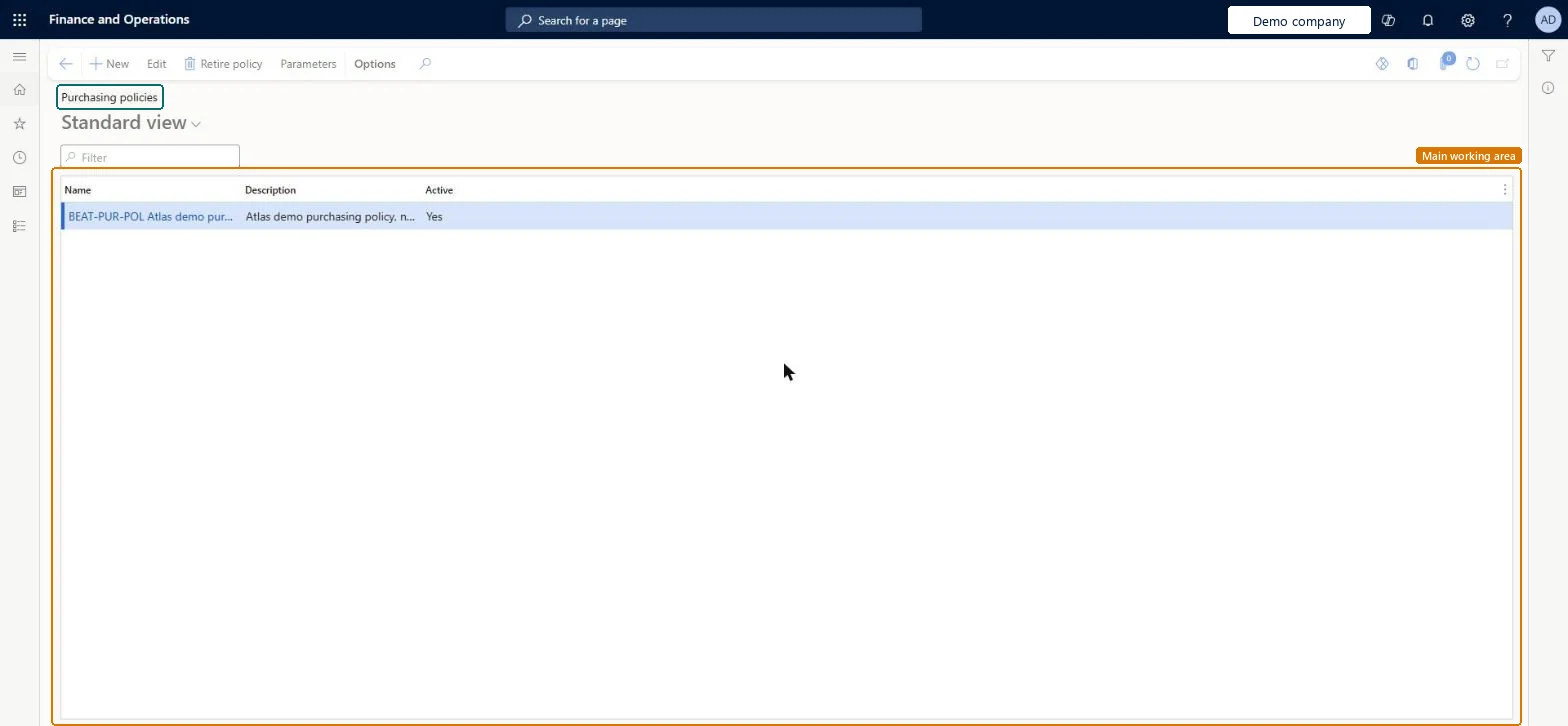
Purchasing policies page in Dynamics 365
The page in Dynamics 365. page title tab to open what to set or check
Functional consultant · Solution architect

2Where it fits

Business processDevelop procurement and sourcing strategy › Develop procurement policies › Create purchasing policies in Dynamics 365 Supply Chain Management
Menu pathProcurement and sourcing › Setup › Policies › Purchasing policies
Set up firstProcurement internal control hierarchy Microsoft Learn Purchasing policy parameters Microsoft Learn Procurement catalogs Microsoft Learn
Used next byPurchase requisitions Microsoft Learn
End user · Functional consultant

3How to do it

About the examples: Examples and screenshots in this guide use BEAT, a demo company in a Dynamics 365 test environment. Use your own company's codes and values instead of copying them.

Setup steps on this page

Set up Purchasing policies

Use this page to put the organization's purchasing strategy into practice through policy rules that apply to selected organizations.

Steps from Microsoft

  1. Go to Procurement and sourcing > Setup > Policies > Purchasing policies.
  2. On the Action Pane, select Parameters, set the order of precedence on the Policy rule type parameters tab, and close the page.
  3. Select New.
  4. Enter a Name and a Description for the policy.
  5. Select an organization that the policy applies to, and select the arrow to add it.
  6. In the Policy rule type list, select a rule type, such as Requisition purpose rule.
  7. Select Create policy rule, complete the rule settings, and then select Close.

Source: Microsoft Learn

Fields on the page

FieldWhat it means
Policy organizationLinks the policy to the organizations it applies to; a policy has no effect until it is linked to an organization.Microsoft Learn
Policy rulesHolds the rules of the policy; each rule type has its own conditions and actions.Microsoft Learn
Catalog policy ruleSets which procurement catalog users see when they create purchase requisitions.Microsoft Learn
Category access policy ruleSets which procurement categories users can use on purchase requisitions.Microsoft Learn
Category policy ruleSets how users can choose vendors for each category, plus receiving and invoicing requirements.Microsoft Learn
Re-approval rule for purchase ordersOptional rule that sets which changes to a purchase order need it to be approved again.Microsoft Learn
Purchase requisition RFQ ruleSets when a purchase requisition line needs a request for quotation.Microsoft Learn

Test checklist

  1. Create a policy and assign it to a legal entity under Companies on the Policy organization FastTab.
  2. Add a Catalog policy rule and a Category access policy rule.
  3. Create a requisition as a worker in that legal entity and check only the allowed catalog and categories are offered.
  4. Approve the requisition and check the purchase order is created or held as the Purchase order creation and demand consolidation rule says.

Source: Microsoft Learn

Functional consultant

4Setup decisions

Setup stepRecommended value and whyDecision, common mistake and test
Set up Purchasing policiesStart with one policy per legal entity on the Companies hierarchy; add Procurement internal control hierarchy policies only where rules differ below legal entity levelLearn shows a simple setup by legal entity for organizations whose rules only vary by company, while complex organizations use several hierarchies with an order of precedence in the parameters.Should approved requisitions become purchase orders automatically or be held for manual processing?Turning on budget control with Automatically create purchase orders but without Run automatic purchase order creation as a batch job. The budget check can retrigger requisition release in a never-ending loop that makes the system unresponsive.Test: Policy rule drives requisition behaviour
Solution architect

5Design impact

Shared or per companyShared: the same records are used by every legal entity. Microsoft data model
Can it be undoneReversible: Rules have effective dates; to change one you retire the active rule and create a new one with a non-overlapping effective date.
If you change it laterA purchasing policy can be changed or retired, but it can't be deleted. Microsoft Learn
Technical architect

6Technical

Menu itemPurchPolicyListPage Checked in Dynamics 365
FormSysPolicyListPage Checked in Dynamics 365
TableSysPolicyShown as “Policy” in Record infoChecked in Dynamics 365
Data entitiesPurchPurchasingPolicyEntityPurchasing policies Microsoft data model SysPolicyEntityPolicies Microsoft data model
Who can open itPrivilegesCreate policies SysPolicyDisplayNewExtView policies SysPolicyDisplayViewExtDutiesEnable purchasing process ProcPurchasingProcessEnableMaintain project ledger postings ProjProjectLedgerPostingsMaintain
3 security rolesProject accountant ProjProjectAccountantPurchasing manager TradePurchasingManagerAccounts payable manager VendInvoiceAccountsPayableManager
Checked in Dynamics 365
Roles to set it up and use itTo use itPurchasing manager TradePurchasingManagerAccounts payable manager VendInvoiceAccountsPayableManagerProject accountant ProjProjectAccountantGive people one of these roles. On this system, 3 roles can open this page.Checked in Dynamics 365
Actions on the pageOptions: Personalize, Page options, ShareChecked in Dynamics 365
Developer

7Developer

Open it by URLhttps://<your-environment>/?mi=PurchPolicyListPage
Integrate withPurchPurchasingPolicyEntity data entity Microsoft data model
Data migrationPurchPurchasingPolicyEntity (Purchasing policies): shared by all companies.SysPolicyEntity (Policies): shared by all companies.Microsoft Learn
Table definitionSysPolicy columns and relations Microsoft data model
Everyone

8Sources

To cite this step: PS-SETUP-130, Set up Purchasing policies. Beyond ERP Atlas Hub, 2026-11-11. https://www.beyonderp.cloud/atlas/step/PS-SETUP-130