| What it is | A setup page where you create vendor rebate groups so that one rebate agreement can apply to a group of vendors. |
|---|---|
| What you do here | Use this page to group vendors for rebate agreements. |
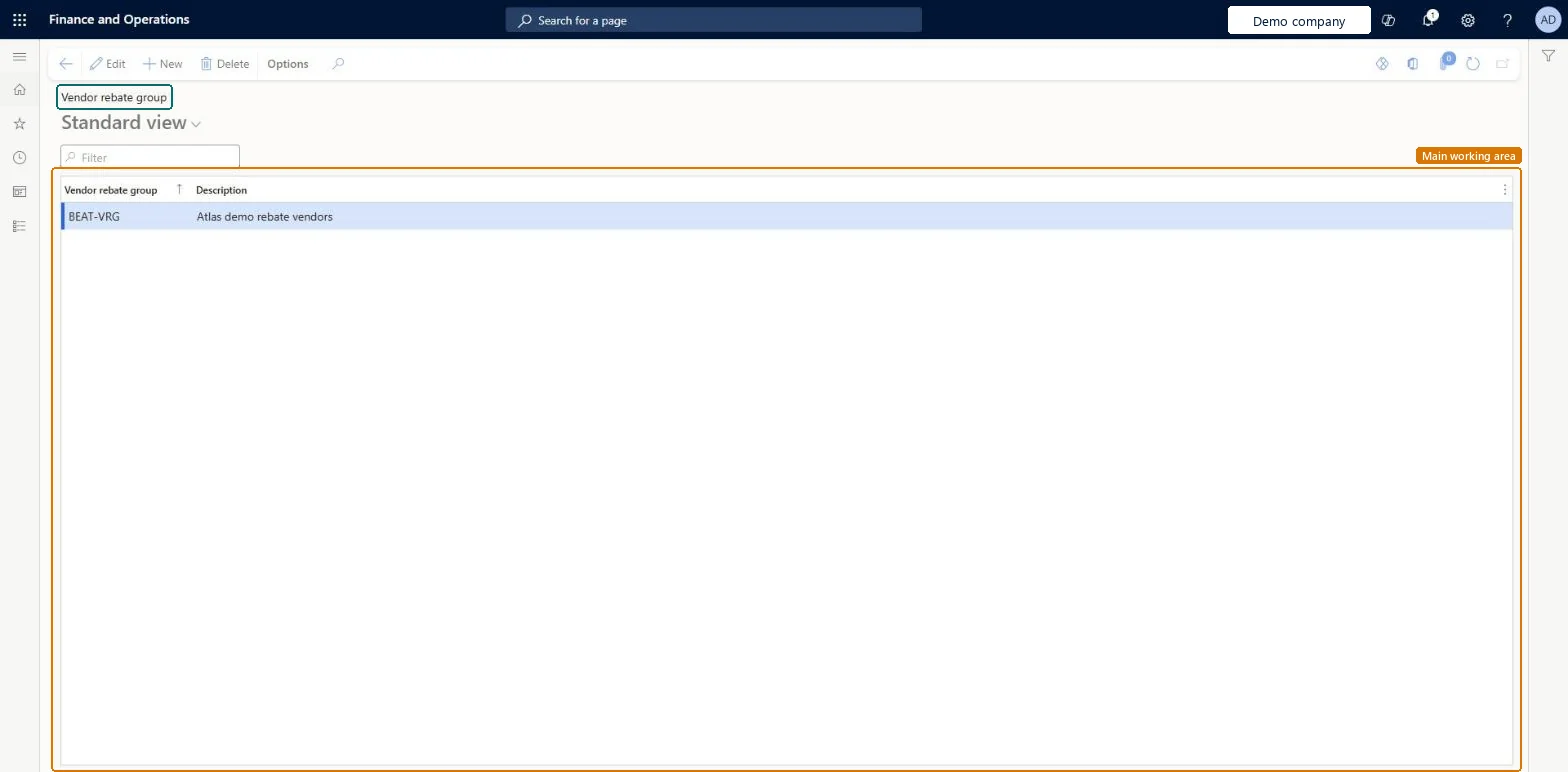
Setup step on the Vendor rebate groups page · Procurement and sourcing
Use this page to group vendors for rebate agreements.
TAMVendRebateGroupTAMVendRebateGroupPurchaseRebateVendorGroupEntity| What it is | A setup page where you create vendor rebate groups so that one rebate agreement can apply to a group of vendors. |
|---|---|
| What you do here | Use this page to group vendors for rebate agreements. |
| Business process | Procure goods and services |
|---|---|
| Menu path | Procurement and sourcing › Vendor rebates › Rebate groups › Vendor rebate groups |
| Used next by | All vendors Microsoft Learn Rebate agreements Microsoft Learn |
| Related pages | Item rebate groups Microsoft Learn |
| In this process | Set up Supply risk assessment parameters · Set up Vendor catalog import parameters |
About the examples: Examples and screenshots in this guide use BEAT, a demo company in a Dynamics 365 test environment. Use your own company's codes and values instead of copying them.
Use this page to group vendors for rebate agreements.
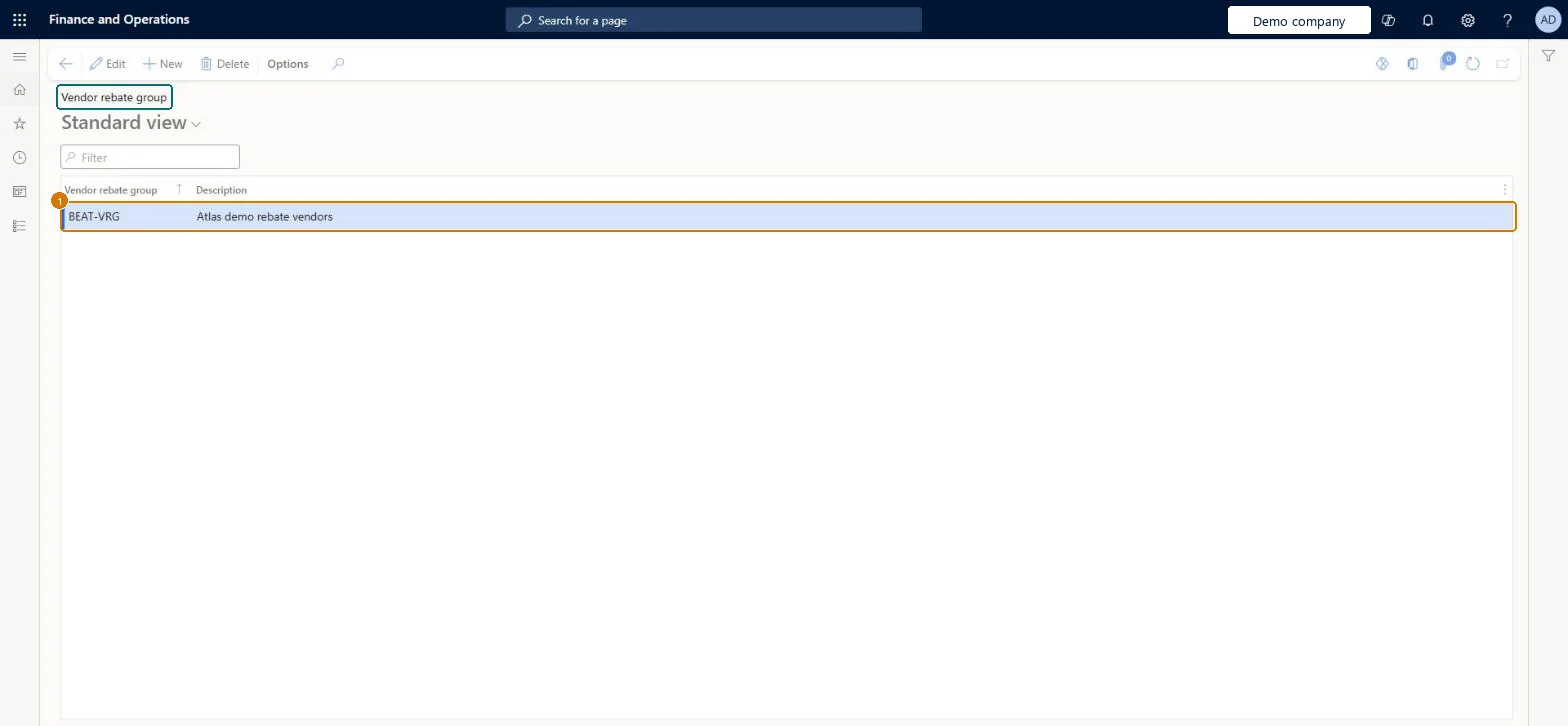
Screen 1
Go to Procurement and sourcing > Vendor rebates > Rebate groups > Vendor rebate groups
| 1Vendor rebate group | BEAT-VRG |
|---|
Source: Microsoft Learn
| Field | What it means | Example | Table column |
|---|---|---|---|
| Vendor rebate group | VOLUME | VendRebateGroupId |
Source: Microsoft Learn
| Shared or per company | Per company: each legal entity has its own records. Microsoft data model |
|---|---|
| Can it be undone | Reversible: Rebate claims are generated when purchase invoices post, so changing which vendors are in a group only affects invoices posted afterward. |
| Menu item | TAMVendRebateGroup Checked in Dynamics 365 |
|---|---|
| Form | TAMVendRebateGroup Checked in Dynamics 365 |
| Table | TAMVendRebateGroupShown as “Vendor rebate group” in Record infoChecked in Dynamics 365 |
| Data entities | PurchaseRebateVendorGroupEntityVendor rebate group Microsoft data model |
| Who can open it | PrivilegesMaintain vendor rebate groups TAMVendRebateGroupsMaintainDutiesMaintain vendor rebate agreements TAMVendRebateAgreementMaintain1 security rolePurchasing managerTradePurchasingManager |
| Roles to set it up and use it | To set it up or change itPurchasing manager TradePurchasingManagerGive people one of these roles. On this system, 1 role can open this page.Checked in Dynamics 365 |
| Actions on the page | Options: Personalize, Page options, ShareChecked in Dynamics 365 |
| Open it by URL | https://<your-environment>/?mi=TAMVendRebateGroup |
|---|---|
| Integrate with | PurchaseRebateVendorGroupEntity data entity Microsoft data model |
| Data migration | PurchaseRebateVendorGroupEntity (Vendor rebate group): loaded for each company, in Microsoft's default template 320 - Procurement and sourcing.Load order: Microsoft's default template 320 - Procurement and sourcing loads Vendor rebate group at execution unit 1, level 30, sequence 10. Lower levels load first, and entities at the same level load in sequence order.Load first: the default templates at lower levels (System setup to General ledger)Microsoft Learn |
| Table definition | TAMVendRebateGroup columns and relations Microsoft data model |
To cite this step: PS-REBATE-040, Set up Vendor rebate groups. Beyond ERP Atlas Hub, 2026-11-11. https://www.beyonderp.cloud/atlas/step/PS-REBATE-040