Project management and accountingSetupIndirect costs
PSAIndirectComponent
Used by
Field Service Integration User, Accountant, Accounting manager and 8 more roles
Business process
Manage project financials
Menu item
PSAIndirectComponent
Main table
PSAIndirectComponent
Data entity
PSAIndirectCostComponentEntity
Setup steps
1 on this page
Show what matters for
SETUP GUIDEHow to set it up8 sections. Choose a role to highlight what matters to you.
Everyone
1What it is and why
What it is
A setup page where you create indirect cost components, such as rent or office supplies, and link each one to a project category set up for indirect costs.
What you do here
Use this page to define the indirect costs that are added to projects so that they show their full cost.
Example
For example, BEAT creates the components OFFICE and PERDIEM, each linked to an indirect-cost project category, so that rent and per diem can be added to the full cost of every hour posted on PRJ-0042.
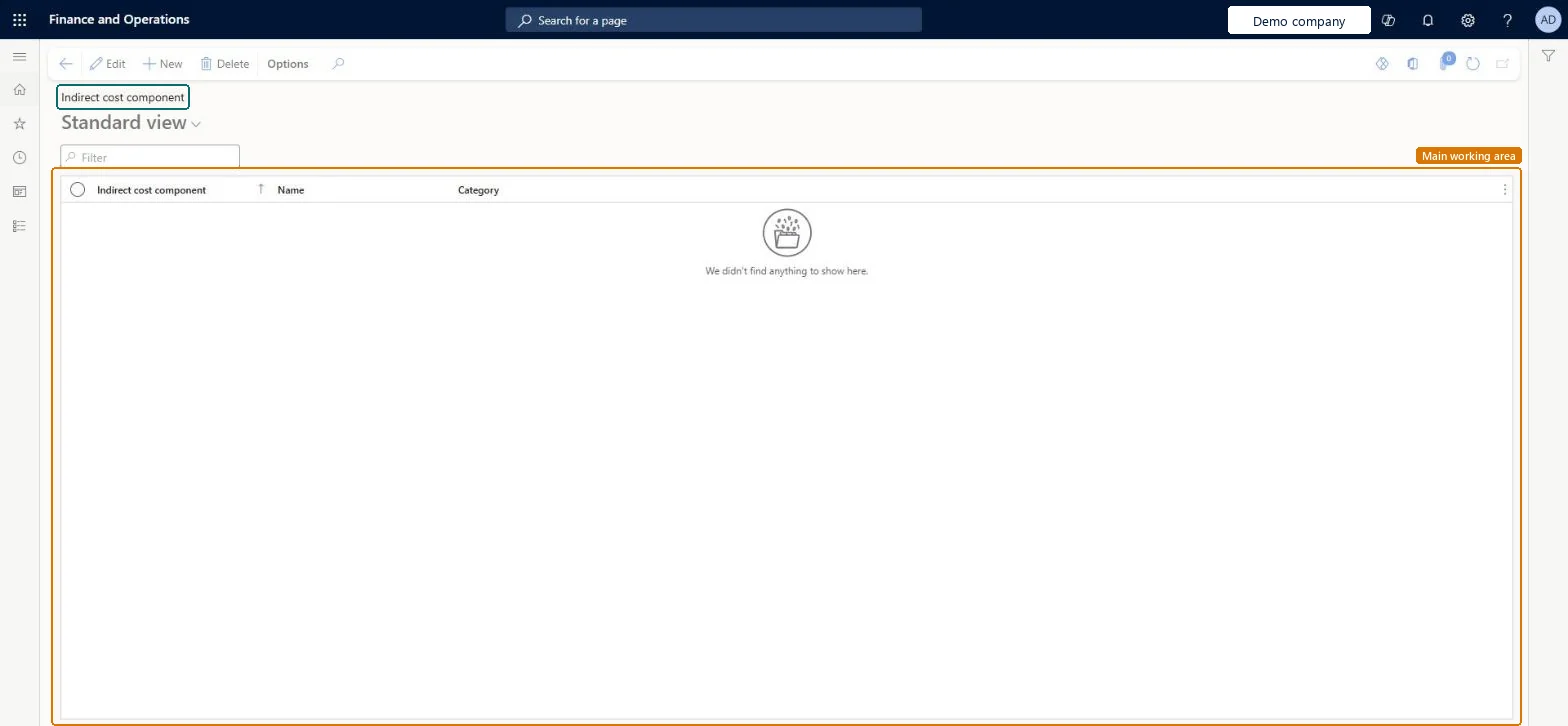
The page in Dynamics 365. page title tab to open what to set or check
About the examples: Examples and screenshots in this guide use BEAT, a demo company in a Dynamics 365 test environment. Use your own company's codes and values instead of copying them.
Setup steps on this page
Set up Indirect cost components
Use this page to define the indirect costs that are added to projects so that they show their full cost.
Steps from Microsoft
Go to Project management and accounting > Setup > Indirect costs > Indirect cost components.
Select New and enter a short, unique Indirect cost component, such as OFFICE, and a Name.
Select the project Category whose accounts post the indirect cost; it must be a category set up for indirect costs.
Add the component to an indirect cost component group with its rates.
The project category whose accounts are used to post the indirect cost.Microsoft data model
IND-OFFICE
ComponentCategory
Common errors and fixes
Message
What to do
The category isn't offered in the Category field.
Only project categories set up for indirect costs can be selected. Select the Indirect cost component option on the project category first. Microsoft data model
Test checklist
Create component OFFICE on category IND-OFFICE.
Add it to group OVERHEAD at 10.00 percent and assign the group to a project.
Post 8.00 hours at a 50.00 cost price on the project.
Check that an indirect cost of 40.00 is posted on IND-OFFICE.
One component per kind of overhead you want to see separately on the project (office, per diem, insurance), each on its own indirect-cost categoryEach component posts to the accounts of its category, so separate components keep overhead types apart on the project and in the ledger.
On the live system, Project manager, Project accountant, Project supervisor, Field Service Integration User and Sales manager maintain this page; finance roles can open it.
Reversible: Indirect costs already calculated keep their category.
If you change it later
An indirect cost posts to the accounts of the component's category. A category marked for indirect costs can't be used for direct costs on projects. Microsoft data model
Technical architect
6Technical
Menu item
PSAIndirectComponentChecked in Dynamics 365
Form
PSAIndirectComponentChecked in Dynamics 365
Table
PSAIndirectComponentShown as “Indirect cost component” in Record infoChecked in Dynamics 365
To set it up or change itProject manager ProjProjectManagerProject accountant ProjProjectAccountantProject supervisor ProjProjectSupervisorField Service Integration User FieldServiceIntegrationUserSales manager TradeSalesManagerTo use itProject assistant ProjProjectClerkService delivery manager SMAServiceDeliveryManagerAccounting manager LedgerAccountingManagerAccountant LedgerAccountantFinancial controller LedgerFinancialControllerGive people one of these roles. On this system, 11 roles can open this page.Checked in Dynamics 365
Actions on the page
Options: Personalize, Page options, ShareChecked in Dynamics 365
PSAIndirectCostComponentEntity (Indirect cost component): loaded for each company, in Microsoft's default template 650 - Project accounting.Load order: Microsoft's default template 650 - Project accounting loads Indirect cost component at execution unit 1, level 70, sequence 10. Lower levels load first, and entities at the same level load in sequence order.Load first: the default templates at lower levels (System setup to dependency bands 30 to 90)Microsoft Learn
Checked in a working Dynamics 365 system, version 10.0.49: the menu item, form, table and security, the page.
To cite this step: PM-SETUP-240, Set up Indirect cost components. Beyond ERP Atlas Hub, 2026-11-11. https://www.beyonderp.cloud/atlas/step/PM-SETUP-240