About the examples: Examples and screenshots in this guide use BEAT, a demo company in a Dynamics 365 test environment. Use your own company's codes and values instead of copying them.
Step by step, with screenshots
Set up Indirect cost component groups1 screen
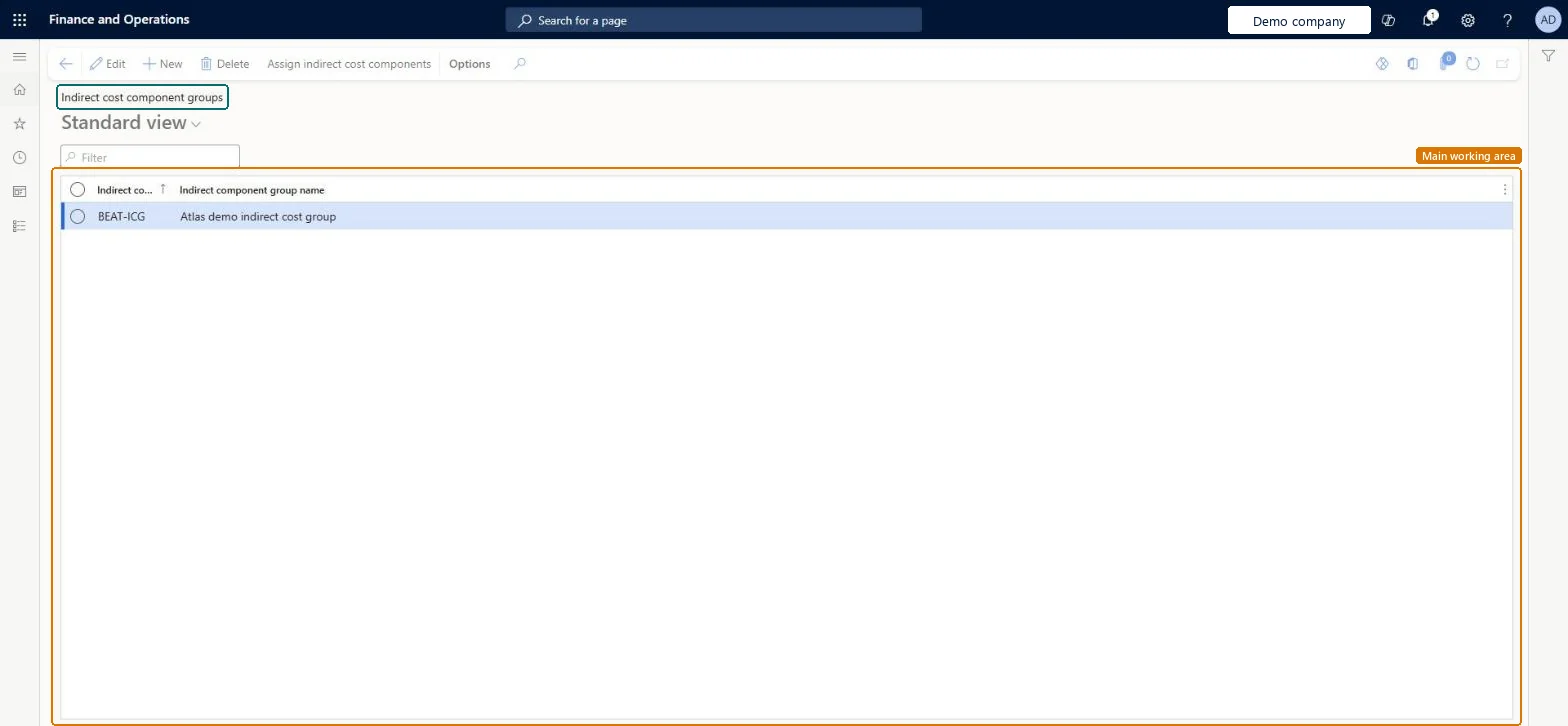
Use this page to track a set of indirect costs together and set how each one is calculated for a project.
Screen 1
Create an indirect cost component group
Go to Project management and accounting > Setup > Indirect costs > Indirect cost component groups
Select New
Enter the group code and name
Select Save
Select Assign indirect cost components to add the components the group works out
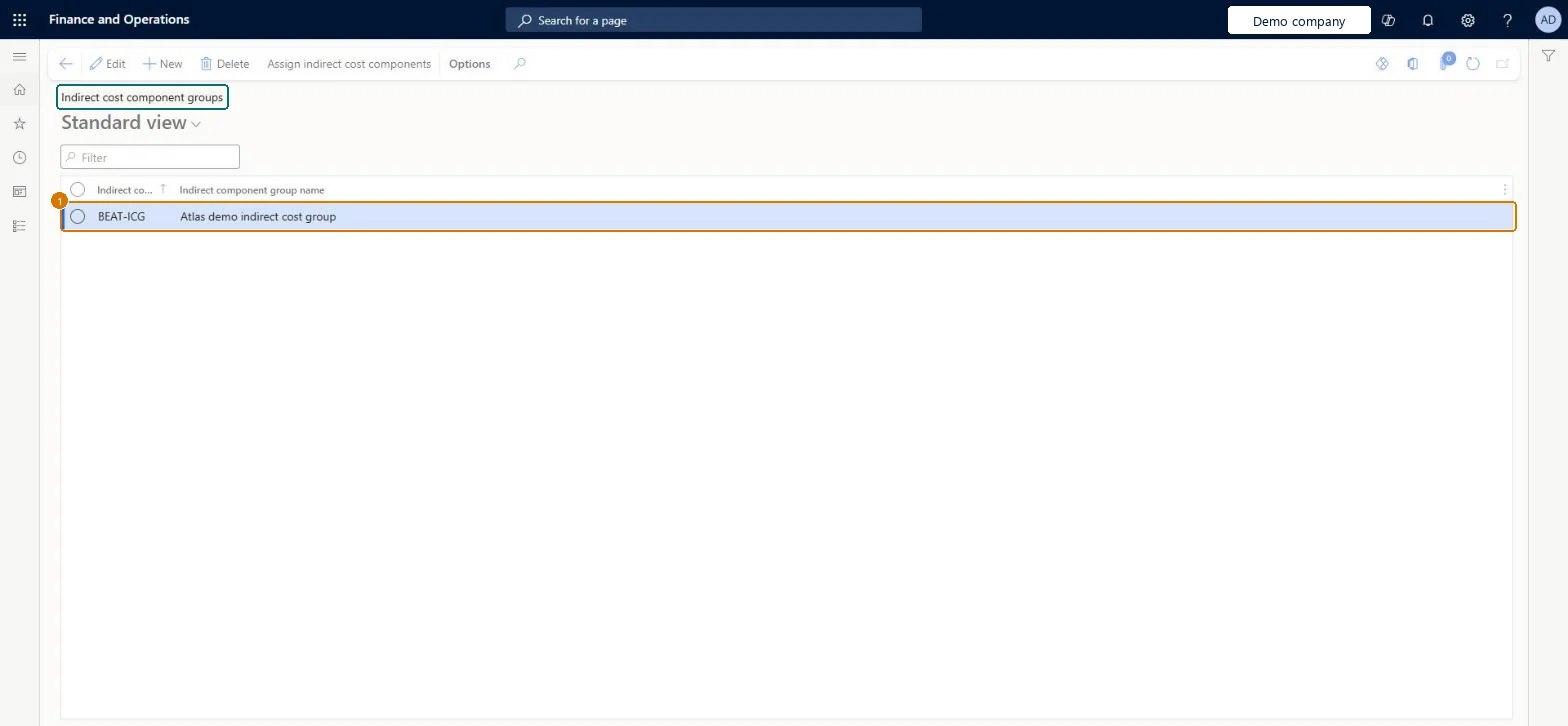
1Indirect component group
BEAT-ICG
Indirect component group name
Indirect cost group
Show the full screen page title tab to open what to set or check
Steps from Microsoft
Go to Project management and accounting > Setup > Indirect costs > Indirect cost component groups.
Select New and enter a short name and a descriptive name for the group, such as OVERHEAD.
Select Assign indirect cost components, select New and enter the Date the rule takes effect.
Select the component and the Calculate method: Percent of the hourly cost, or Unit rate per hour posted.
Enter the Cost rate, Revenue rate and Invoice rate, then assign the group to projects on the assignment rules page.
Percent rules on the hourly cost for overheads that grow with salary, and Unit rate rules for flat amounts per hourThe calculate method decides whether the overhead follows the worker's cost or the number of hours, and only Percent rules can be compounded.
On the live system, Project manager, Project accountant, Project supervisor, Field Service Integration User and Sales manager maintain this page; finance roles can open it.
Reversible: Add a rule with a later date to change a rate; indirect costs already posted keep the rate they used. Microsoft data model
If you change it later
The rules apply to hours posted on or after their date. Compounding rules can only be set up for components that use the Percent calculate method. Microsoft data model
Technical architect
6Technical
Menu item
PSAIndirectComponentGroupChecked in Dynamics 365
Form
PSAIndirectComponentGroupChecked in Dynamics 365
Table
PSAIndirectComponentGroupShown as “Indirect cost component groups” in Record infoChecked in Dynamics 365
To set it up or change itProject manager ProjProjectManagerProject accountant ProjProjectAccountantProject supervisor ProjProjectSupervisorField Service Integration User FieldServiceIntegrationUserSales manager TradeSalesManagerTo use itProject assistant ProjProjectClerkService delivery manager SMAServiceDeliveryManagerAccounting manager LedgerAccountingManagerAccountant LedgerAccountantFinancial controller LedgerFinancialControllerGive people one of these roles. On this system, 11 roles can open this page.Checked in Dynamics 365
Actions on the page
Options: Personalize, Page options, ShareChecked in Dynamics 365
PSAIndirectComponentGroupEntity Indirect cost component groups, loaded for each company.Load order: Load the groups after indirect cost components (template 650 - Project accounting loads Indirect cost component at execution unit 1, level 70), because the group rules refer to the components.Load first: Indirect cost componentsMicrosoft Learn
Checked in a working Dynamics 365 system, version 10.0.49: the menu item, form, table and security, the page, the demo records and the values in the screenshots.