Project management and accountingSetupLine properties
ProjLineProperty
Used by
Maintenance clerk, Maintenance manager, Maintenance requester and 3 more roles
Business process
Manage project financials
Menu item
ProjLineProperty
Main table
ProjLineProperty
Data entity
ProjProjectLinePropertyEntity
Setup steps
1 on this page
Show what matters for
SETUP GUIDEHow to set it up8 sections. Choose a role to highlight what matters to you.
Everyone
1What it is and why
What it is
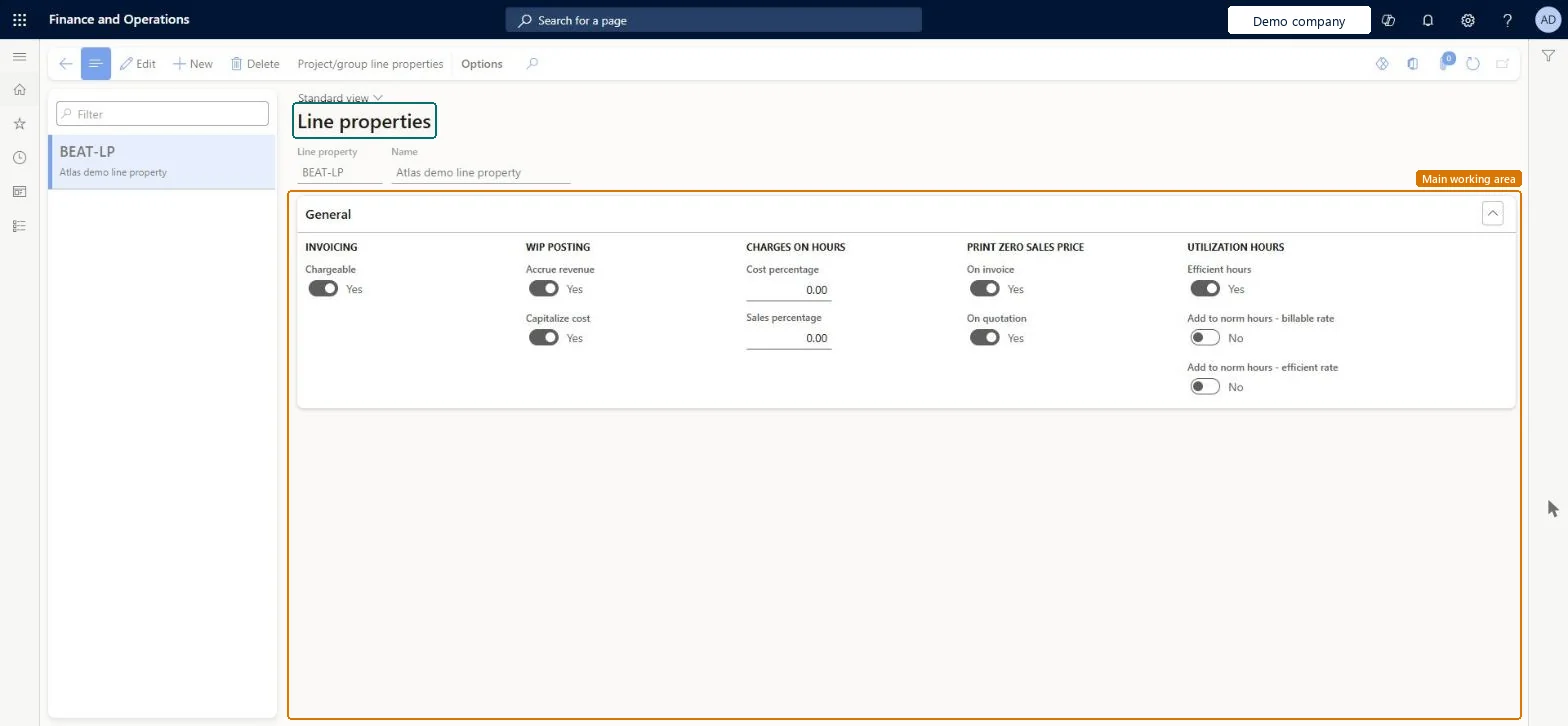
A setup page where you create line properties, which set how hour, fee, expense and item transaction lines are posted.
What you do here
Use this page to set whether transactions are chargeable, whether revenue is accrued and whether costs are capitalized.
Example
For example, BEAT keeps CHARGE (Chargeable, Accrue revenue) for billable work and NOCHARGE for warranty work, so 8.00 warranty hours on PRJ-0042 never reach the invoice proposal.
The page in Dynamics 365. page title tab to open what to set or check
About the examples: Examples and screenshots in this guide use BEAT, a demo company in a Dynamics 365 test environment. Use your own company's codes and values instead of copying them.
Step by step, with screenshots
Set up Line properties1 screen
Use this page to set whether transactions are chargeable, whether revenue is accrued and whether costs are capitalized.
Screen 1
Create a line property
Go to Project management and accounting > Setup > Line properties > Line properties
Select New
Enter the line property code and name
Choose whether transactions are chargeable, whether revenue is accrued and whether costs are capitalized
Select Save
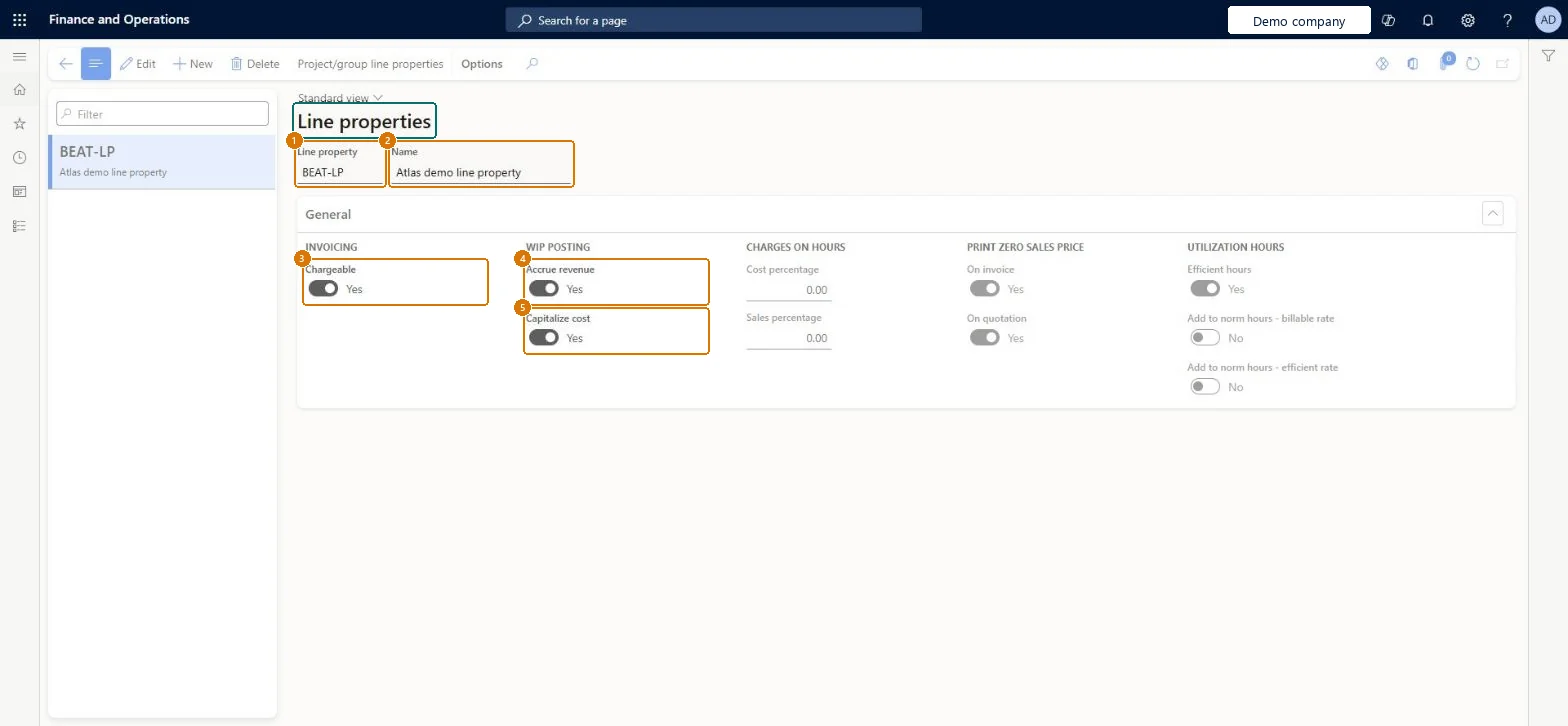
1Line property
BEAT-LP
2Name
Line property
3Chargeable
Yes
4Accrue revenue
Yes
5Capitalize cost
Yes
Show the full screen page title tab to open what to set or check
Steps from Microsoft
Go to Project management and accounting > Setup > Line properties > Line properties.
Select New and enter the Line property ID and Name, such as CHARGE and Chargeable.
Under General, set Chargeable, Accrue revenue and Capitalize cost for the way the lines must post.
Enter a Cost percentage or Sales percentage only if the line property adds a markup.
Select Project/group line properties to make the line property the default for a project group.
Billable hours don't show on the invoice proposal.
The hour line has a line property with Chargeable cleared. Check the line property defaulted from Project/group line properties and adjust the posted line with Adjust transactions. Microsoft Learn
Test checklist
Create Chargeable, Nonchargeable and Internal line properties.
Post an hour journal on a Time and material project with each line property.
Create an invoice proposal and check only the Chargeable line is offered for invoicing.
Check the Chargeable line with Accrue revenue posted an accrued revenue voucher.
A small standard set: Chargeable (billable, accrue revenue), Nonchargeable (not billable, no revenue, straight to P&L) and Internal (no revenue, cost can be capitalized)These are the typical line properties Microsoft describes. Line properties are defaulted onto journal, invoice and other lines, so a short clear set cuts repetitive entry.
On the live system, Project supervisor maintains this page and Project accountant uses it; the page is also reachable from Maintenance roles (Maintenance requester, worker, clerk and manager).
Reversible: Line properties are copied onto lines when transactions are created, so changes affect new lines. Posted transactions keep their line property unless you adjust them.
If you change it later
On fixed-price and investment projects, a line property only changes whether costs are capitalized. Microsoft Learn
Technical architect
6Technical
Menu item
ProjLinePropertyChecked in Dynamics 365
Form
ProjLinePropertyChecked in Dynamics 365
Table
ProjLinePropertyShown as “Line property” in Record infoKey field: LinePropertyIdChecked in Dynamics 365
PrivilegesEntAssetMobileSetupViewMaintain line properties ProjLinePropertyMaintainView line properties ProjLinePropertyViewDutiesInquire into project accounting policies ProjProjectAccountingPolicyInquireEnable project accounting process ProjProjectAccountingProcessEnable6 security rolesMaintenance clerk EntAssetMaintenanceClerkMaintenance manager EntAssetMaintenanceManagerMaintenance requester EntAssetMaintenanceRequesterMaintenance worker EntAssetMaintenanceWorkerProject accountant ProjProjectAccountantProject supervisor ProjProjectSupervisorChecked in Dynamics 365
Roles to set it up and use it
To set it up or change itProject supervisor ProjProjectSupervisorTo use itProject accountant ProjProjectAccountantMaintenance requester EntAssetMaintenanceRequesterMaintenance worker EntAssetMaintenanceWorkerMaintenance clerk EntAssetMaintenanceClerkMaintenance manager EntAssetMaintenanceManagerGive people one of these roles. On this system, 6 roles can open this page.Checked in Dynamics 365
Actions on the page
Options: Personalize, Page options, ShareChecked in Dynamics 365
ProjProjectLinePropertyEntity (Project line property): loaded for each company, in Microsoft's default template 650 - Project accounting.Load order: Microsoft's default template 650 - Project accounting loads Project line property at execution unit 1, level 30, sequence 10. Lower levels load first, and entities at the same level load in sequence order.Load first: the default templates at lower levels (System setup to General ledger)Microsoft Learn
Checked in a working Dynamics 365 system, version 10.0.49: the menu item, form, table and security, the page, the demo records and the values in the screenshots.
To cite this step: PM-SETUP-120, Set up Line properties. Beyond ERP Atlas Hub, 2026-11-11. https://www.beyonderp.cloud/atlas/step/PM-SETUP-120