Project management and accountingSetupLine properties
ProjLinePropertySetup
Used by
Project accountant, Project supervisor
Business process
Manage project financials
Menu item
ProjLinePropertySetup
Main table
ProjLinePropertySetup
Data entity
ProjectLinePropertySetupEntity
Setup steps
1 on this page
Show what matters for
PAGE GUIDEWhat the page does and how to use it8 sections. Choose a role to highlight what matters to you.
Everyone
1What it is and why
What it is
A setup page where you assign default line properties to projects, project groups, categories and category groups.
What you do here
Use this page to set which line property is filled in automatically on journal lines, so it doesn't have to be entered by hand.
Example
For example, BEAT sets CHARGE for the project group TM-STD and NOCHARGE for project PRJ-0077 only, so a 6.00-hour line on PRJ-0077 defaults to NOCHARGE while other TM-STD projects default to CHARGE.
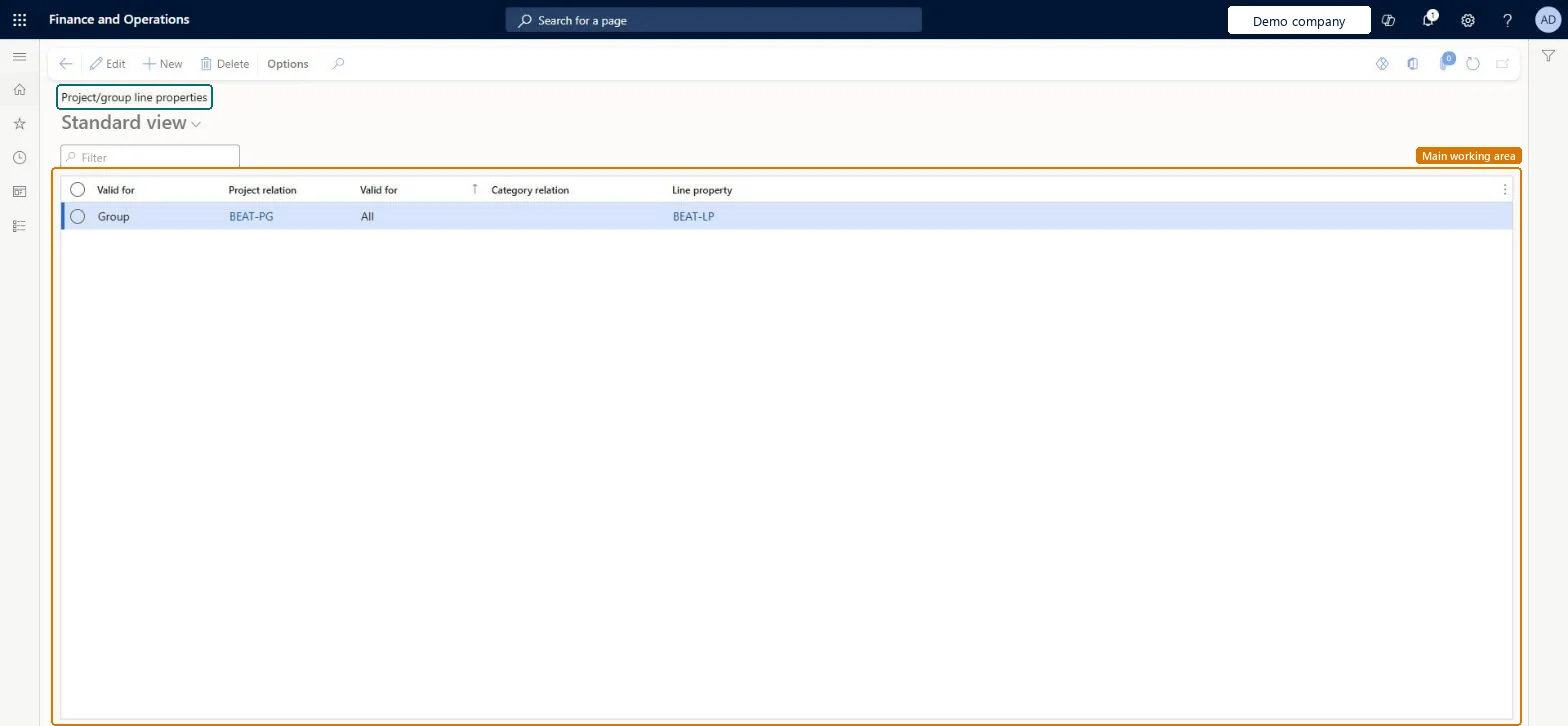
The page in Dynamics 365. page title tab to open what to set or check
About the examples: Examples and screenshots in this guide use BEAT, a demo company in a Dynamics 365 test environment. Use your own company's codes and values instead of copying them.
Step by step, with screenshots
Set up Project/group line properties1 screen
Use this page to set which line property is filled in automatically on journal lines, so it doesn't have to be entered by hand.
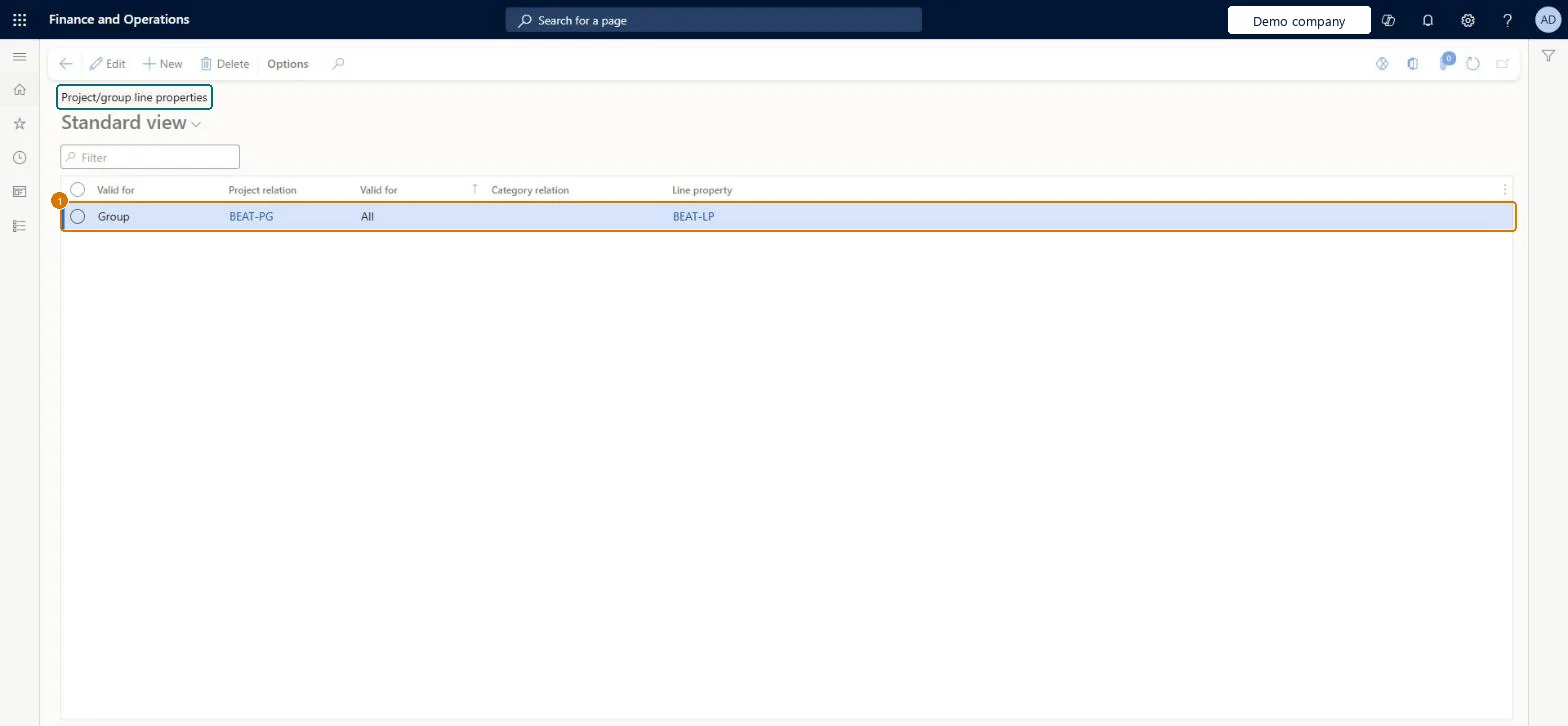
Screen 1
Set a line property for a project group
Go to Project management and accounting > Setup > Line properties > Project/group line properties
Make sure the project group and the line property exist
Select New
Set Valid for to Group and select the project group
Leave the category as All, or narrow it to a category or category group
Select the line property
Select Save
1Project relation
BEAT-PG
Valid for
Group
Line property
BEAT-LP
Show the full screen page title tab to open what to set or check
Steps from Microsoft
Go to Project management and accounting > Setup > Line properties > Project/group line properties.
Select New and choose in Valid for whether the row is for one project (Table), a project group (Group) or all projects (All).
Select the project or project group in Project relation, and the category or category group the row covers.
Select the Line property to default, then add project-level rows only for the exceptions.
Create an hour journal line on a project in the group and check the defaulted line property.
A journal line defaults to the wrong line property.
A more specific row wins: a project row beats a group row, and a group row beats an All row. Check for a project-level row before changing the group row. Microsoft Learn
Test checklist
Add a row for a project group with a Chargeable line property and a row for one project in that group with Nonchargeable.
Create an hour journal line for another project in the group and check it defaults to Chargeable.
Create a line for the project with its own row and check which line property defaults.
Set a default line property for each project group, and add project-level rows only for exceptionsProject groups carry default transaction line properties, and the default is added automatically to new project lines, which minimizes repetitive entry.
Reversible: Default rows can be changed or removed at any time and apply to new lines. Posted transactions are changed only through Adjust transactions. Microsoft Learn
If you change it later
A line property set for one project wins over a group line property and over one set for all projects. Microsoft Learn
Technical architect
6Technical
Menu item
ProjLinePropertySetupChecked in Dynamics 365
Form
ProjLinePropertySetupChecked in Dynamics 365
Table
ProjLinePropertySetupShown as “Line property setup” in Record infoKey field: ProjCode, ProjRelation, CategoryCode, CategoryRelationChecked in Dynamics 365
PrivilegesMaintain line properties ProjLinePropertyMaintainView line properties ProjLinePropertyViewDutiesInquire into project accounting policies ProjProjectAccountingPolicyInquireEnable project accounting process ProjProjectAccountingProcessEnable2 security rolesProject accountant ProjProjectAccountantProject supervisor ProjProjectSupervisorChecked in Dynamics 365
Roles to set it up and use it
To set it up or change itProject supervisor ProjProjectSupervisorTo use itProject accountant ProjProjectAccountantGive people one of these roles. On this system, 2 roles can open this page.Checked in Dynamics 365
Actions on the page
Options: Personalize, Page options, ShareChecked in Dynamics 365
ProjectLinePropertySetupEntity (Project line properties): loaded for each company, in Microsoft's default template 650 - Project accounting.Load order: Microsoft's default template 650 - Project accounting loads Project line properties at execution unit 1, level 650, sequence 30. Lower levels load first, and entities at the same level load in sequence order.Load first: the default templates at lower levels (System setup to Expense management)Microsoft Learn
Checked in a working Dynamics 365 system, version 10.0.49: the menu item, form, table and security, the page, the demo records and the values in the screenshots.