Project management and accountingInquiries and reportsCash flow reports
output:ProjCashFlowProject
Business process
Analyze project performance
Menu item
output:ProjCashFlowProject
Setup steps
1 on this page
Show what matters for
SETUP GUIDEHow to set it up8 sections. Choose a role to highlight what matters to you.
Everyone
1What it is and why
What it is
A report of cash inflows, cash outflows and net cash flow, one row per project, from paid and expected payments of project invoices and costs.
What you do here
It answers when cash comes in and goes out for each of the projects, so finance can plan cash and spot work that is done but not invoiced. Project managers, project supervisors, the CEO and the CFO can run it on this system.
Example
BEAT runs Project cash flow for November and December 2026 with paid and expected payments. PRJ-0042 shows inflows of 48,200.00 and outflows of 31,750.50, a net 16,449.50, while PRJ-0057 is 9,800.00 negative until its milestone invoice.
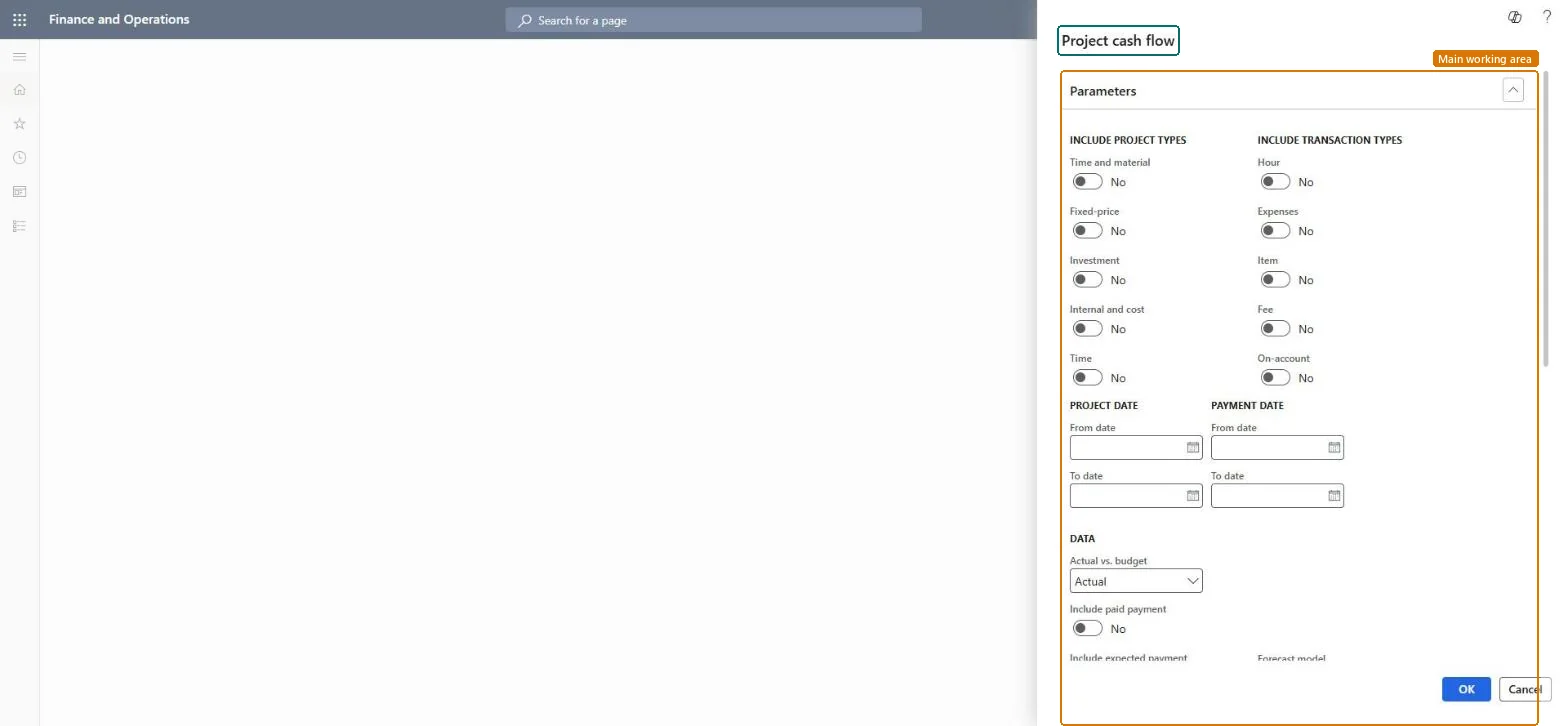
The page in Dynamics 365. page title tab to open what to set or check
About the examples: Examples and screenshots in this guide use BEAT, a demo company in a Dynamics 365 test environment. Use your own company's codes and values instead of copying them.
When to run it
When to run it
When you plan cash for the coming weeks, and at month end to compare cash with the forecast.
How often
Monthly, or weekly in tight cash periods.
Batch settings
Run it from the dialog; run it in the background on a recurrence if it feeds a regular cash meeting.
What the output shows
Cash inflows, cash outflows and net cash flow, one row per project.
Go to Project management and accounting > Inquiries and reports > Cash flow reports > Project cash flow.
Turn on the project types and transaction types whose cash you plan for each project, for example Time and material and Fixed-price with all transaction types.
Enter the Payment date range you plan for, for example the next two months, and turn on both Include paid payment and Include expected payment for the full picture.
Set Project view to Project (the default) or to a grouping such as customer, and set Project level to 1 to see parent projects with their subprojects summed into them.
Read cash inflows, outflows and net cash flow per project; expected inflows are dated at due date plus the general and individual buffer days.
For a project with large outflows and no inflow, create the invoice proposal for the work already done.
Includes payments already received from customers and paid to vendors.Checked in Dynamics 365
Yes
Include expected payment
Includes payments still expected. Expected inflow dates come from the invoice date, terms of payment and the general and individual buffer days.Microsoft Learn
Yes
Include project types
Turn on each project type to include. On this dialog the toggles are Time and material, Fixed-price, Investment, Internal and cost, and Time.Checked in Dynamics 365
Time and material and Fixed-price on
Include transaction types
Turn on each transaction type to include. On this dialog the toggles are Hour, Expenses, Item, Fee and On-account.Checked in Dynamics 365
Actual vs. budget
Actual (the default) shows actual cash flows; Budget shows cash flows from the forecast model.Checked in Dynamics 365
Actual
Forecast model
The forecast model that holds the forecast cash flows when Actual vs. budget is Budget.Microsoft Learn
FC-2026
Project view
How the first column is grouped: Project by default, or a grouping such as customer.Checked in Dynamics 365
Project
Project level
How many subproject levels the rows show.Checked in Dynamics 365
1
Skip blank ID
Leaves out lines that have no project ID.Checked in Dynamics 365
Skip zero
Leaves out rows where every amount is zero.Checked in Dynamics 365
Yes
Show amount
How amounts are printed: with decimals, without decimals, or in thousands or millions.Checked in Dynamics 365
With decimals
(Project date) From date / To date
Limits the report to transactions by project date.Checked in Dynamics 365
(Payment date) From date / To date
Limits the report to cash by paid or expected payment date.Checked in Dynamics 365
1 November 2026 to 31 December 2026
Common errors and fixes
Message
What to do
Expected customer payments fall later than the customer usually pays.
The expected date adds the General buffer days from the parameters and the Individual buffer days from the project contract to the due date; correct those days. Microsoft Learn
Test checklist
Post a project invoice of 10,000.00 for PRJ-0042 dated 31 October 2026 with 14-day payment terms.
Set General buffer days to 3 and Individual buffer days on the contract to 10.
Run Project cash flow with Include expected payment = Yes and check that the 10,000.00 inflow is dated 27 November 2026 (31 October + 14 + 13 days).
Set the Payment date range first and turn on both Include paid payment and Include expected payment.Paid payments alone show the past; expected payments alone hide cash already received. Both are needed for a net position.
On the live system, Project manager, Project supervisor, Chief executive officer and Chief financial officer can run this report.
Checked in Dynamics 365
Solution architect
5Design impact
Shared or per company
Per legal entity: the report reads the projects, transactions and setup of the company you run it in. Run it in each company to compare them. Checked in Dynamics 365
Can it be undone
Reversible: The report changes no data.
If you change it later
Rerun after invoices, payments or buffer days change; expected payment dates are recalculated from them. The report itself changes nothing downstream. Microsoft Learn
Technical architect
6Technical
Menu item
output:ProjCashFlowProjectChecked in Dynamics 365
Form
SysOperationTemplateFormChecked in Dynamics 365
Roles to set it up and use it
To use itProject manager ProjProjectManagerProject supervisor ProjProjectSupervisorChief executive officer CompanyChiefExecutiveOfficerChief financial officer CompanyChiefFinancialOfficerGive people one of these roles. On this system, 4 roles can run this page.Checked in Dynamics 365
Load order: Project cash flow has no data entity in Data management: it is a report. Move the project transactions, timesheets and forecasts it reads, and the report shows them when it runs.Checked in Dynamics 365