Project management and accountingInquiries and reportsResource scheduling inquiries
PSAResourceAssignments
Used by
Project manager, Resource manager
Business process
Plan projects
Menu item
PSAResourceAssignments
Main table
PSATmpSchedEmplReservation
Setup steps
1 on this page
Show what matters for
SETUP GUIDEHow to set it up8 sections. Choose a role to highlight what matters to you.
Everyone
1What it is and why
What it is
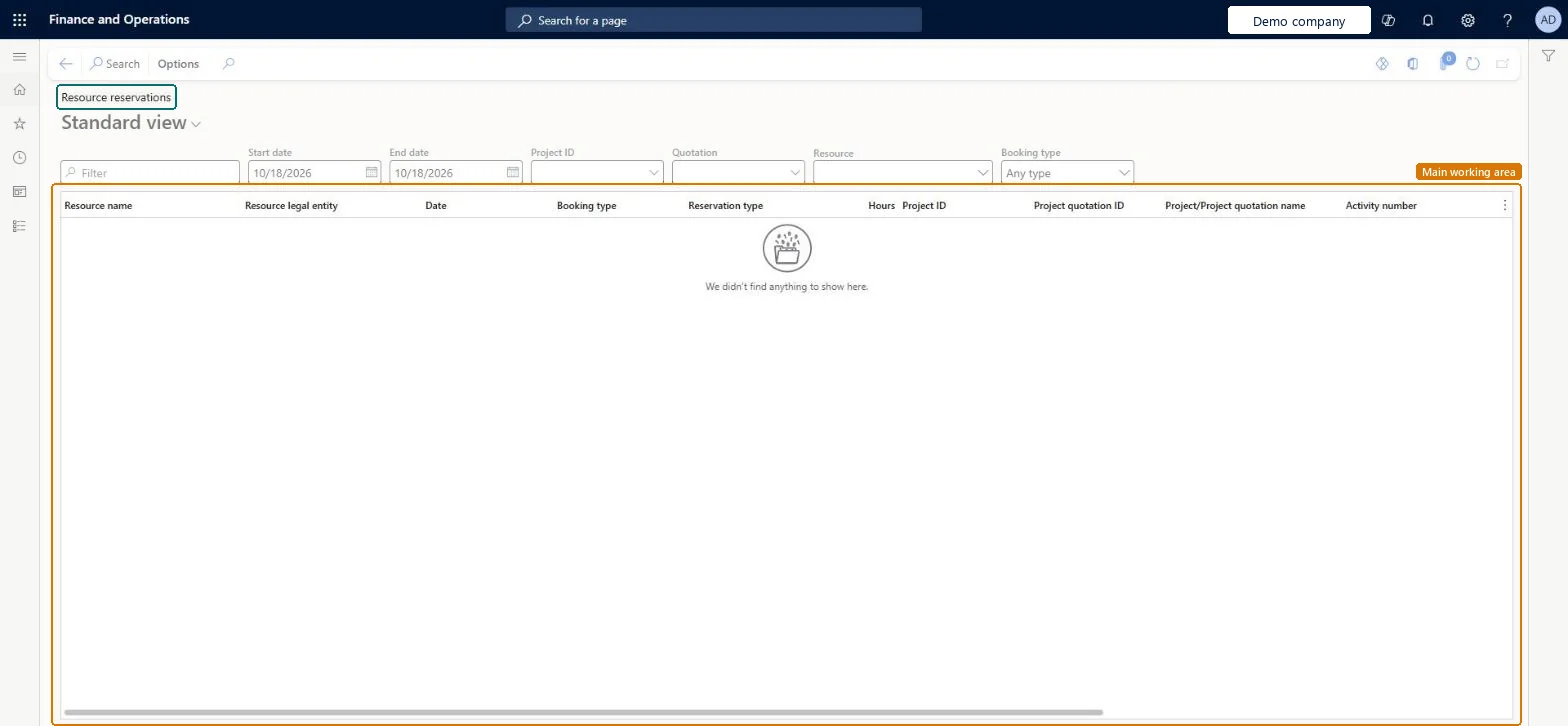
An inquiry that lists resource reservations for a date range, with resource, legal entity, date, booking type, reservation type, hours, project or quotation and activity.
What you do here
Use it to answer 'who is reserved on which project or quotation, on which days, and how firmly?' when you staff projects or check a resource's commitments.
Example
Before confirming quotation QUO-0311, the BEAT resource manager searches resource R-0105 from 1 to 30 November and finds 96.00 hours hard-booked on PRJ-0042 and 24.00 hours soft-booked on QUO-0311.
The page in Dynamics 365. page title tab to open what to set or check
About the examples: Examples and screenshots in this guide use BEAT, a demo company in a Dynamics 365 test environment. Use your own company's codes and values instead of copying them.
Setup steps on this page
Check a resource's reservations for a period
See where a resource is reserved before you book it again.
Steps from Microsoft
Go to Project management and accounting > Inquiries and reports > Resource scheduling inquiries > Resource reservations.
Enter a Start date and End date for the staffing period.
Narrow by Resource, Project ID, Quotation or Booking type, then select Search.
Read hours per day and booking type; replace planned or soft reservations with confirmed bookings on the project team when staffing is agreed.
The period to search; only reservations in it are listed.Checked in Dynamics 365
1 November to 30 November
Booking type
Narrows the list to one kind of booking.Checked in Dynamics 365
Project ID / Quotation
Limits the search to one project or quotation; quotations can reserve resources before the project exists.Microsoft Learn
PRJ-0042
Hours
The hours reserved for the resource on that date.Checked in Dynamics 365
8.00
Common errors and fixes
Message
What to do
A resource shows no reservations although they are on the project team.
Check the date range and Booking type filter; then run Synchronize resource calendars capacity across all companies if calendars changed. Microsoft Learn
Test checklist
Book resource R-0105 for 8.00 hours a day on PRJ-0042 for one week.
Search the inquiry for that week and R-0105.
Check that five lines of 8.00 hours show, 40.00 hours in total.
Enter the start and end date and filter on the resource; read booking type before hours.Soft reservations are tentative and hard ones commit the resource, so the same hours mean different things.
On the live system, Resource manager maintains this page and Project manager views it.
Checked in Dynamics 365
Solution architect
5Design impact
Shared or per company
Per company for the projects, but capacity comes from resource calendars that the capacity batch job fills across all companies, so a resource lent by another legal entity can show here. Microsoft Learn
Can it be undone
Reversible: Reading the page changes no data.
If you change it later
The page recalculates from bookings, assignments and calendar capacity each time you search; after a calendar change, run the capacity synchronization again or capacity stays at the old value. Microsoft Learn
Technical architect
6Technical
Menu item
PSAResourceAssignmentsChecked in Dynamics 365
Form
PSAResourceAssignmentsChecked in Dynamics 365
Table
PSATmpSchedEmplReservationShown as “Employee reservations” in Record infoChecked in Dynamics 365
To set it up or change itResource manager ProjResourceManagerTo use itProject manager ProjProjectManagerGive people one of these roles. On this system, 2 roles can open this page.Checked in Dynamics 365
Actions on the page
Options: Personalize, Page options, ShareChecked in Dynamics 365
Load order: The Resource reservations inquiry has no data entity in Data management: it fills a temporary table when you search. Reservations come from bookings and assignments on project teams (ResBooking and ResAssignment), created by staffing projects; capacity comes from the calendar synchronization job.Microsoft Learn
Checked in a working Dynamics 365 system, version 10.0.49: the menu item, form, table and security, the page.
To cite this step: PM-RA-140, Check a resource's reservations for a period. Beyond ERP Atlas Hub, 2026-11-11. https://www.beyonderp.cloud/atlas/step/PM-RA-140