Project management and accountingProject resources
ResResourceFulfillment
Used by
Resource manager
Business process
Plan projects
Menu item
ResResourceFulfillment
Main table
ResResourceFulfillmentView
Setup steps
1 on this page
Show what matters for
PAGE GUIDEWhat the page does and how to use it8 sections. Choose a role to highlight what matters to you.
Everyone
1What it is and why
What it is
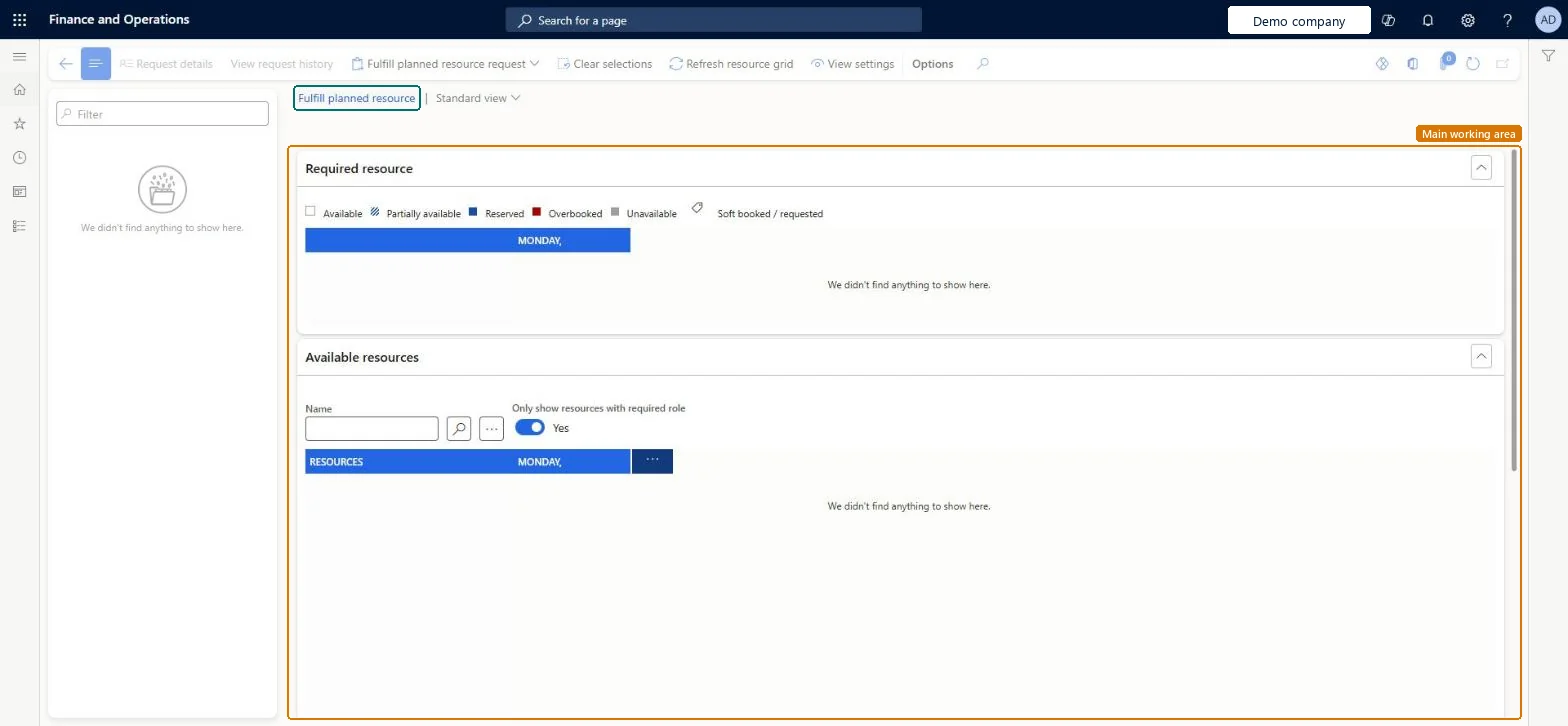
The resource manager's queue of planned project roles: each line is a role a project manager added to a project team, waiting for a real worker.
What you do here
Use it to assign an actual worker to each planned role, so the project team is staffed.
Example
For example, the project manager adds a Software developer role for 80.00 hours to PRJ-0042, and BEAT's resource manager assigns Emma to it here; the line then leaves the list.
The page in Dynamics 365. page title tab to open what to set or check
About the examples: Examples and screenshots in this guide use BEAT, a demo company in a Dynamics 365 test environment. Use your own company's codes and values instead of copying them.
Setup steps on this page
Fulfill planned roles in date order
Staff the roles that start first.
Steps from Microsoft
Go to Project management and accounting > Project resources > Resource fulfillment.
Select the planned role line for the project.
Select a worker, and then select Assign.
Check that the line is removed from Resource fulfillment.
On the project's Project team and scheduling tab, check that the worker now fills the role.
Sort the requests by start date and assign a worker whose role and competencies match before the role starts.An unstaffed role keeps the project team incomplete and its hours can't be booked to a worker.
On the live system, Resource manager use this page.
Checked in Dynamics 365
Solution architect
5Design impact
Shared or per company
Per company: the requests come from the projects of the legal entity you work in. Microsoft Learn
Can it be undone
Reversible: Assigning a worker replaces a planned role with a staffed resource on the project team. The project manager can update resource reservations at any project stage. Microsoft Learn
If you change it later
Assigning a worker replaces the planned role with a staffed resource on the project team; the project manager can update reservations at any project stage. Microsoft Learn
To set it up or change itResource manager ProjResourceManagerGive people one of these roles. On this system, 1 role can open this page.Checked in Dynamics 365
Actions on the page
Options: Personalize, Page options, ShareChecked in Dynamics 365
Load order: Resource fulfillment has no data entity in Data management. Requests come from planned roles on projects. Load projects and resources, then add the planned roles on each project.Checked in Dynamics 365