BeyondERP.Newsletter
Menu

Setup step on the Fee page · Project management and accounting

Review fee forecasts for revenue planning

Check expected fees across projects in one forecast model.

Used by
Project accountant, Project assistant, Project manager
Business process
Plan projects
Menu item
ProjForecastRevenue
Main table
ProjForecastRevenue
Data entity
ProjForecastRevenueEntity
Setup steps
1 on this page
Show what matters for
SETUP GUIDEHow to set it up8 sections. Choose a role to highlight what matters to you.
Everyone

1What it is and why

What it isAn inquiry that lists fee forecast lines for all projects, with forecast model, project date, project, category, resource, description and sales amounts. You can also enter and edit fee forecasts here.
What you do hereUse it to answer 'which fees do we expect to invoice, and when?' across projects, for revenue planning and cash flow forecasts.
ExampleThe BEAT project accountant filters model FC-2026 on category FEE-MGMT and finds a 1,500.00 EUR monthly management fee forecast on PRJ-0042 from November to March, 7,500.00 EUR in total.
Fee page in Dynamics 365
The page in Dynamics 365. page title tab to open what to set or check
Functional consultant · Solution architect

2Where it fits

End user · Functional consultant

3How to do it

About the examples: Examples and screenshots in this guide use BEAT, a demo company in a Dynamics 365 test environment. Use your own company's codes and values instead of copying them.

Setup steps on this page

Review fee forecasts for revenue planning

Check expected fees across projects in one forecast model.

Steps from Microsoft

  1. Go to Project management and accounting > Inquiries and reports > Forecasts inquiries > Fee.
  2. Filter on the Forecast model and the fee Category to see expected fees across projects.
  3. Check the project date of each fee line; the forecast has no fiscal period, so the date decides the month it counts in.
  4. Select New or Edit forecast transactions to add or correct a fee, then check the totals on Project forecast transactions.

Source: Microsoft Learn

Fields on the page

FieldWhat it meansExampleTable column
Forecast modelThe forecast model that the fee line belongs to; a default model is suggested for each new line.Microsoft Learn FC-2026ModelId
CategoryThe fee category of the forecast line.Checked in Dynamics 365FEE-MGMT
Sales currencyThe currency of the forecast fee amount.Checked in Dynamics 365EUR

Common errors and fixes

MessageWhat to do
A fee forecast on a Fixed-price project is missing from the revenue forecast.Fixed-price projects are invoiced through on-account transactions; forecast the billing schedule on On-account forecasts instead. Microsoft Learn

Test checklist

  1. Enter a fee forecast of 1,500.00 EUR on PRJ-0042 in FC-2026.
  2. Filter the inquiry on FC-2026 and the fee category.
  3. Check that the line shows with 1,500.00 EUR.

Source: Microsoft Learn

Functional consultant

4Setup decisions

Setup stepRecommended value and whyDecision, common mistake and test
Review fee forecasts for revenue planningFilter on the Forecast model and fee Category; read amounts by project date.Fee forecasts drive revenue and cash inflow views; the project date decides the month the fee counts in.Where is planned billing forecast for each project type?Forecasting Fixed-price billing as fees instead of on-account lines, so it shows in the wrong place.Test: Fee forecast filters by model

Feature management and licence

Licence or add-inOn the live system, Project manager, Project accountant and Project assistant maintain this page.

Checked in Dynamics 365

Solution architect

5Design impact

Shared or per companyPer company: forecast lines belong to the legal entity of the project, and each line sits in one forecast model. Microsoft data model
Can it be undoneReversible: Reading the page changes no data.
If you change it laterAnyone who has access to forecast pages can change fee lines without review or approval; revenue reports on the model change at once. Microsoft Learn
Technical architect

6Technical

Menu itemProjForecastRevenue Checked in Dynamics 365
FormProjForecastRevenue Checked in Dynamics 365
TableProjForecastRevenueShown as “Fee forecast” in Record infoKey field: ModelId, StartDate, ProjId, ProjFundingSource, ProjFundingSource_ContractId, ProjFundingSource_FundingSourceId, CategoryId, Resource, Resource_Name, Resource_ResourceId, Resource_ResourceCompanyId, ResourceCategory, LinePropertyIdChecked in Dynamics 365
Data entitiesProjForecastRevenueEntityFee forecast Microsoft data model
Who can open itPrivilegesMaintain fee forecasts ProjForecastRevenueMaintainView fee forecasts ProjForecastRevenueViewDutiesMaintain project budgets ProjProjectBudgetsMaintainMaintain project forecasts ProjProjectForecastMaintainInquire into project forecast status ProjProjectForecastStatusInquire
3 security rolesProject accountant ProjProjectAccountantProject assistant ProjProjectClerkProject manager ProjProjectManager
Checked in Dynamics 365
Roles to set it up and use itTo set it up or change itProject manager ProjProjectManagerProject accountant ProjProjectAccountantProject assistant ProjProjectClerkGive people one of these roles. On this system, 3 roles can open this page.Checked in Dynamics 365
Actions on the pageOptions: Personalize, Page options, ShareChecked in Dynamics 365
Developer

7Developer

Open it by URLhttps://<your-environment>/?mi=ProjForecastRevenue
Integrate withProjForecastRevenueEntity data entity Microsoft data model
Data migrationProjForecastRevenueEntity Fee forecast; loads the lines of this page.Load order: Load forecast models, projects and fee categories, then fee forecasts with ProjForecastRevenueEntity.Load first: Forecast models, Project categoriesMicrosoft data model
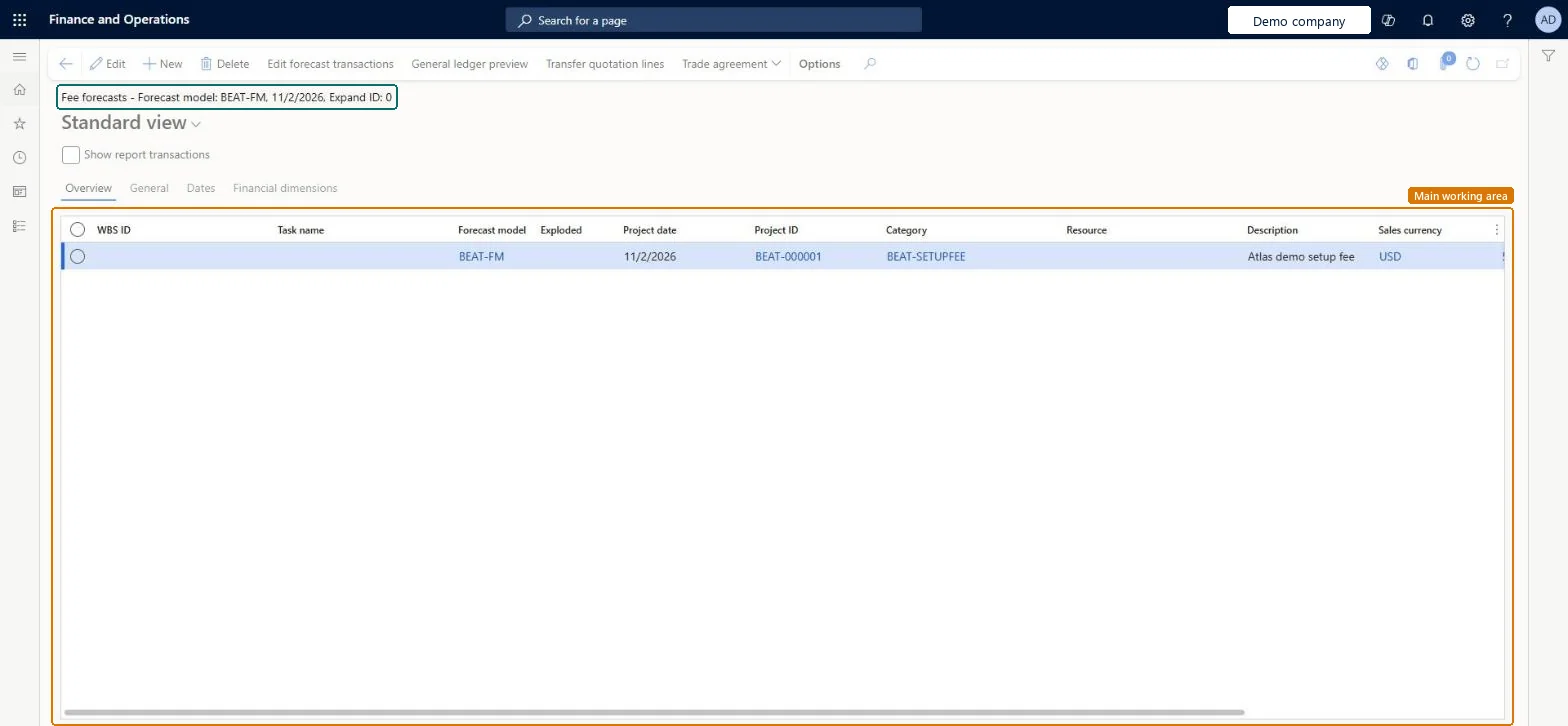
Table definitionProjForecastRevenue columns and relations Microsoft data model
Everyone

8Sources

To cite this step: PM-RA-070, Review fee forecasts for revenue planning. Beyond ERP Atlas Hub, 2026-11-11. https://www.beyonderp.cloud/atlas/step/PM-RA-070