Project management and accountingInquiries and reports
output:ProjListInvoiceTable
Business process
Manage project contracts
Menu item
output:ProjListInvoiceTable
Setup steps
1 on this page
Show what matters for
SETUP GUIDEHow to set it up8 sections. Choose a role to highlight what matters to you.
Everyone
1What it is and why
What it is
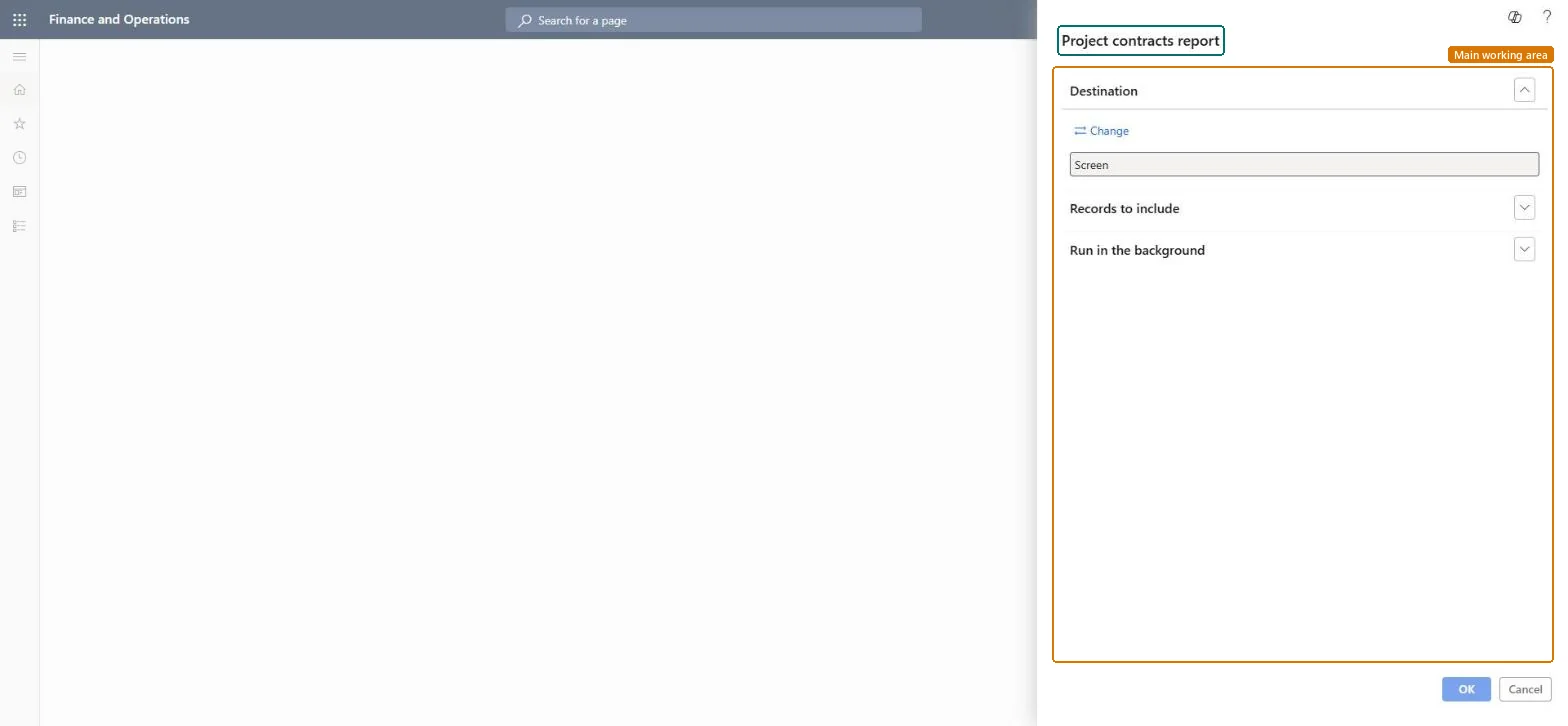
A report that prints project contract details, such as contract ID, name, sales currency and funding sources, for the contracts you select.
What you do here
Use it to answer 'what have we agreed with each customer?' before invoicing runs, a customer meeting or an audit of contract terms.
Example
Before the October invoicing run, the BEAT project accountant prints contract CON-0107 and sees two funding sources, the customer at 75.00 percent and a grant at 25.00 percent, in sales currency EUR.
The page in Dynamics 365. page title tab to open what to set or check
About the examples: Examples and screenshots in this guide use BEAT, a demo company in a Dynamics 365 test environment. Use your own company's codes and values instead of copying them.
When to run it
When to run it
Before an invoicing run or a customer meeting, and after new contracts are set up.
How often
On demand; monthly before invoicing.
What the output shows
Contract details per selected contract, including funding sources and sales currency.
Filter Records to include on the contracts in the next invoicing run.The contract's funding rules and limits decide who is billed and how much, for every project on the contract.
On the live system, Project manager, Project supervisor and Project accountant run this report.
Checked in Dynamics 365
Solution architect
5Design impact
Shared or per company
Per company: contracts belong to one legal entity, and the report prints the contracts of the company you're signed in to. Microsoft data model
Can it be undone
Reversible: Reading the page changes no data.
If you change it later
Contract settings apply to every project and subproject on the contract, so a change shown here changes how all of them are invoiced from the next invoice proposal. Microsoft Learn
Technical architect
6Technical
Menu item
output:ProjListInvoiceTableChecked in Dynamics 365
Form
SysOperationTemplateFormChecked in Dynamics 365
Roles to set it up and use it
To use itProject manager ProjProjectManagerProject supervisor ProjProjectSupervisorProject accountant ProjProjectAccountantGive people one of these roles. On this system, 3 roles can run this page.Checked in Dynamics 365
Load order: The Project contracts report has no data entity in Data management: it prints contract records. Load contracts with Project contract headers (ProjProjectContractHeaderEntity) before projects, then run the report to compare counts.Load first: Project contract headers (ProjProjectContractHeaderEntity)Microsoft data model